


Have your important documents, precious photos, or crucial project files mysteriously disappeared from OneDrive? This frustrating situation can cause panic and confusion. Don’t worry, you’re not alone! OneDrive’s sync and backup features, while powerful, can sometimes lead to files vanishing from both the cloud and local storage, particularly when multiple devices or accounts are involved. This guide provides a comprehensive approach to locating, restoring, and safeguarding your data in OneDrive. Let’s get your files back!
Why Do Files Disappear from OneDrive? Understanding the Culprits
Missing files in OneDrive can stem from various factors, including:
- Accidental Deletion: Files may have been accidentally deleted from OneDrive and are now residing in the Recycle Bin.
- Incorrect Account: You might be signed in to the wrong Microsoft account, such as a personal account when the files are stored in a work or school account.
- Sync Issues: Synchronization errors between OneDrive and your local devices can sometimes cause files to disappear.
- Retention Policies: Work or school accounts may have retention policies that automatically remove files after a certain period.
- Ransomware Attacks: Malware can sometimes delete or encrypt files in OneDrive.
Solution 1: Thorough Search on OneDrive.com – Uncover Hidden Files
The first step in recovering missing files is to perform a thorough search on the OneDrive website.
Step-by-Step Instructions:
1- Sign In to OneDrive: Go to www.onedrive.com and sign in to the account where your files were stored. Ensure you are using the correct Microsoft account.
2- Use the Search Everything Bar: Instead of only searching by filename, try entering keywords, file types, dates, or tags associated with the missing files. For instance, search for “report,” “April,” or “.jpg.”

3- Check OneDrive Mobile App: If you use the OneDrive mobile app, open it and use the Files view to search for missing content. If the app automatically opens when browsing, use a private or incognito browser window to access the web version instead.
Important Note: Files stored in the Personal Vault do not appear in standard search results. Unlock the Personal Vault and check its contents directly.
Solution 2: Restore from the OneDrive Recycle Bin – Give Deleted Files a Second Chance
The OneDrive Recycle Bin is a temporary holding place for deleted files. It’s the first place to look for missing data.
Recycle Bin Recovery:
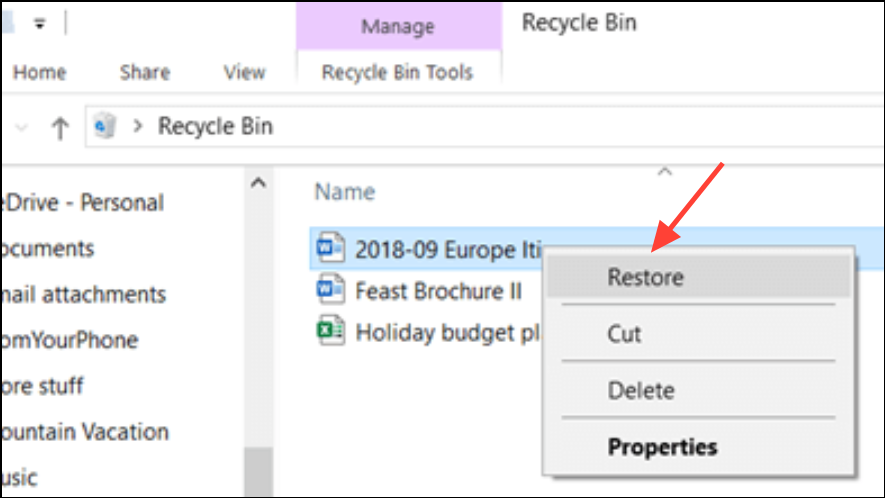
1- Access the Recycle Bin: On the left sidebar of the OneDrive website, select “Recycle bin.”
2- Search for Missing Files: Browse or search for the missing files in the Recycle Bin.
3- Restore Files: If you locate them, select the files and choose “Restore” at the top of the page. This action returns them to their original location in your OneDrive.
Personal Vault Tip: For files deleted from the Personal Vault, unlock the Vault before checking the Recycle Bin. If you do not see the option to show Personal Vault items, your Vault may already be unlocked or empty.
Solution 3: Double-Check Your Account – Are You in the Right Place?
It’s easy to accidentally sign in to the wrong Microsoft account, especially if you have multiple accounts.
Account Verification:
- Confirm Account: Ensure you are signed in with the correct Microsoft account.
- Multiple Accounts: If you previously used someone else’s device or account, or if multiple users share your computer, sign out and sign in again with each possible account to check for your files.
Account Inactivity Warning: Personal OneDrive accounts inactive for two years may be deleted, and work or school accounts may have files automatically removed after a set retention period (commonly 93 days).
Solution 4: Restore Your Entire OneDrive – Turn Back Time
If you have a Microsoft 365 subscription, you can roll back your entire OneDrive to a previous point in time. This is effective for mass deletions or ransomware attacks.
OneDrive Restore Instructions:
1- Access Restore Feature: Visit onedrive.live.com/?v=restore.
2- Roll Back OneDrive: Use the available options to roll back your entire OneDrive to a previous point within the last 30 days.

3- Recover Files: Files created after the restore point will be sent to the Recycle Bin, where you can recover them if needed.
Solution 5: Check Local Storage and Devices – Don’t Forget the Physical World
Sometimes, files are saved locally but haven’t synced to OneDrive, or vice versa.
Device Storage Search:
1- Search Local Storage: Use File Explorer (Windows), Finder (macOS), or the Files app (mobile devices) to search your local storage.
2- Verify Folder Locations (Windows): On Windows, right-click the affected folder (e.g., Documents or Pictures) and select “Properties” > “Location” to confirm it’s pointing to the correct OneDrive location. If not, update the path and manually move any missing data.

3- Check Recycle Bin/Trash: Check your computer’s Recycle Bin or Trash for locally deleted files.
4- iCloud Photos (iOS): If you use iOS devices with iCloud Photos optimization, disable “Optimize Storage” in Settings > iCloud > Photos to ensure photos are available for upload and recovery.

Additional Troubleshooting and Support
If files are missing from both OneDrive and your local device and are not present in the Recycle Bin, consider the following:
- Check Version History: Review the Version History of files in OneDrive for previous versions that may contain your data.
- Review OneDrive Activity Log: Check the OneDrive activity log for recent deletions, moves, or sync activity. Lack of logged actions may indicate a sync error or account issue.
- Contact Microsoft Support: Contact Microsoft Support with detailed information, including file/folder names, dates last accessed, and the devices used.
- App-Specific Behaviors: If you use specialized apps like Obsidian or Samsung Gallery, verify their sync settings and local folder structure.
- Maintain Separate Backups: For critical data, maintain separate backups outside of OneDrive, such as external drives or alternative cloud storage.
Conclusion:
By systematically searching, restoring, and verifying account settings, you can recover most files that disappear from OneDrive. Implement regular backups and careful management of sync settings to prevent future issues and ensure the safety of your valuable data. Don’t let missing files disrupt your life – take control of your OneDrive and protect your digital world!
And if you'd like to go a step further in supporting us, you can treat us to a virtual coffee ☕️. Thank you for your support ❤️!

We do not support or promote any form of piracy, copyright infringement, or illegal use of software, video content, or digital resources.
Any mention of third-party sites, tools, or platforms is purely for informational purposes. It is the responsibility of each reader to comply with the laws in their country, as well as the terms of use of the services mentioned.
We strongly encourage the use of legal, open-source, or official solutions in a responsible manner.
Comments