
Minecraft continues to captivate players with its limitless sandbox universe, allowing endless creativity, exploration, and survival adventures. On Windows 11 version 25H2, Minecraft installation and management are handled primarily through the Minecraft Launcher available in the Microsoft Store, making reinstalling the game easier than ever.
If Minecraft is crashing, not launching properly, or you simply want to reinstall it, the good news is that you can do so without losing your saved worlds or settings.
This guide explains how to reinstall Minecraft on Windows 11 25H2 while keeping your saved game data, as well as how to perform a fresh reinstall if you want to start from scratch.
Reinstall Minecraft Without Losing Saved Worlds
If Minecraft is malfunctioning but you want to keep your worlds, mods, and settings, follow these steps.
1- Open File Explorer on your Windows 11 PC. You can do this by clicking the File Explorer icon on the taskbar or by pressing Windows + E on your keyboard.
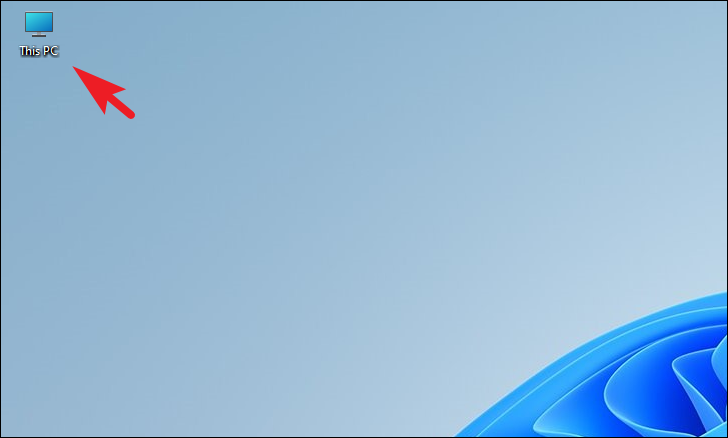
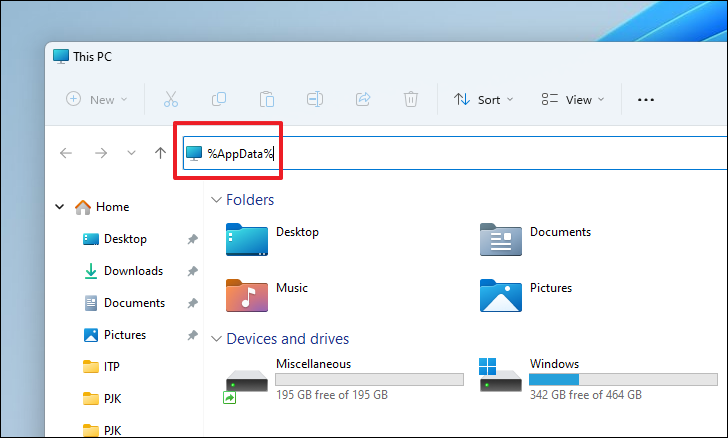
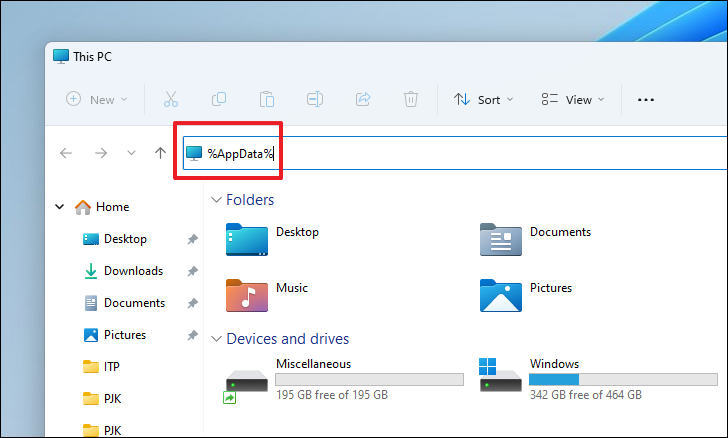
2-In the File Explorer window, click the address bar at the top. Type %AppData% and press Enter. This will take you to the AppData directory where Minecraft stores its files.
3- Locate the .minecraft folder in the list. Click it to select it, then press Ctrl + C to copy it. Paste the copy in a safe location, such as your Desktop or an external drive. This backup will ensure that your game saves are preserved.
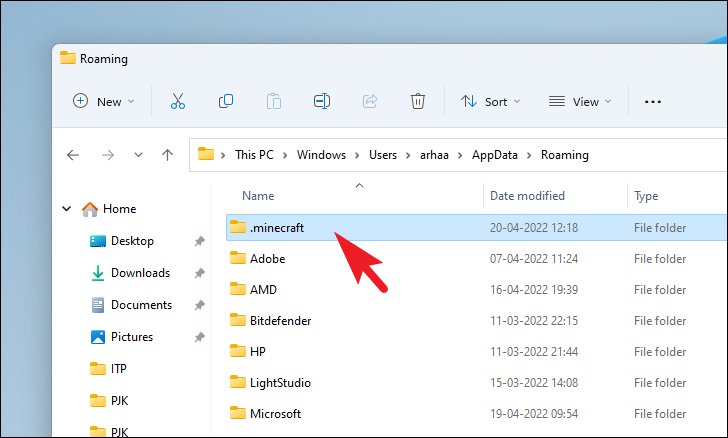
4- Return to the %AppData% directory. Select the original .minecraft folder and press Shift + Delete to permanently remove it from your system. Confirm the deletion if prompted.
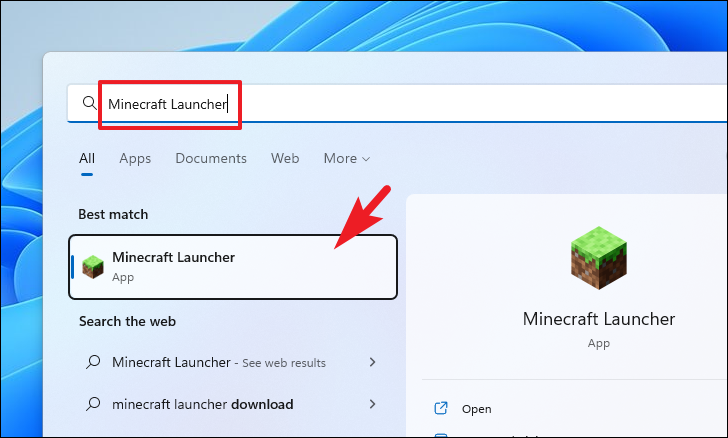
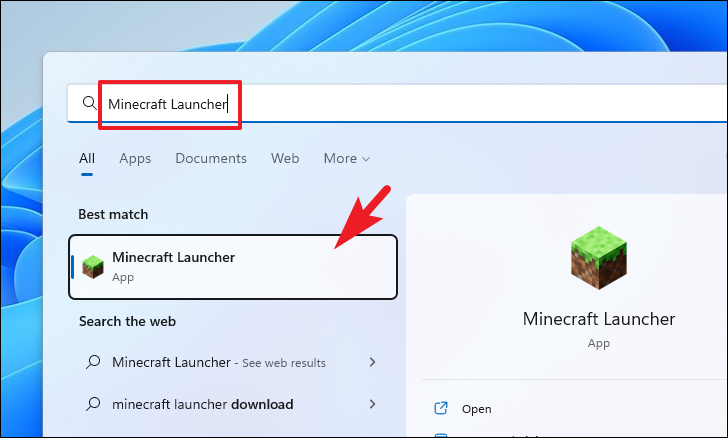
5- Open the Start Menu and search for Minecraft Launcher. Click the application in the search results to open it.
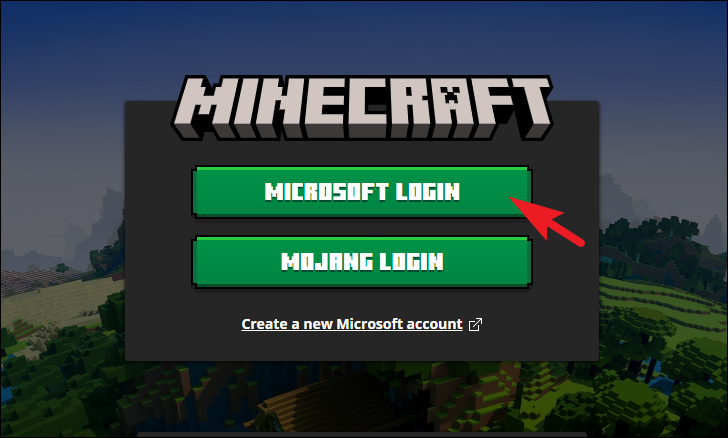
6- Sign in to the launcher using your Microsoft account by clicking the Microsoft Login button. This will authenticate your Xbox account and give you access to your game purchases.
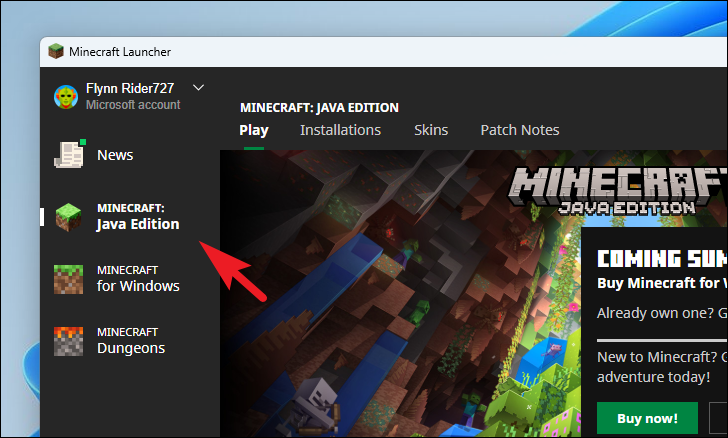
7- After logging in, choose the Minecraft edition you want to install from the left sidebar. Click the Play button to start downloading and installing the game.

8- Once the installation is complete and the game launches, exit the game and close the launcher.
9- Go to the location where you saved the backup of the .minecraft folder. Select the folder and press Ctrl + C to copy it.

11- Open File Explorer again and navigate back to the %AppData% directory by typing %AppData% in the address bar and pressing Enter.

11- Paste the copied .minecraft folder into the %AppData% directory by pressing Ctrl + V. If prompted to replace files or folders, confirm the action to overwrite the existing ones. This will restore your saved games.
12- Launch Minecraft using the Minecraft Launcher. Your game should now load with all your previous settings and saved worlds intact.
Fresh Reinstall of Minecraft (Clean Installation)
If you want a completely fresh start, follow this method instead.
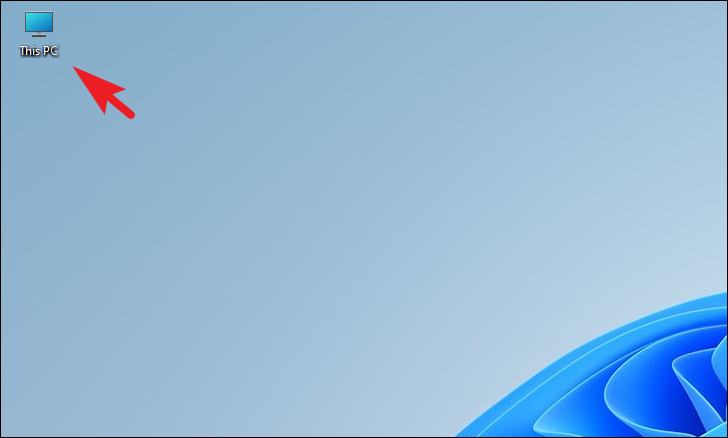
1- Open File Explorer by clicking the File Explorer icon on your taskbar or by pressing Windows + E on your keyboard.
2- Click the address bar at the top of the File Explorer window. Type %AppData% and press Enter to access the AppData directory.
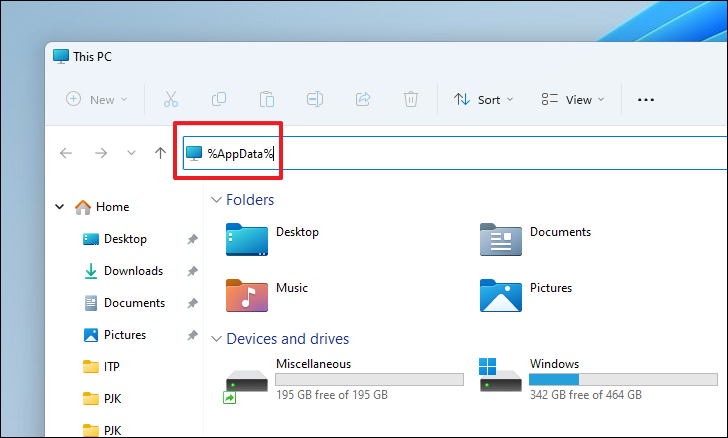
3- Locate the .minecraft folder in the list. Right-click on it and select Delete (or click the trash icon) to remove it from your system.

4- Open the Start Menu and search for Minecraft Launcher. Click the application in the search results to open it.
5- Sign in using your Microsoft account by clicking the Microsoft Login button. This will ensure you have access to your purchased content.
6- Select your preferred Minecraft edition from the left sidebar. Click the Play button to download and install the game. Once the process is complete, you will have a fresh installation of Minecraft on your Windows 11 PC.

✅ Final Thoughts
Reinstalling Minecraft on Windows 11 25H2 is simple and usually resolves crashes, launcher errors, and installation issues. By backing up the .minecraft folder, you can safely reinstall the game without losing your worlds, mods, or progress.
Whether you want to fix problems or start fresh, these steps will get you back to exploring your Minecraft worlds quickly.
And if you'd like to go a step further in supporting us, you can treat us to a virtual coffee ☕️. Thank you for your support ❤️!

We do not support or promote any form of piracy, copyright infringement, or illegal use of software, video content, or digital resources.
Any mention of third-party sites, tools, or platforms is purely for informational purposes. It is the responsibility of each reader to comply with the laws in their country, as well as the terms of use of the services mentioned.
We strongly encourage the use of legal, open-source, or official solutions in a responsible manner.
Comments