

You may have noticed a Microsoft Teams icon on the new Windows 11. The tool is Microsoft’s way of creating a communication ecosphere.
As the app is tailored for business communications, normal users rarely use it. And if you are like me, who wants to get rid of this app altogether, it’s not that simple.
The issue with uninstalling this app is that, while we can uninstall it, the program will redownload itself if you click on the chat icon.
This automatic installation feels a little forceful on Microsoft’s part. So, we have a workaround for our readers.
We will teach you how to get rid of the chat icon and the complete app from windows 11. A few command lines and tweaks in the setting will get the job done. Just follow the steps below.
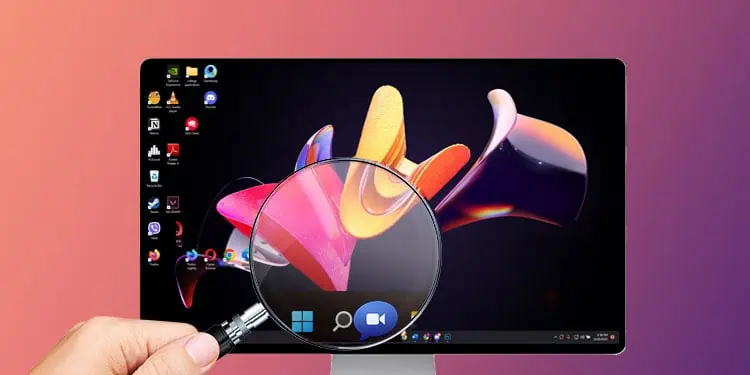
How to Remove Chat Icon From Taskbar
As the title suggests, we can remove the icon from the taskbar with a series of steps. This doesn’t mean we are removing the program itself.
We see many people suggesting using group policy editor, but do not fall for it. We can remove chat icons using similar methods to remove widgets.
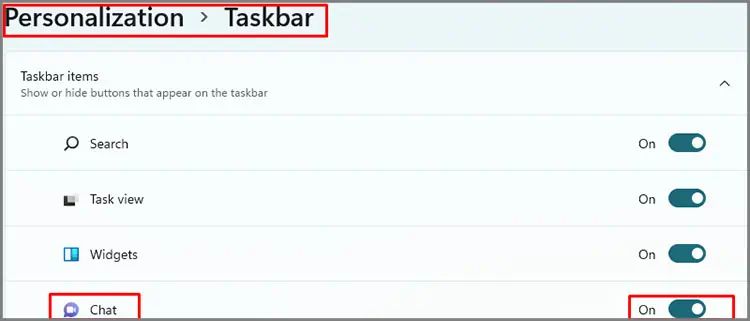
Taskbar Settings
1- Get to Windows Settings.
2- Choose Personalization from the left panel.
3- Find & Select Taskbar.
4- Under Taskbar items, toggle Chat off.
Command Prompt/ PowerShell Method
Press the Windows key and search either command prompt or PowerShell.
1- Right-click on it and select run as administrator
2- Run the command stated below:
REG ADD "HKEY_CURRENT_USER\Software\Microsoft\Windows\CurrentVersion\Explorer\Advanced" /f /v TaskbarMn /t REG_DWORD /d 0 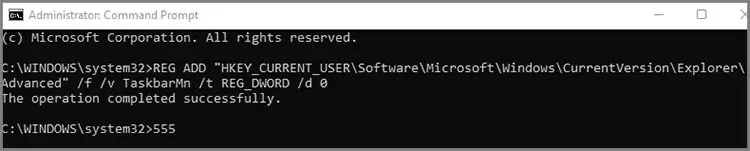
3- Run the command stated below:
REG ADD "HKEY_LOCAL_MACHINE\SOFTWARE\Policies\Microsoft\Windows\Windows Chat" /f /v ChatIcon /t REG_DWORD /d 3 
4- The 3rd step will remove the chat icon from the taskbar. The 4th step will remove the chat toggle option from Settings> Personalization>tasbar>chat giving users no way to enable the icon in the future.
Use Registry Editor
This registry method is the same procedure as step 3 from the command prompt/ power shell method above. The command removes the chat icon from the taskbar.
1- Press Windows Key+ R and run regedit.
2- Type the following address in the address bar:
Computer\HKEY_CURRENT_USER\Software\Microsoft\Windows\CurrentVersion\Explorer\Advanced3- Find an option titled TaskbarMn.
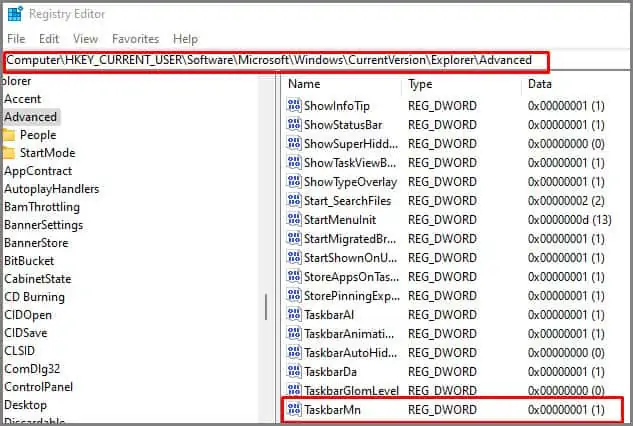
4- Double click on it and set the value to 0.
5- If you need to bring the icon back, replace the value as 1 instead of using 0. This step applies both command prompt/ PowerShell or registry editor methods.
Remove Chat Permanently From Taskbar in Windows 11
Permanent Removal of Microsoft teams might be a bit difficult. We will approach this by the removing the following things:
- All present icons
- Options to bring icons
- Program files
- App data
- Any installers that might reinstall the program automatically
Follow the steps stated below:
Disable All Icon Functionalities
1- Press the Windows key and either search command prompt or PowerShell.
2- Right-click on it and run as administrator.
3- Run the following command:
REG ADD"HKEY_CURRENT_USER\Software\Microsoft\Windows\CurrentVersion\Explorer\Advanced" /f /v TaskbarMn /t REG_DWORD /d 04- Next, run the following command:
REG ADD "HKEY_LOCAL_MACHINE\SOFTWARE\Policies\Microsoft\Windows\Windows Chat" /f /v ChatIcon /t REG_DWORD /d 35- Close Powershell or Command prompt.
Uninstall Microsoft Teams From Windows Settings
1- Press Windows Key + X and select Settings.
2- Click on Apps from the left panel.
3- Select Apps and features.
4- Search Microsoft Teams. The search will show Two or three listings with the title Microsoft Teams.
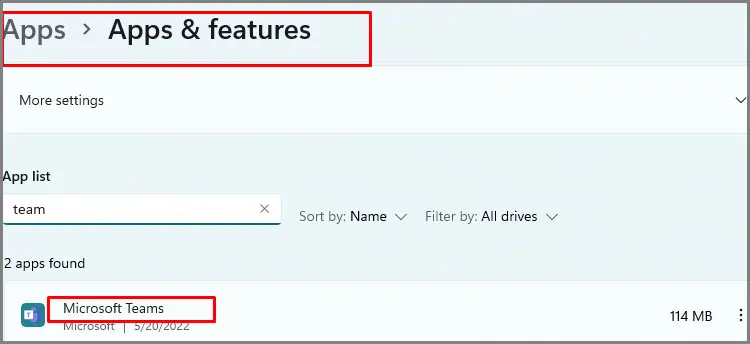
5- Uninstall all listings. Remember to delete any listing named Microsoft Teams or Teams Machine-wide installer.
Delete All AppData
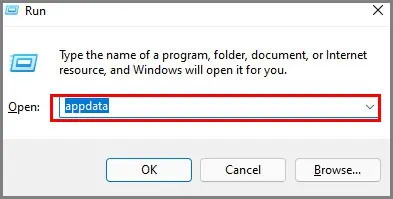
1- Go to the AppData section through windows run.
2- Check the Local and Roaming folder and find Microsoft> teams.
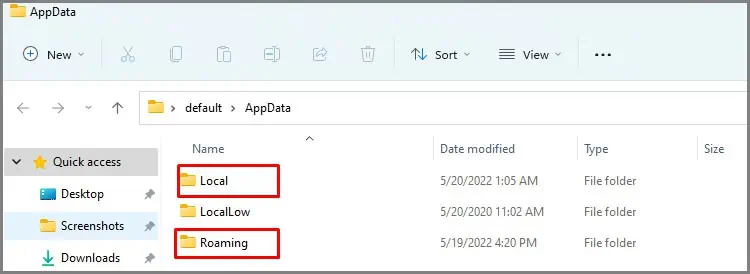
3- Delete these folders.
And if you'd like to go a step further in supporting us, you can treat us to a virtual coffee ☕️. Thank you for your support ❤️!

We do not support or promote any form of piracy, copyright infringement, or illegal use of software, video content, or digital resources.
Any mention of third-party sites, tools, or platforms is purely for informational purposes. It is the responsibility of each reader to comply with the laws in their country, as well as the terms of use of the services mentioned.
We strongly encourage the use of legal, open-source, or official solutions in a responsible manner.
Comments