

Loading R packages can sometimes present unforeseen challenges, particularly when encountering the “LoadLibrary failure” linked to stats.dll. This critical error usually signals that vital files or system dependencies are missing from your R installation. Such failures impede access to essential statistical functions and disrupt your data analysis procedures. In this comprehensive guide, we will explore actionable steps to troubleshoot and fix the stats.dll error, ensuring your R environment operates smoothly and efficiently.
Step 1: Repair or Reinstall R for Missing or Corrupted Files
1- Download the Latest Version: Begin by visiting the official CRAN website to download the most recent version of R. This step is crucial as it guarantees that all necessary DLLs, including stats.dll, are present and up-to-date.
2- Run the Installer: Launch the downloaded installer and adhere to the prompts. Opt for the repair option instead of uninstalling when given the choice. This important choice allows for the replacement of missing or damaged files without affecting your existing R packages or personal settings.

3- Restart Your Computer: Post-installation, it is essential to reboot your system. This action ensures that all system paths and potential locked files are properly refreshed, making them available once again to R.
Verify Package Loading: Open R or RStudio and try to load a package that previously encountered the error. Running library(stats) in the R console will help confirm if the issue is resolved.
Step 2: Check and Update System Environment Variables
1- Open Environment Variables: Access your system’s environment variables settings. On Windows systems, simply search for “Environment Variables” using the Start menu and select “Edit the system environment variables.”
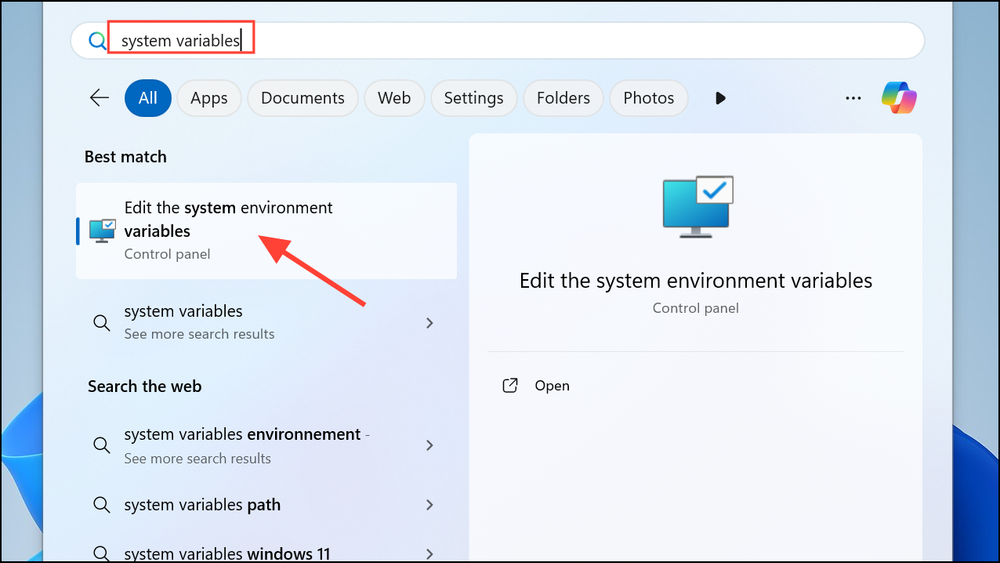
2- Navigate to the Advanced Tab: Click on the Advanced tab at the top of the window, then select the Environmental Variables button.

3- Inspect the PATH Variable: Under the “System variables” section, find the PATH variable and ensure it includes the path to your R bin directory (e.g., C:\Program Files\R\R-4.3.0\bin).

4- Add or Modify the R Bin Path: If the R bin path is missing, add it as needed. Confirm the changes by clicking OK and restart your computer to apply the updates.
5- Test Package Loading: Open a new R session and attempt to load the previously affected package again.
Step 3: Manually Replace stats.dll (Advanced)
1- Obtain a Clean Copy: If the stats.dll file is either missing or corrupted, secure a clean copy from a working R installation of the same version. This can be obtained from another machine or by re-extracting it from the R installer archive.
2- Access the Correct Directory: Navigate to the library location for your R installation, specifically in either library\stats\libs\x64 or library\stats\libs\i386, depending on your system’s architecture.
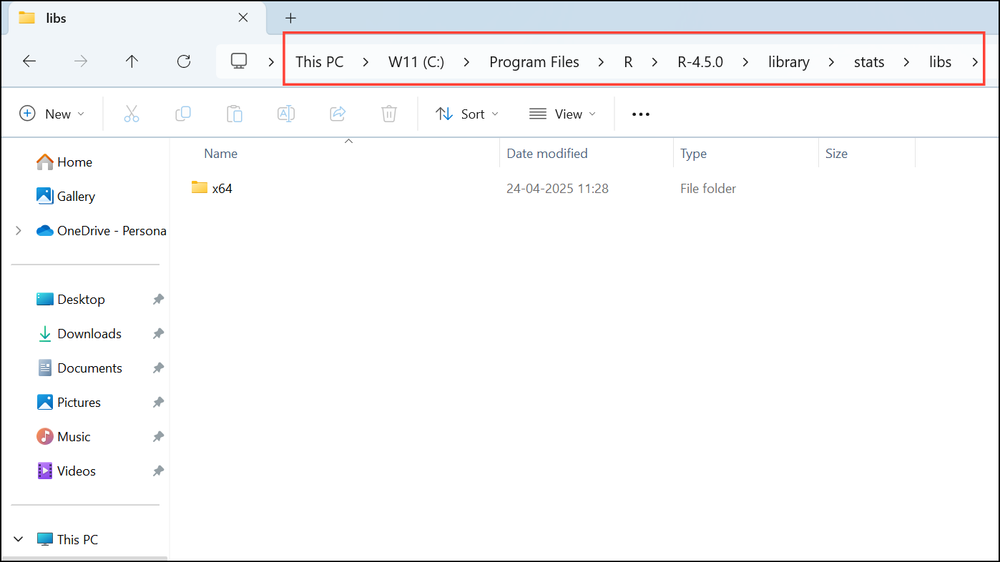
3- Replace the DLL File: Transfer the clean stats.dll file into this directory, making sure to replace the existing file if prompted.
4- Test for Resolution: Open R again and attempt to load the problematic package. If successful, the DLL replacement resolved the issue.
Step 4: Investigate Conflicting Software or Antivirus Interference
- Examine Antivirus Quarantine Logs: Certain antivirus or security software may inadvertently block or quarantine stats.dll or related R files. Check your antivirus quarantine logs for any such occurrences and restore files as necessary.
- Set Exceptions in Antivirus Settings: To prevent future conflicts, add an exception for your R installation folder within your antivirus settings, following your antivirus provider’s documentation.
- Restart and Test Again: After setting these exceptions, reboot your computer and attempt to load your R packages once more.
Conclusion
Encountering the “LoadLibrary failure” related to stats.dll can be frustrating, but with the outlined steps, you can restore full functionality to your R packages efficiently. By repairing or reinstalling R, updating system environment variables, manually replacing DLLs, and resolving potential software conflicts, you will not only solve the immediate issue but also minimize the risk of similar errors occurring in the future. Maintaining your R installation diligently ensures a smooth experience in your data analysis pursuits, facilitating uninterrupted computation and insightful statistical work.
And if you'd like to go a step further in supporting us, you can treat us to a virtual coffee ☕️. Thank you for your support ❤️!

We do not support or promote any form of piracy, copyright infringement, or illegal use of software, video content, or digital resources.
Any mention of third-party sites, tools, or platforms is purely for informational purposes. It is the responsibility of each reader to comply with the laws in their country, as well as the terms of use of the services mentioned.
We strongly encourage the use of legal, open-source, or official solutions in a responsible manner.
Comments