

If your Start menu or taskbar is missing in Windows 11, don’t panic. This guide provides effective solutions to restore these critical features quickly. The Start menu and taskbar are essential for smooth navigation, and when they go missing, productivity can come to a halt. This article will walk you through several troubleshooting steps to help you regain access to these important Windows components.
1. Remove the IrisService Registry Key
One common cause for the missing Start menu and taskbar is a problematic registry key, specifically the IrisService. This method involves modifying the registry; ensure you follow the steps carefully.
Steps to Remove the IrisService Registry Key
Step 1: Press Ctrl + Shift + Esc to open the Task Manager. If it opens in compact mode, click on “More details” at the bottom to expand your view.
Step 2: In Task Manager, select Run new task located at the top of the window. This opens a dialog box.
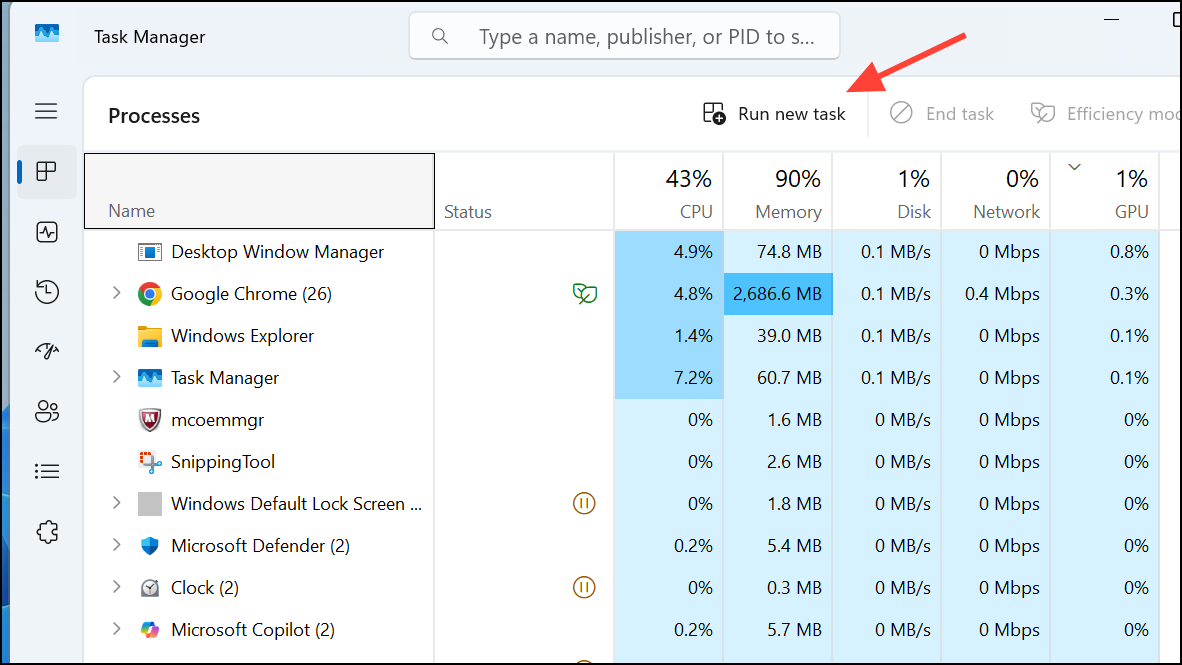
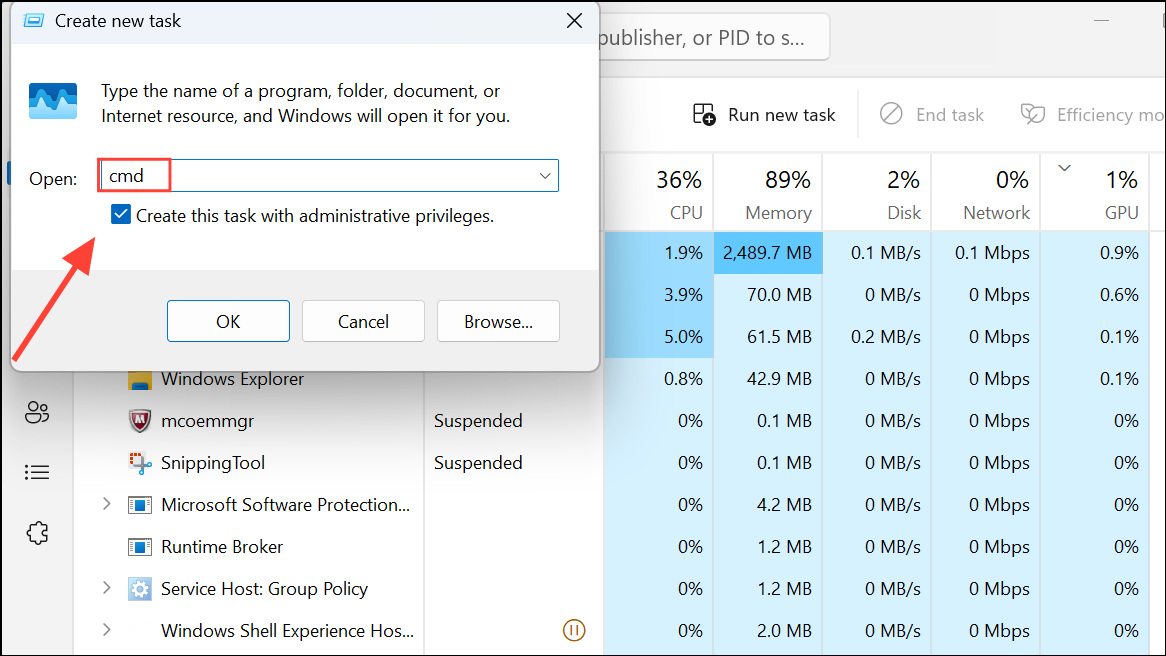
Step 3: Type cmd in the box, ensure you select the option to run it as an administrator, then click OK. This action will open a Command Prompt window.
Step 4: Copy and paste the following command into the Command Prompt and press Enter: 1reg delete HKCU\SOFTWARE\Microsoft\Windows\CurrentVersion\IrisService /f && shutdown -r -t 0
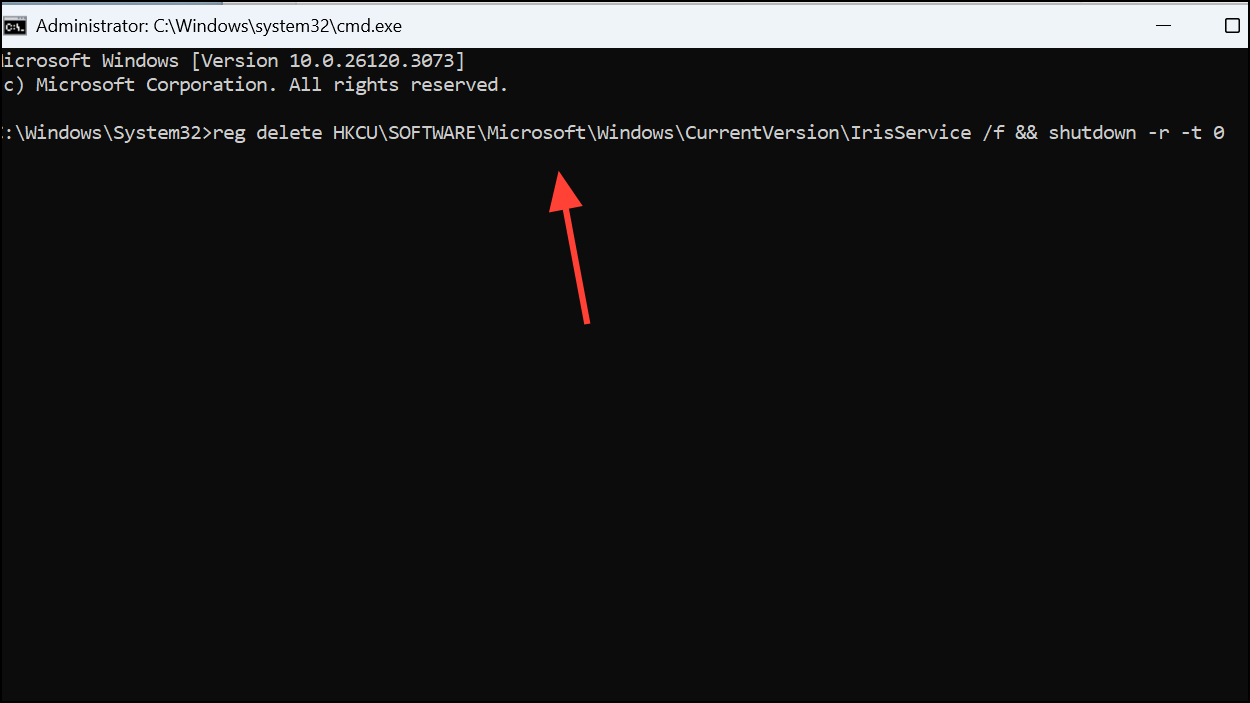
This command deletes the problematic registry key and instantly restarts your PC. When Windows reboots, the Start menu and taskbar should reappear and work normally.
2. Install Windows Updates
Regular updates from Microsoft often contain fixes for bugs affecting core system functionalities. Installing these updates can resolve underlying issues causing the Start menu and taskbar to disappear.
Steps to Check for Updates
Step 1: Press Windows key + I to open the Settings app.
Step 2: From the left pane, choose Windows Update.
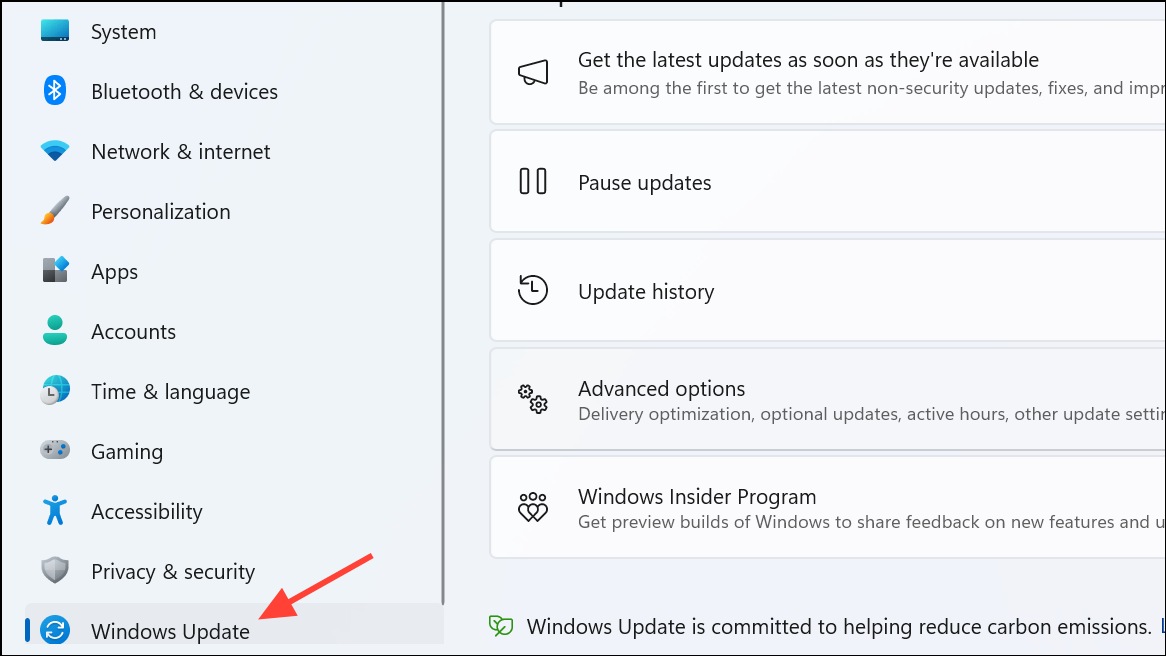
Step 3: Click Check for updates. Download and install any updates that are available.
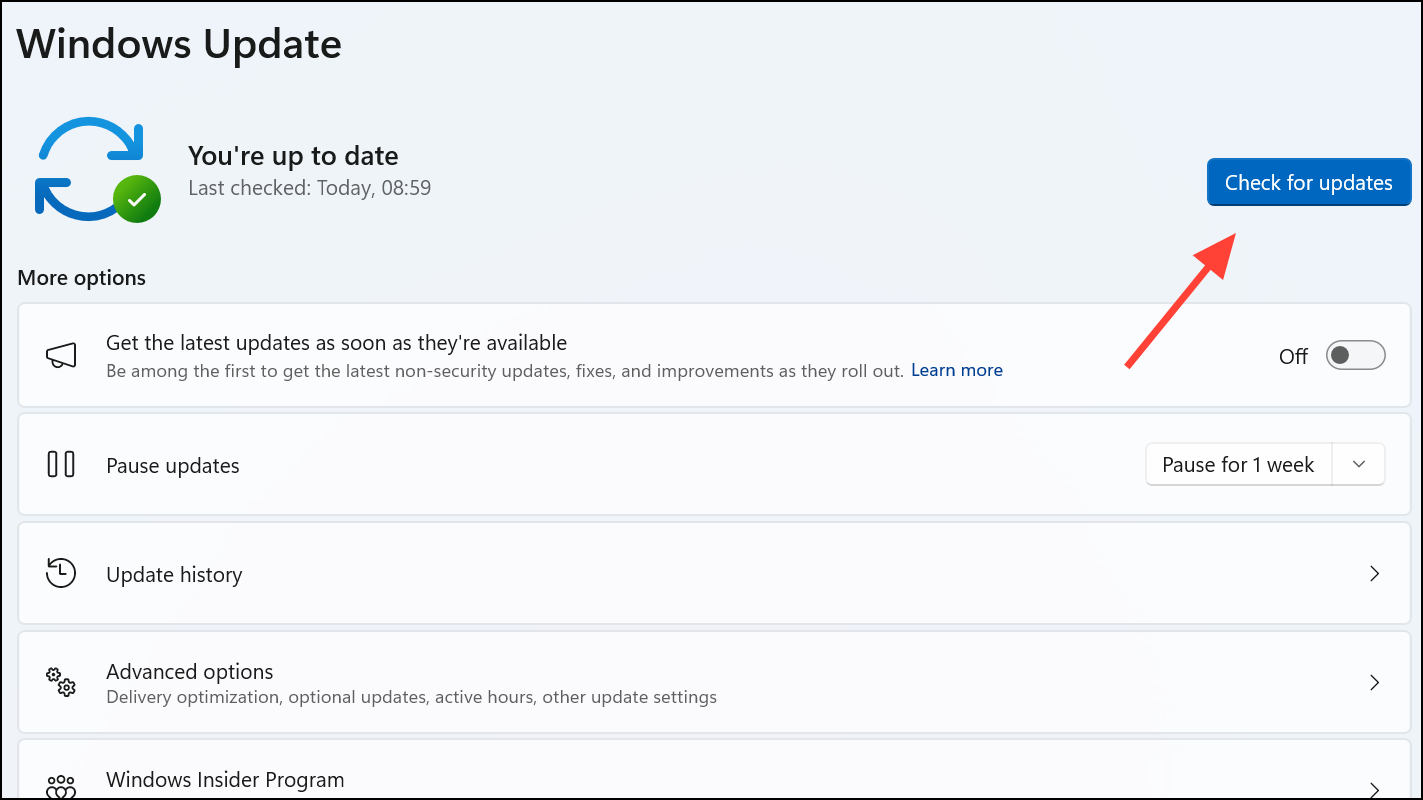
Step 4: After the installation is complete, restart your PC. This should restore functionality to the Start menu and taskbar if an update addressed the issue.
3. Restart Windows Explorer
Sometimes a simple restart of the Windows Explorer process can bring back missing elements in the graphical interface.
Steps to Restart Windows Explorer
- Step 1: Open Task Manager with
Ctrl + Shift + Esc. - Step 2: Locate
Windows Explorerin the Processes tab. - Step 3: Right-click on
Windows Explorerand selectRestart.

This action refreshes the desktop environment, and you might find your taskbar and Start menu restored. Note, however, that this may only be a temporary fix.
4. Adjust Date and Time Settings
Incorrect date and time settings can sometimes interfere with system processes, causing the Start menu and taskbar to vanish. Ensuring these settings are correctly configured can help resolve the issue.
Steps to Adjust Date and Time
Step 1: Open Task Manager using Ctrl + Shift + Esc, then select File > Run new task.
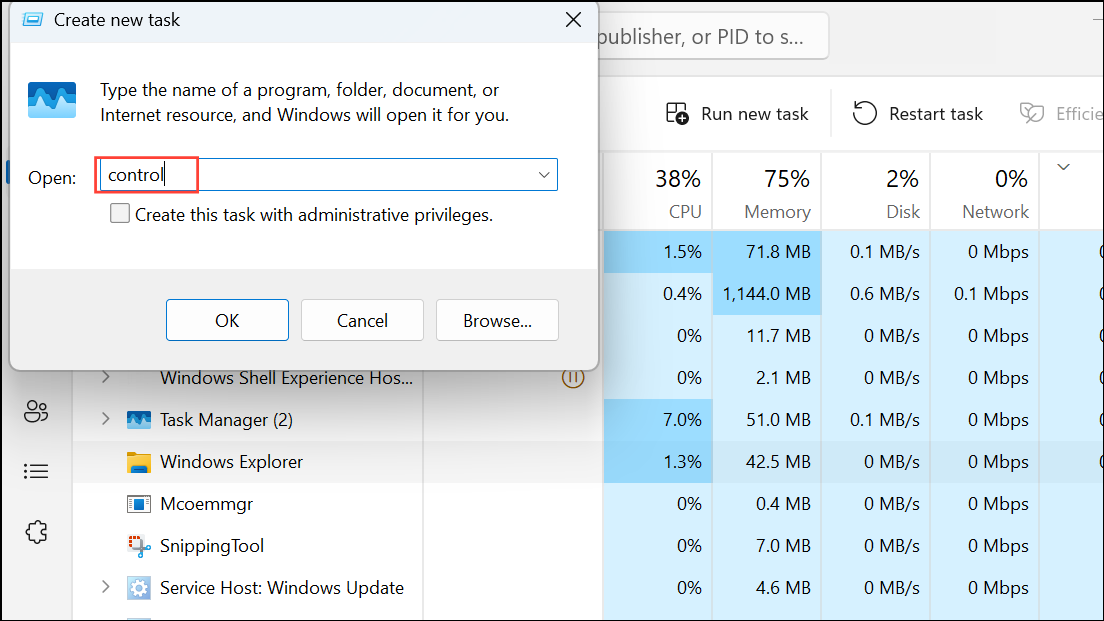
Step 2: Type control and click OK to access the Control Panel.
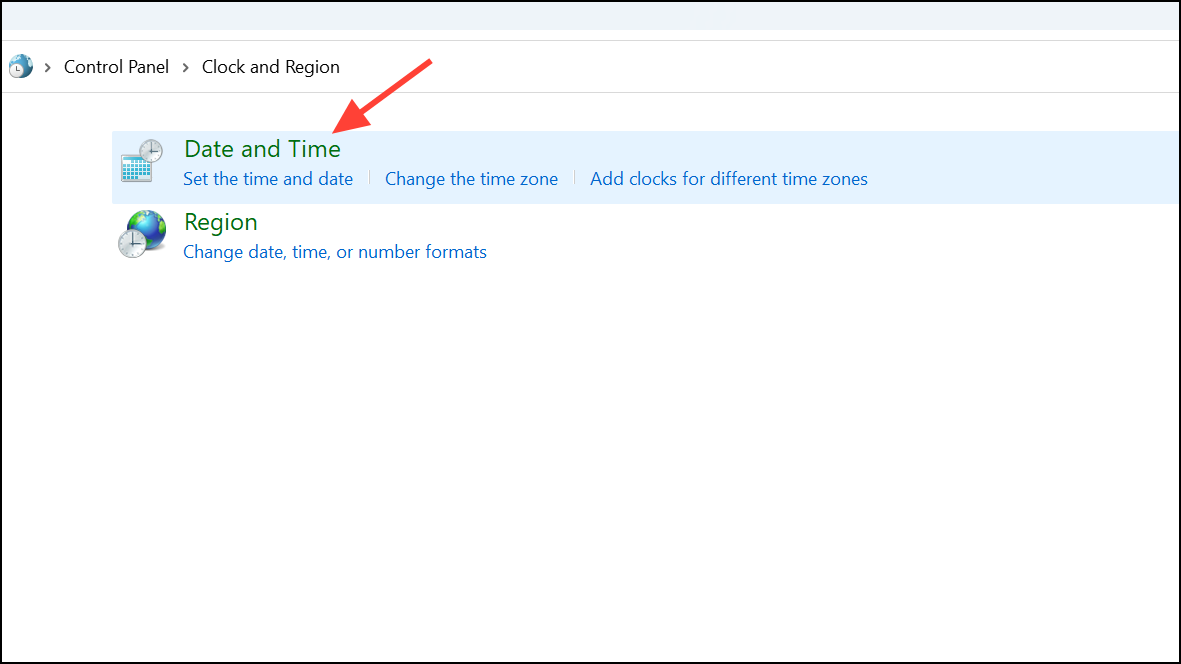
Step 3: Select Clock and Region, then click on Date and Time.
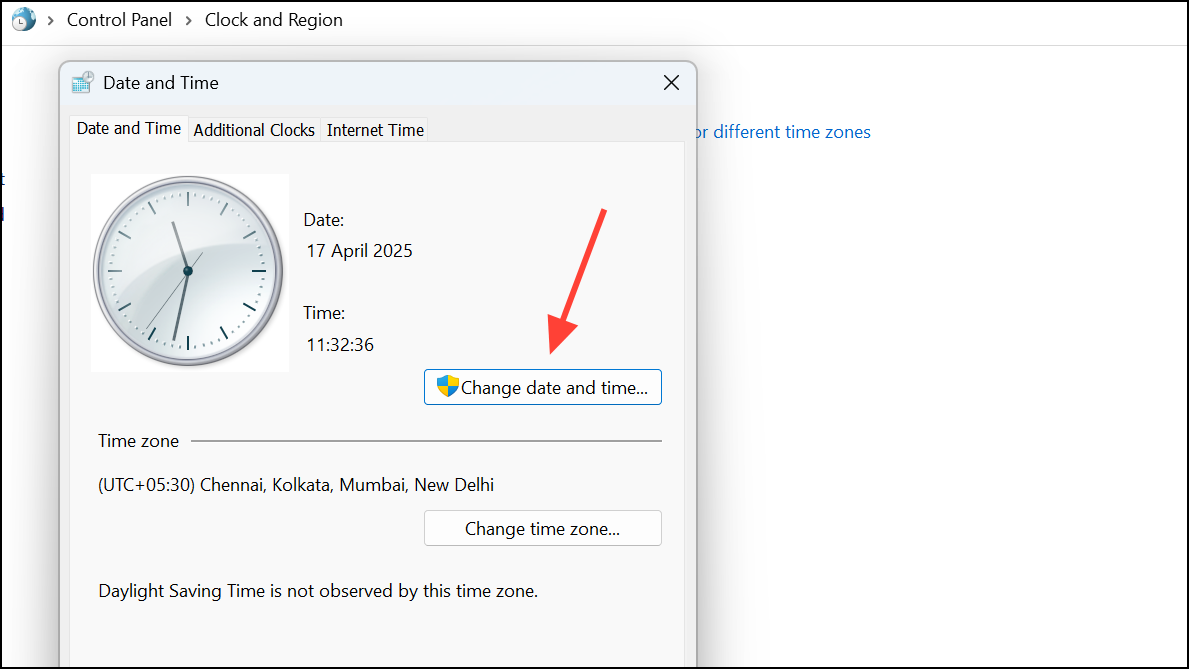
Step 4: In the Date and Time tab, check the settings. If they are incorrect, adjust them by clicking Change date and time. Make sure to verify the time zone as well.
Step 5: Click Apply and OK, then restart your PC. Correcting these settings can resolve the Start menu and taskbar issue for some users.
5. Reinstall Display Drivers
Corrupted or outdated display drivers may disrupt the overall visual interface, impacting the Start menu and taskbar.
Steps to Reinstall Display Drivers
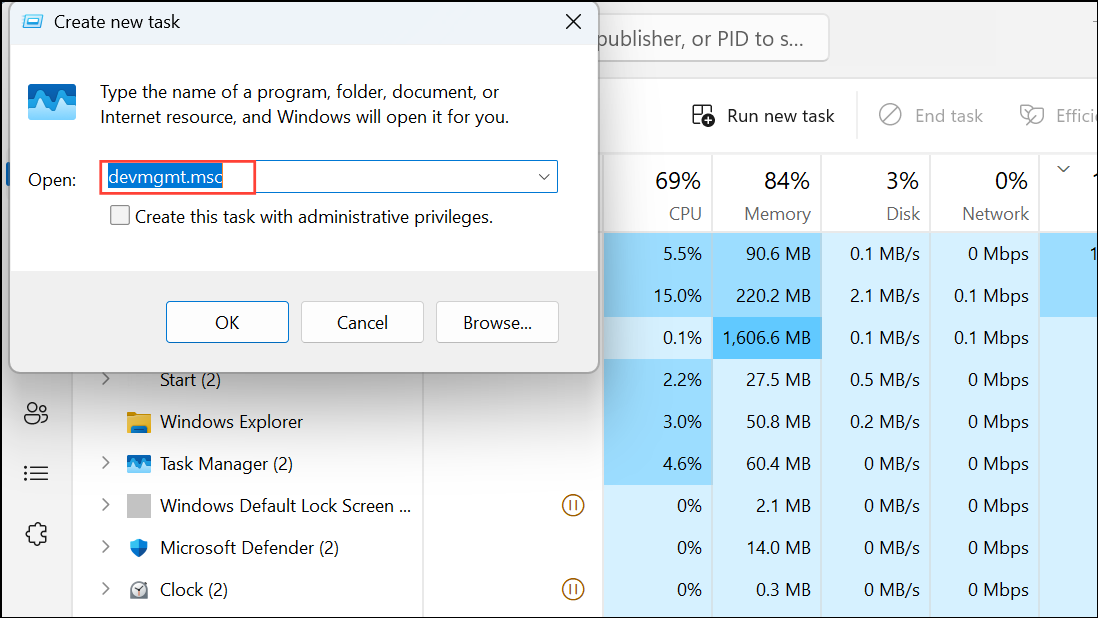
Step 1: Open Task Manager using Ctrl + Shift + Esc, then go to File > Run new task, type devmgmt.msc, and hit OK to open Device Manager.
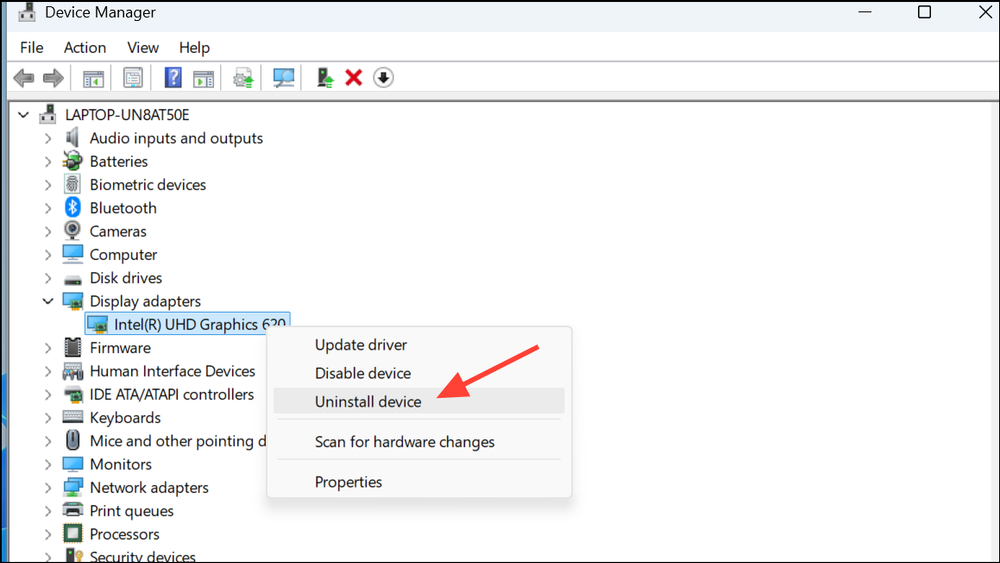
Step 2: Expand the Display adapters section. Right-click on your display device and choose Uninstall device.
Step 3: If prompted, check the option to delete the driver software and click Uninstall.
Step 4: Restart your PC. Windows will automatically try to reinstall the default display driver. For optimal performance, consider visiting your device manufacturer’s website to download the latest drivers.
6. Check Taskbar Auto-Hide and Off-Screen Settings
The taskbar might be set to auto-hide or could have been inadvertently moved off the screen, leading to its disappearance.
Steps to Check Taskbar Settings
Step 1: Press Windows key + I to open Settings, then navigate to Personalization > Taskbar.

Step 2: Select Taskbar behaviors and ensure the option for Automatically hide the taskbar is unchecked.
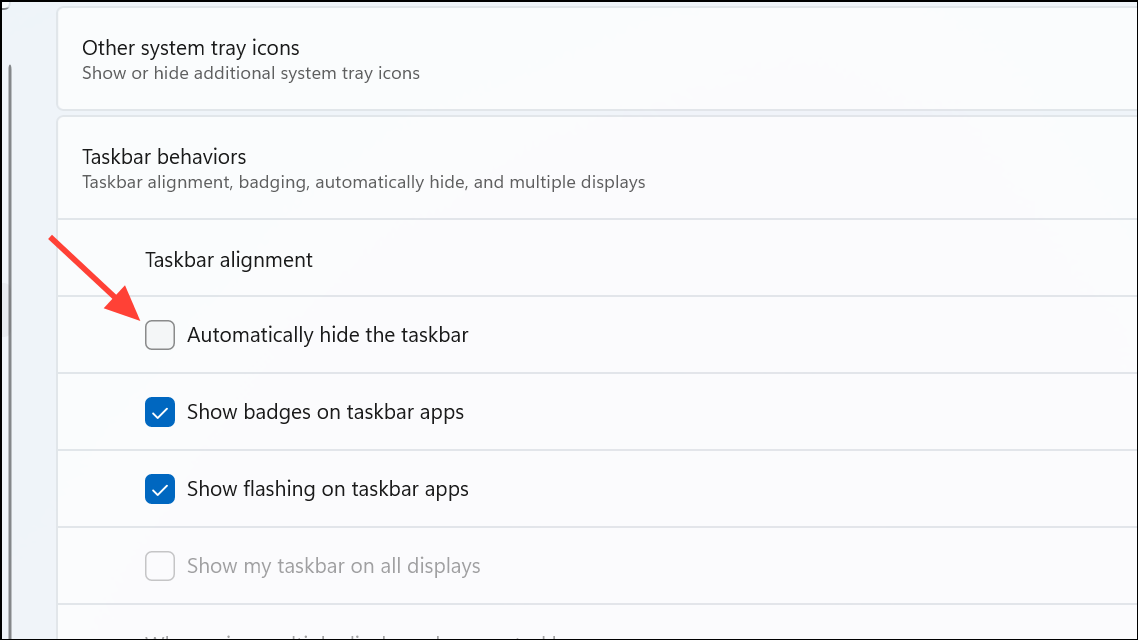
Step 3: If the taskbar is stuck off-screen, hover your cursor to the screen edge until it changes to a resize arrow, then drag the taskbar back into view.
7. Additional Troubleshooting: System File Checker and Recovery
In case the above methods do not yield results, corrupted system files could be the culprit. Utilizing built-in repair tools may fix these underlying issues.
Steps to Run the System File Checker
Step 1: Open Task Manager, select File > Run new task, and type cmd, ensuring you run it as administrator before clicking OK.
Step 2: Execute the following commands one by one, pressing Enter after each: 1SFC /scannow 2DISM /Online /Cleanup-Image /CheckHealth 3DISM /Online /Cleanup-Image /ScanHealth 4DISM /Online /Cleanup-Image /RestoreHealth
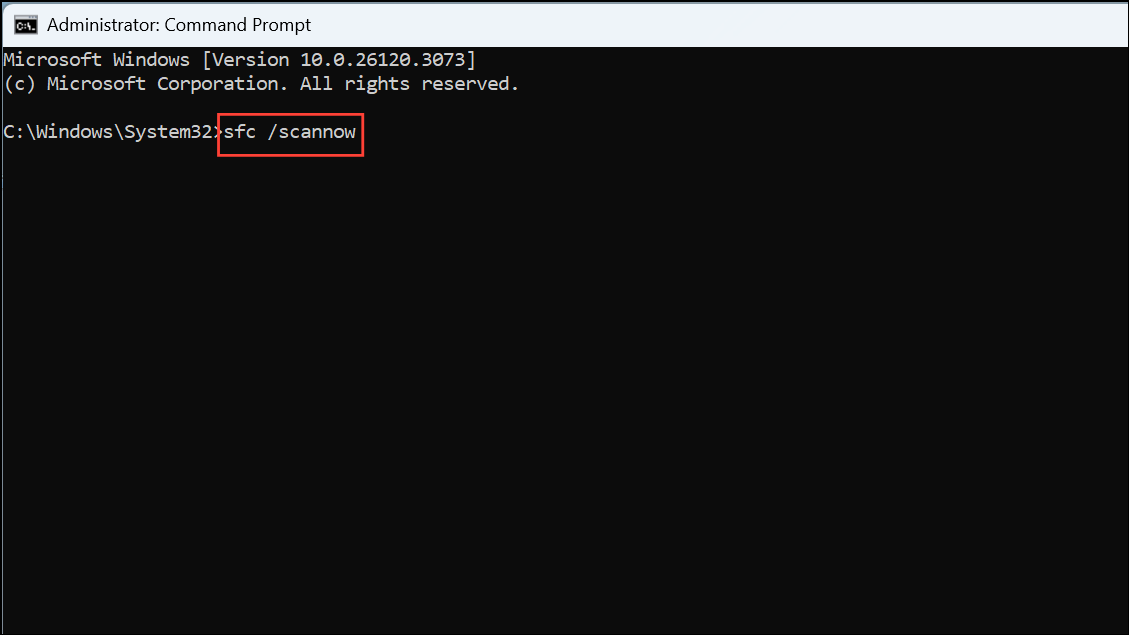
These commands will scan for and repair corrupted system files. After the process is complete, restart your PC. If the issues persist, consider using System Restore or an in-place upgrade, which can repair Windows without affecting your personal files and applications.
Conclusion
Experiencing a missing Start menu or taskbar in Windows 11 can be frustrating, but the solutions provided in this article can help you restore these essential features effectively. Whether it’s adjusting settings, reinstalling drivers, or utilizing repair tools, you have a range of methods at your disposal. By systematically following these steps, you should be able to restore order to your Windows experience and get back to your work without further disruption. If problems continue, seeking professional help might be the next best step.
And if you'd like to go a step further in supporting us, you can treat us to a virtual coffee ☕️. Thank you for your support ❤️!

We do not support or promote any form of piracy, copyright infringement, or illegal use of software, video content, or digital resources.
Any mention of third-party sites, tools, or platforms is purely for informational purposes. It is the responsibility of each reader to comply with the laws in their country, as well as the terms of use of the services mentioned.
We strongly encourage the use of legal, open-source, or official solutions in a responsible manner.
Comments