


Right-clicking is essential for accessing context menus, shortcuts, and additional options in Windows 11. But what if your mouse stops working, or you prefer keyboard navigation? Fortunately, Windows 11 offers multiple ways to right-click without a mouse—whether you’re using a keyboard, touchpad, or accessibility features.
In this guide, we’ll explore four effective methods to right-click without a mouse on Windows 11, ensuring you stay productive even when hardware fails.
Method 1: Use the Context Menu Key on Your Keyboard
Most full-sized keyboards include a dedicated Context Menu key, which instantly opens the right-click menu.
Steps:
- Navigate to the item or area where you want to right-click (using arrow keys or Tab).
- Press the Context Menu key (usually located between the right Alt and Ctrl keys).
🔹 Pro Tip: If your keyboard lacks this key, remap another key (e.g., Caps Lock) using Microsoft PowerToys to act as a right-click shortcut.
Method 2: Use the Keyboard Shortcut (Shift + F10)
For keyboards without a Context Menu key, Shift + F10 is a universal Windows shortcut that mimics a right-click.
Steps:
- Highlight the desired item using arrow keys or Tab.
- Press Shift + F10 to open the context menu.
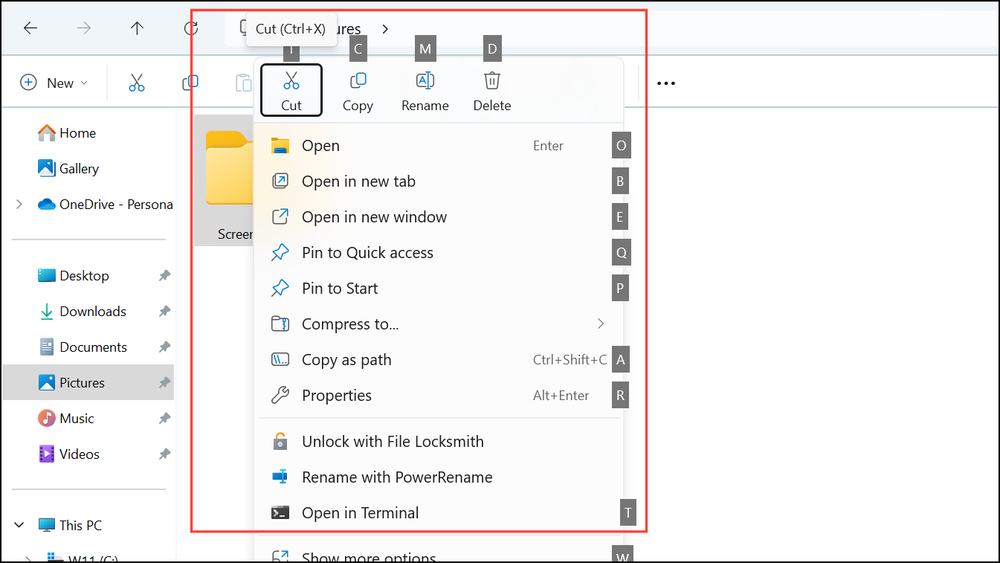
✅ Works in all Windows apps, including File Explorer and browsers.
Method 3: Enable Mouse Keys (Control Cursor & Right-Click via Keyboard)
If your mouse is completely unresponsive, Mouse Keys lets you control the cursor and right-click using the numeric keypad.
Steps:
- Enable Mouse Keys: Press Left Alt + Left Shift + Num Lock, then confirm with Enter.
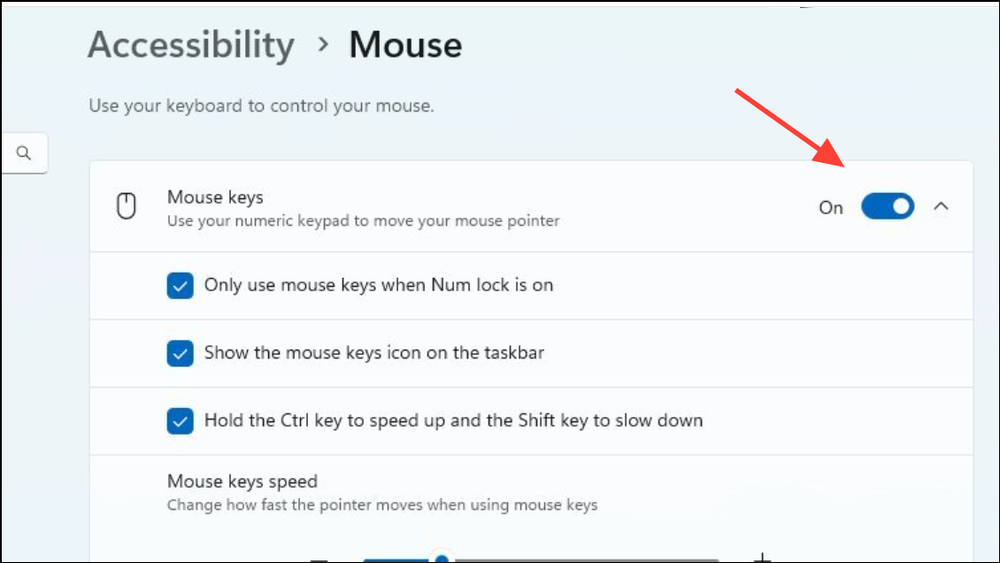
- Move the cursor: Use 8 (Up), 2 (Down), 4 (Left), 6 (Right) on the numeric keypad.
- Right-click: Press the minus (-) key, then 5 to perform a right-click.
🔧 Alternative Setup:
- Open Control Panel (Win + R →
control→ Enter).
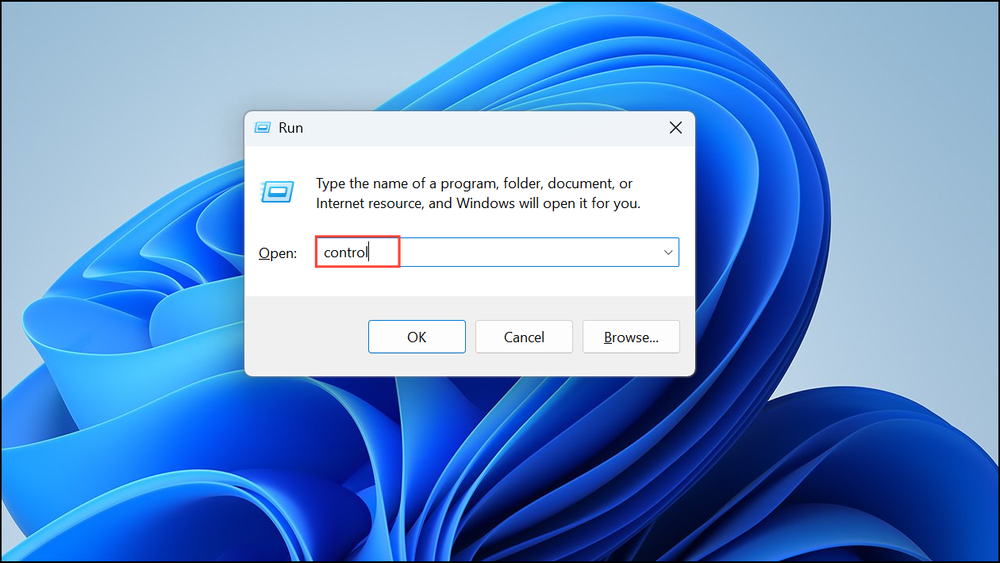
- Search for “Change how your mouse works” → Enable Mouse Keys.
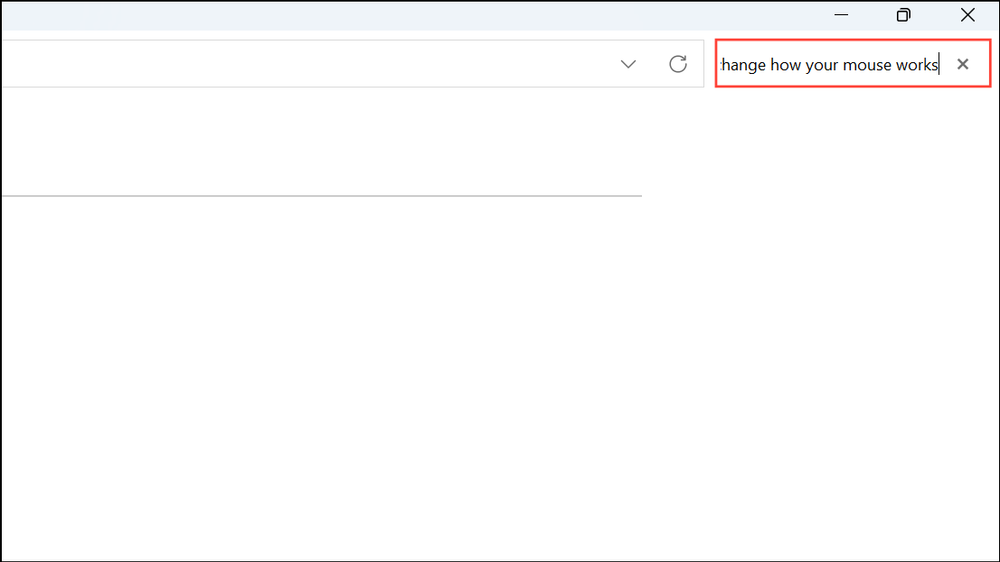
- Navigate to “Set up Mouse Keys” and press
Enter. - Use the
Tabkey to highlight “Turn on Mouse Keys” and press theSpacebarto enable it.
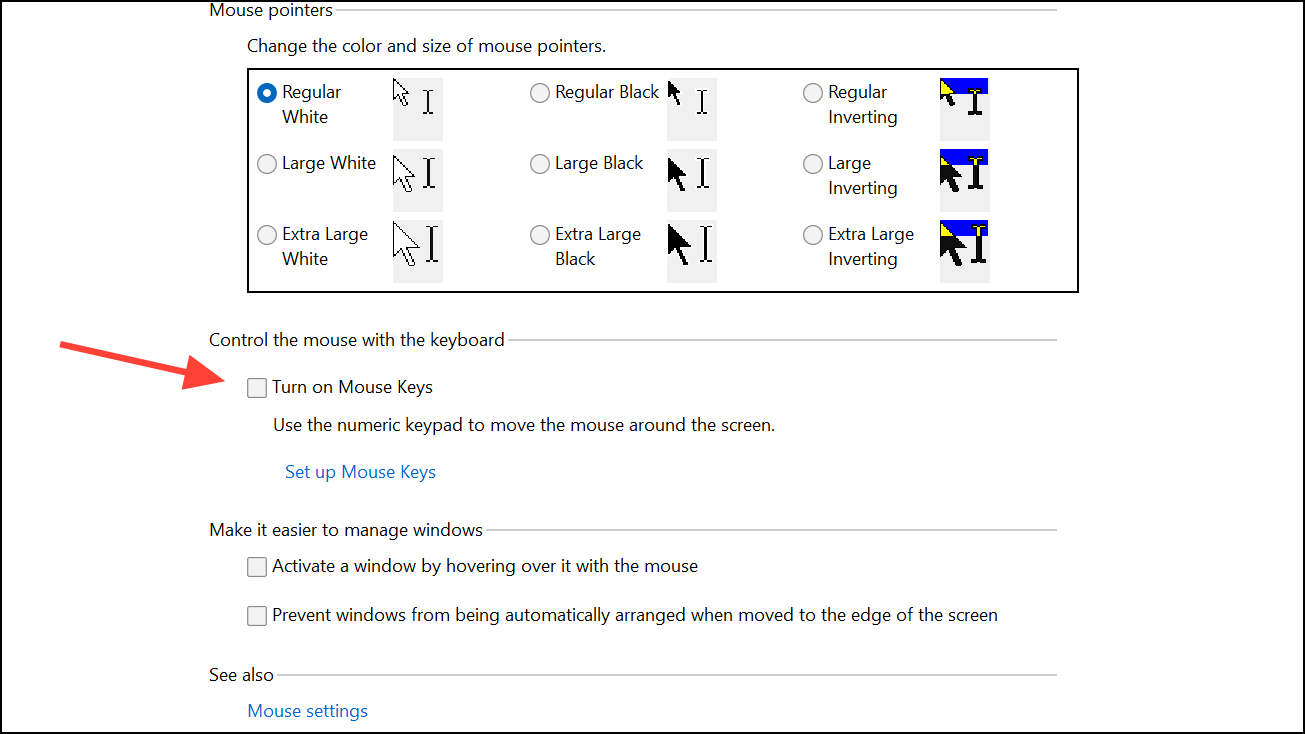
- Enable “Turn on Mouse Keys with left ALT + left SHIFT + NUM LOCK” for shortcut toggling .
- Navigate to “Apply” and press
Enterto save the settings.
Method 4: Use Touchpad Gestures on a Laptop
Laptops with touchpads support built-in right-click gestures:
Options:
✔ Two-finger tap on the touchpad (most common).
✔ Press the bottom-right corner (if your touchpad has physical buttons).
✔ Check settings: Go to Settings → Bluetooth & devices → Touchpad to customize gestures.
Conclusion
Whether your mouse malfunctions or you prefer keyboard efficiency, Windows 11 provides multiple ways to right-click without a mouse:
✅ Context Menu Key (Fastest method if available)
✅ Shift + F10 (Universal keyboard shortcut)
✅ Mouse Keys (Full cursor control via numeric keypad)
✅ Touchpad Gestures (Ideal for laptops)
By mastering these methods, you can navigate Windows 11 seamlessly—even without a mouse!
🔹 Need more tech tips? Subscribe to our blog for the latest Windows guides!
And if you'd like to go a step further in supporting us, you can treat us to a virtual coffee ☕️. Thank you for your support ❤️!

We do not support or promote any form of piracy, copyright infringement, or illegal use of software, video content, or digital resources.
Any mention of third-party sites, tools, or platforms is purely for informational purposes. It is the responsibility of each reader to comply with the laws in their country, as well as the terms of use of the services mentioned.
We strongly encourage the use of legal, open-source, or official solutions in a responsible manner.
Comments