

With Windows 11 25H2, Microsoft continues to refine the operating system with performance improvements and a polished interface. But while the desktop looks modern and clean, customization options for wallpapers remain fairly limited.
One feature many users want is the ability to use animated GIFs as desktop wallpapers. Unfortunately, Windows 11 still doesn’t support GIF backgrounds natively. The good news is that several lightweight third-party applications can easily add this functionality.
Two of the most popular tools are Lively Wallpaper and BioniX Wallpaper, both of which allow you to transform your static desktop into a dynamic, animated workspace.
This guide explains how to set a GIF as your wallpaper in Windows 11 25H2 using these two applications.
Method 1: Use Lively Wallpaper (Recommended)
Lively Wallpaper is one of the best free tools for animated wallpapers on Windows. It’s open-source, lightweight, and available directly from the Microsoft Store.
It supports GIFs, videos, webpages, and even interactive wallpapers.
Step 1: Install Lively Wallpaper
1- Download and install the app from the Microsoft Store.
2- Search for Lively Wallpaper or download it from the official page.
3- Once installed, launch the application.
Step 2: Explore the Wallpaper Library
After opening the app, go to the Library tab.
Here you will find a collection of preloaded animated wallpapers that you can apply instantly.
You can:
- Use one of the built-in animated backgrounds
- Add your own GIF file
- Use an online GIF via URL

Step 3: Preview an Animated Wallpaper
To preview an animation:
- Hover over a wallpaper thumbnail.
- Click the three-dot (⋯) menu.

- Select Preview.

A preview window will open so you can see how the animation looks on your desktop before applying it.
Step 4: Apply the GIF Wallpaper
To set a GIF as your wallpaper:
- Simply click the thumbnail of the animation in the library.
- The wallpaper will immediately become your desktop background.

No restart is required.
Step 5: Customize Wallpaper Settings
Many wallpapers allow customization.
To modify settings:
- Hover over the wallpaper thumbnail.
- Click the three-dot menu.

- Select Customize.

Depending on the animation, you may be able to:
- Synchronize animation with system audio
- Change background colors
- Adjust animation speed
- Modify visual effects such as density or particle movement

- Click OK to apply your changes.
Step 6: Stop the Animated Wallpaper
If you want to disable the animated wallpaper:
- Click the arrow icon in the taskbar to show hidden icons.
- Right-click the Lively Wallpaper icon.
- Select Close Wallpapers.

Your desktop will return to the default background.
How to Use Your Own GIF in Lively Wallpaper
You can easily add custom GIFs stored on your computer.
Step 1: Add a New Wallpaper
- Open Lively Wallpaper and click the “+ Add Wallpaper” button.

Step 2: Select Your GIF
You can either:
- Click Open and select a GIF from your computer
- Paste a direct URL to an online GIF

Important: Make sure the link points directly to the .gif file, not a webpage.
Step 3: Save the Wallpaper
Once selected, you can:
- Rename the wallpaper
- Add a description
- Credit the creator

- Click OK, and the GIF will instantly become your desktop wallpaper.
The file will also appear in your Lively library for future use.
Create a 3D Wallpaper from a Static Image
Another unique feature in Lively Wallpaper is the ability to convert 2D images into interactive 3D wallpapers.
Steps
- Click Add Wallpaper (+).
- Select Advanced.

- Choose Depth Wallpaper.

- Download additional files if prompted.

- Select a photo from your PC.
- Click Continue.

Lively will process the image and create a depth-based 3D effect that moves based on mouse movement.
This creates a dynamic wallpaper similar to parallax effects used on modern smartphones.
Method 2: Set GIF Wallpapers Using BioniX
Another powerful option is BioniX Wallpaper, a desktop wallpaper manager that supports animated GIF backgrounds.
It also includes advanced features like wallpaper playlists and automatic rotation.
Step 1: Download BioniX
- Open your browser and visit the official website:
- bionixwallpaper.com
- Click the Download button to get the latest version.

Step 2: Install the Program
- Run the downloaded .EXE file.
- Choose an installation folder if needed.
- Click Install.

4- After installation, launch the program.

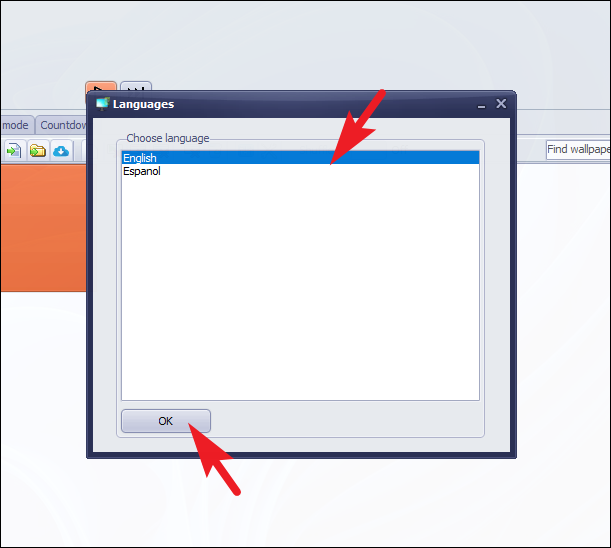
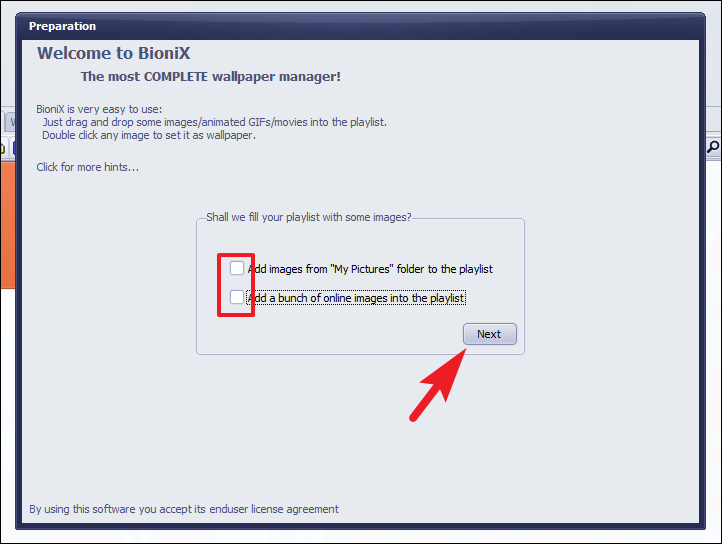
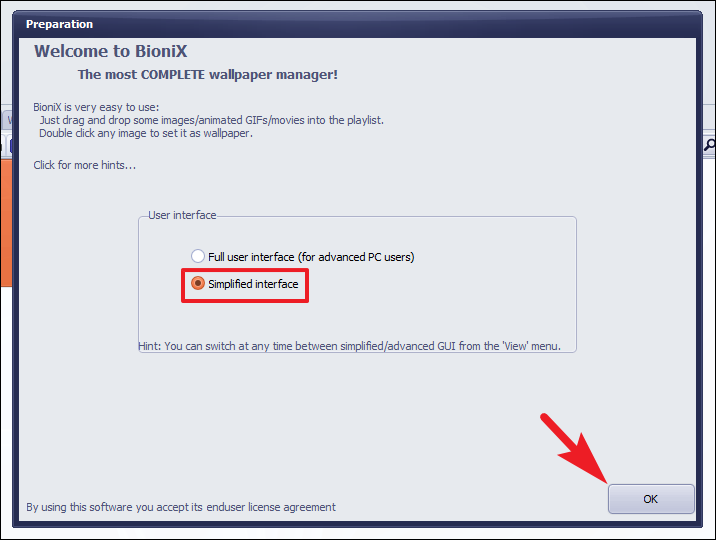
Step 3: Configure Initial Settings
During setup:
- Select your preferred language
- Skip importing images if you prefer
- Choose the Simplified Interface for easier navigation
Step 4: Add GIF Wallpapers
You can add GIFs in two ways:
Option 1: Drag and drop GIF files into the BioniX window.
Option 2: Click Add Wallpaper and browse for files.

Step 5: Create a GIF Playlist
BioniX allows multiple animated wallpapers.
To create a playlist:
- Add several GIF files.
- Click Start.

The program will cycle through the animations automatically.
You can also enable Shuffle mode for random playback.

Step 6: Control Wallpaper Timing
Click Countdown to configure how often the wallpaper changes.
You can set the interval in:
- Seconds
- Minutes
- Hours

The change takes effect immediately.
Step 7: Save Your Playlist
To reuse your GIF collection later:
- Click Save Playlist.

- Enter a name.
- Click Save.

Tips for Using Animated Wallpapers on Windows 11
To keep your system running smoothly:
- Use small or optimized GIF files
- Avoid extremely high-resolution animations
- Pause wallpapers during gaming if needed
Tools like Lively automatically pause animations when running full-screen apps, which helps save CPU and GPU resources.
Conclusion
Even in Windows 11 25H2, Microsoft still doesn’t provide a built-in way to use GIF wallpapers. However, tools like Lively Wallpaper and BioniX Wallpaper make it easy to bring animated backgrounds to your desktop.
Whether you want subtle motion effects, looping GIFs, or full animated playlists, these applications allow you to fully personalize your Windows desktop.
With just a few clicks, you can turn a static workspace into a dynamic, visually engaging environment that reflects your style.
And if you'd like to go a step further in supporting us, you can treat us to a virtual coffee ☕️. Thank you for your support ❤️!

We do not support or promote any form of piracy, copyright infringement, or illegal use of software, video content, or digital resources.
Any mention of third-party sites, tools, or platforms is purely for informational purposes. It is the responsibility of each reader to comply with the laws in their country, as well as the terms of use of the services mentioned.
We strongly encourage the use of legal, open-source, or official solutions in a responsible manner.
Comments