


Tired of manually installing dozens of applications on your Windows PC? Imagine a world where setting up a new system or reinstalling Windows is a breeze, with all your essential software ready in minutes. That world is now a reality thanks to Windows Package Manager (winget). This guide provides a complete walkthrough of using winget for bulk application installations.
Bulk App Installation Using Online Generators:
Web-based tools like winstall.app and winget.run dramatically simplify bulk winget installations. These user-friendly platforms allow you to select apps visually, generating ready-to-use installation commands or scripts. This eliminates tedious manual typing and potential errors.
Steps:
1- Navigate to the Generator: Open your web browser and visit either https://winstall.app or https://winget.run.
2- Search and Select: Use the search bar to find your desired applications. Utilize filters (if available) by name, publisher, or tags to refine results. Add each app to your installation queue.

3- Generate Script/Command: After selecting all apps, click the “Generate” button to create either a single-line winget command or a batch/PowerShell script.
4- Copy or Download: Copy the generated code to your clipboard or download it as a file, depending on the platform’s options.
5- Run the Script: Open Windows Terminal or PowerShell on your target PC, paste the copied command, or run the downloaded script. winget will install each application sequentially with minimal user interaction.

Direct winget Command-Line Installation:
For command-line savvy users, winget allows direct specification of multiple applications within a single command or via scripts. This provides greater flexibility and control.
Steps:
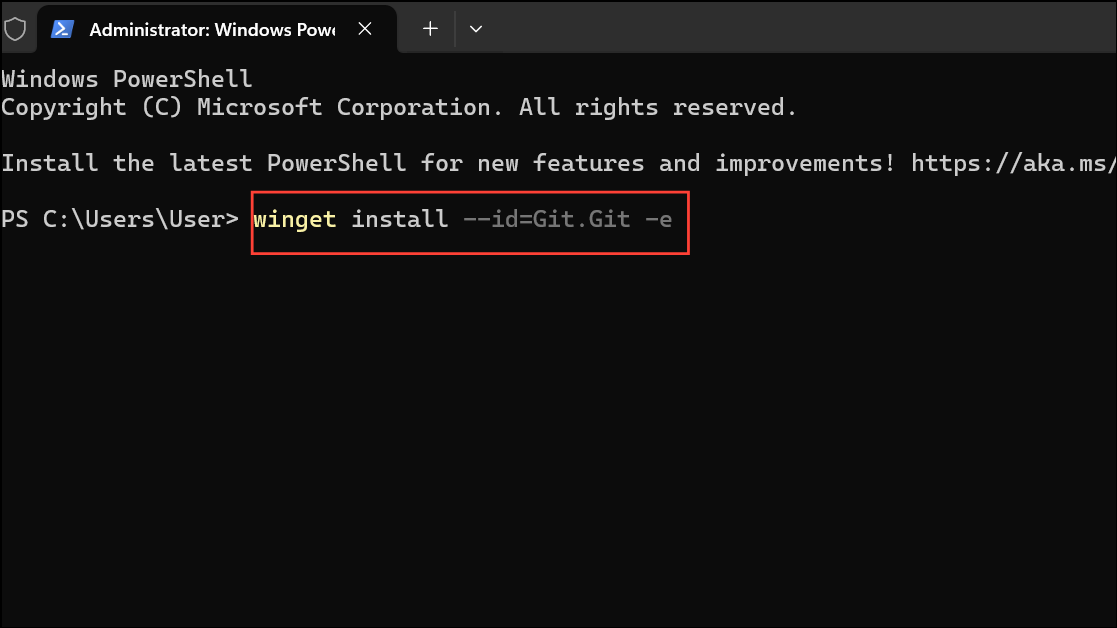
1- Identify Package IDs: Use winget search <appname> in your terminal to find the accurate package ID for each app. Using --id and -e (exact match) is recommended for reliable results (e.g., winget install --id=Git.Git -e).
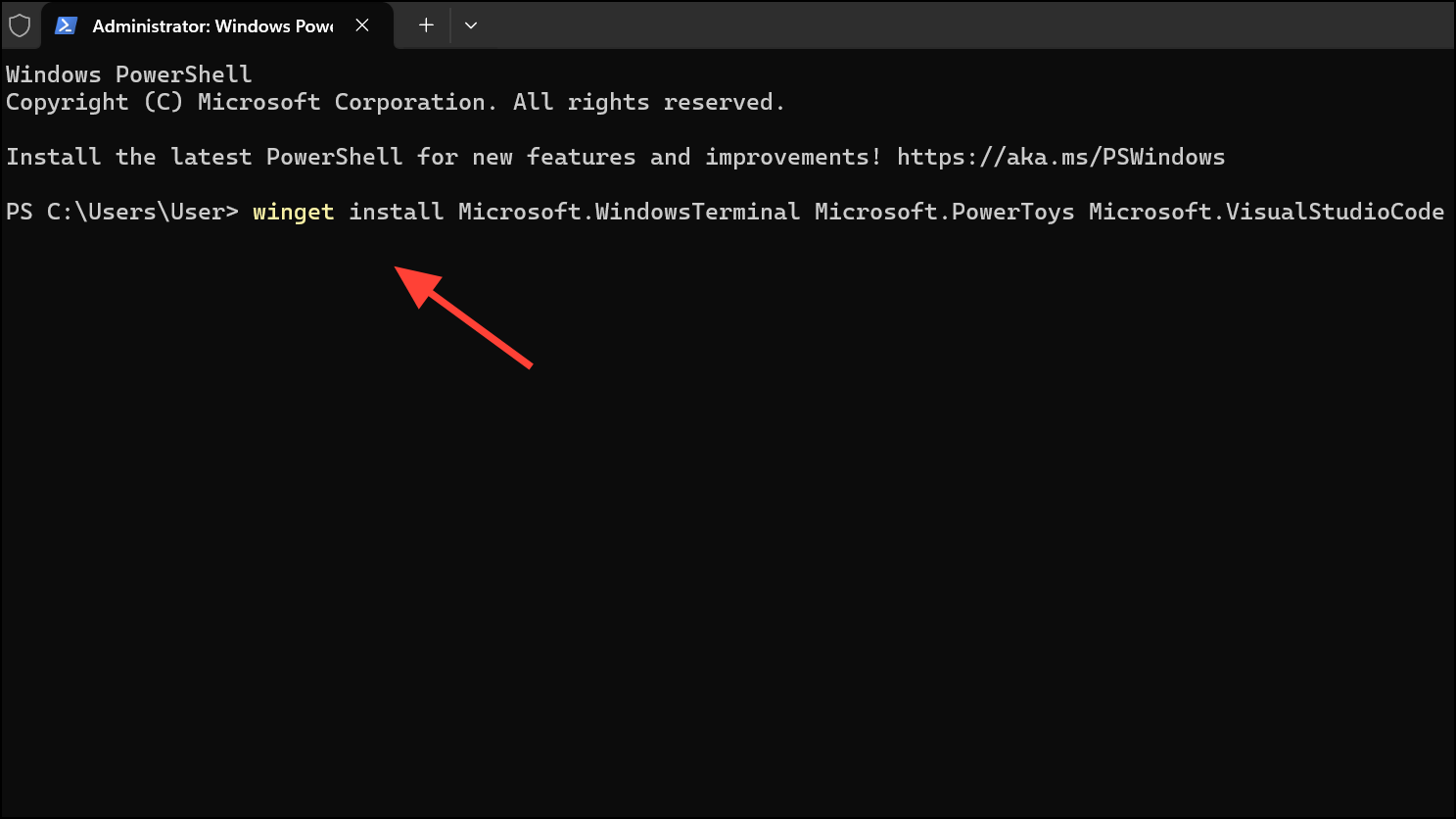
2- Construct the Command: Create a single winget command listing all applications separated by spaces (e.g., winget install Microsoft.WindowsTerminal Microsoft.PowerToys Microsoft.VisualStudioCode). Alternatively, create a batch or PowerShell script with each winget install command on a new line.
3- Execute the Command/Script: Paste the command into PowerShell or Command Prompt, or run your script. Installations proceed sequentially. For silent installations, add --silent and --accept-package-agreements where applicable.
4- Exporting and Importing App Lists:
Maintaining consistent software across multiple PCs is simplified with winget’s JSON export/import functionality. This allows for easy replication of your application setup.
Steps:
1- Export: On your source PC, run winget export -o .\winget-export.json. This creates a JSON file containing all winget-managed applications.

2- Review and Clean: Open the JSON file in a text editor and remove unwanted entries (system apps, etc.).
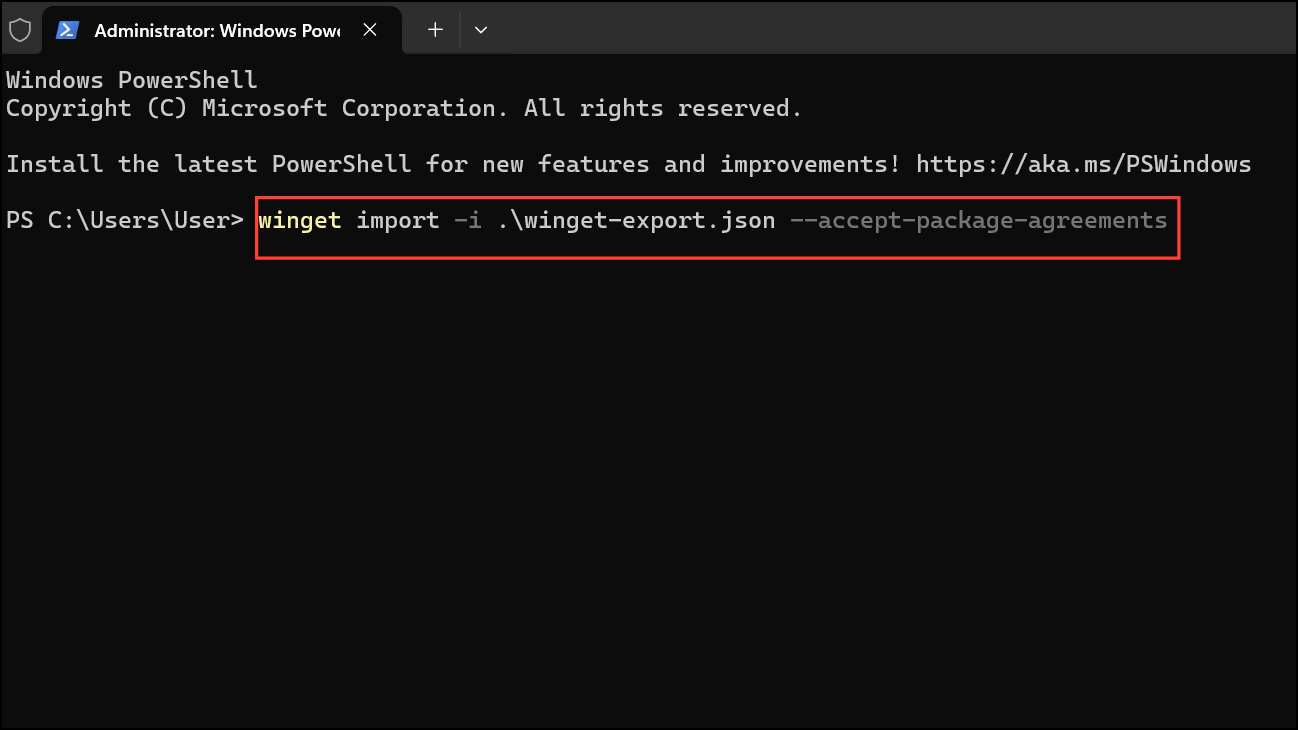
3- Transfer and Import: Transfer the modified JSON file to your target PC. Run winget import -i .\winget-export.json --accept-package-agreements to install the listed applications. Missing packages will be skipped.
Automated Setups with winget Configure:
Advanced users can leverage winget configure to create a configuration file (YAML or JSON) specifying applications and additional setup tasks like applying settings or copying files. This is particularly useful for managing standardized environments.
Steps:
- Create Configuration File: Create a YAML or JSON file defining your desired packages and additional setup instructions.
- Run Configuration: Execute
winget configure --file .\your-config.yamlto install the specified apps and perform defined actions.

Conclusion:
Windows Package Manager (winget) is a powerful tool for streamlining software installations. Whether you prefer user-friendly online generators or the flexibility of command-line scripts and configuration files, winget offers a solution to automate your application deployments, saving time and ensuring consistency. Embrace winget and simplify your Windows software management today!
And if you'd like to go a step further in supporting us, you can treat us to a virtual coffee ☕️. Thank you for your support ❤️!

We do not support or promote any form of piracy, copyright infringement, or illegal use of software, video content, or digital resources.
Any mention of third-party sites, tools, or platforms is purely for informational purposes. It is the responsibility of each reader to comply with the laws in their country, as well as the terms of use of the services mentioned.
We strongly encourage the use of legal, open-source, or official solutions in a responsible manner.
Comments