

In today’s fast-paced digital world, we often juggle multiple online tasks simultaneously. Whether you’re researching, working, or simply browsing, the ability to seamlessly switch between web browsers without losing your place is a huge advantage. Google Chrome and Mozilla Firefox, the two giants of the browser world, offer incredible features, but what if you want to use them both? This guide explores ten effective strategies to synchronize your bookmarks, passwords, and more, ensuring a smooth transition between Chrome and Firefox.
1. Master Password Managers for Cross-Browser Compatibility
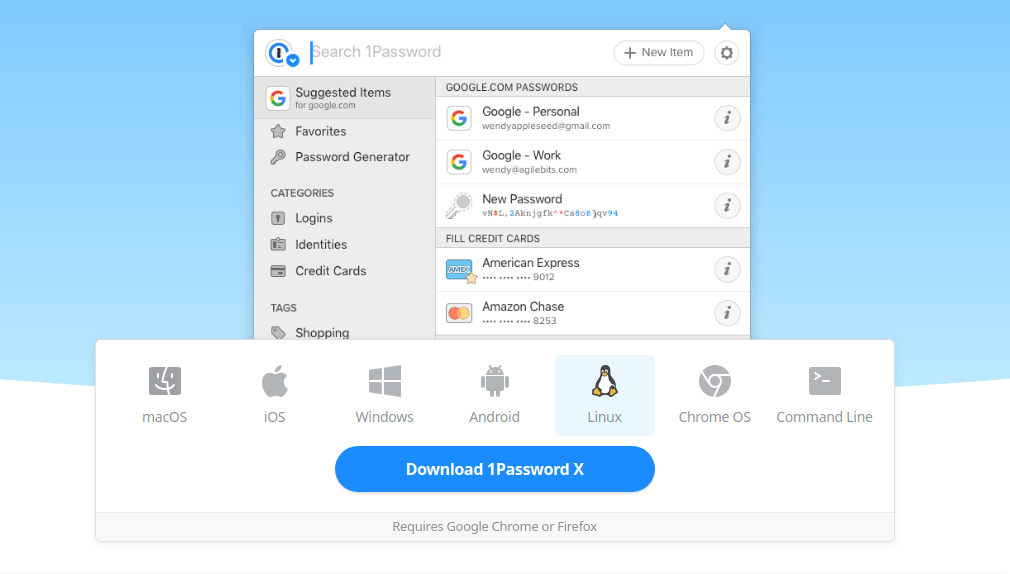
Password managers are indispensable for online security and convenience. Fortunately, many popular password managers offer extensions for both Chrome and Firefox, allowing you to access your login credentials effortlessly. Consider options like 1Password, Bitwarden, Roboform, Dashlane, Keeper, or LastPass. Simply install the extension in each browser, and you’ll have your passwords at your fingertips. You only need to remember your master password to unlock your vault.
Key Takeaway: Centralized password management eliminates the need to remember numerous passwords, improving security and making switching browsers a breeze.
2. Synchronize Bookmarks with Third-Party Apps
Keeping your bookmarks organized and accessible across browsers is crucial. Several third-party applications specialize in bookmark synchronization. Pocket, known for its clean interface, is a popular choice for saving and accessing your favorite articles and web pages. Raindrop.io offers advanced features, including unlimited bookmarks and the ability to remove broken links. Eversync also provides a robust solution for backing up and syncing your bookmarks seamlessly between Chrome and Firefox.
Key Takeaway: Choose a bookmarking service that meets your needs and syncs automatically to ensure consistent access to your saved web pages.
3. Embrace Common Extensions for Unified Functionality
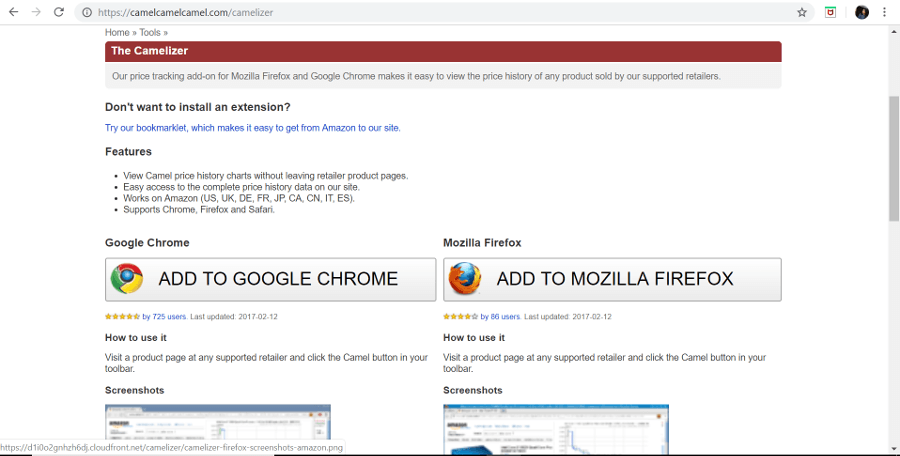
One of the simplest ways to bridge the gap between Chrome and Firefox is to use extensions compatible with both browsers. Numerous extensions offer similar functionalities, allowing you to maintain your preferred workflow. Examples include The Camelizer, which helps you track price changes while shopping online, Evernote Web Clipper for saving web content, and One Tab to manage browser tabs efficiently.
Key Takeaway: Leverage common extensions to create a unified browsing experience, regardless of the browser you’re using.
4. Synchronize Speed Dials for Quick Access
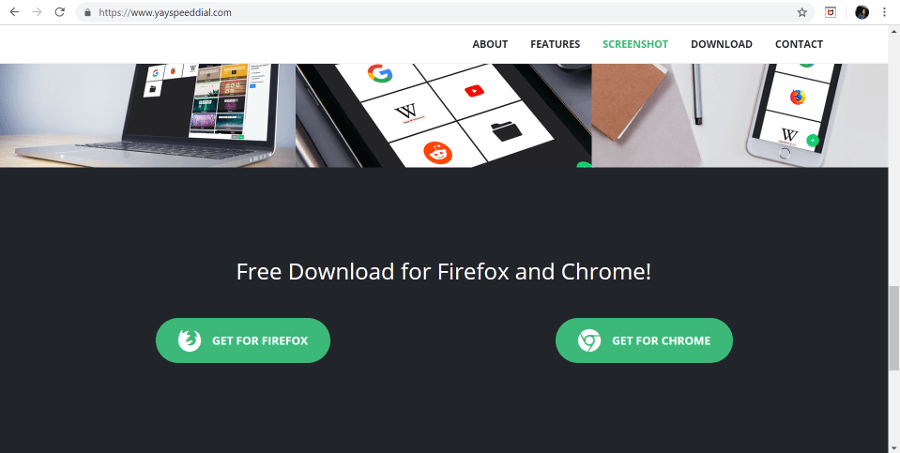
Your browser’s homepage, often featuring a speed dial or start screen, provides quick access to your most-visited websites. You can synchronize your speed dials with third-party extensions to keep your frequently accessed sites in sync. Options like FVD Speed Dial and Speed Dial 2 let you create groups and back up your dials for easy access in both browsers. Alternatively, Start.me provides a customizable start screen for a personalized experience.
Key Takeaway: Synchronizing your speed dials guarantees that your most visited sites are always available, saving you valuable time.
5. Customize Appearances to Create a Unified Look
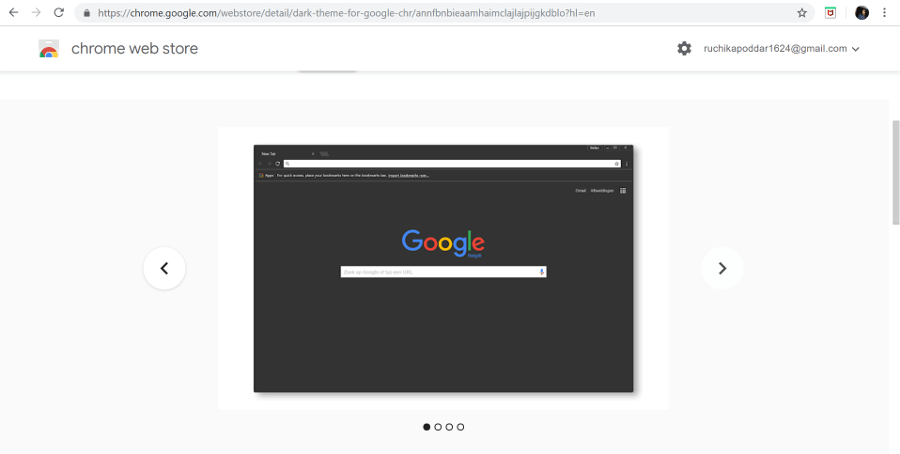
For a more cohesive experience, consider customizing the appearance of Chrome and Firefox to mirror each other. Extensions like Material Fox and Chrome Fox can help you transform the look of Firefox to match Chrome. You can also apply similar themes to both browsers by using extensions like Stylish. This visual consistency can significantly improve your overall workflow.
Key Takeaway: Customizing the look of your browsers can enhance your user experience.
6. Memorize Shared Keyboard Shortcuts for Efficiency
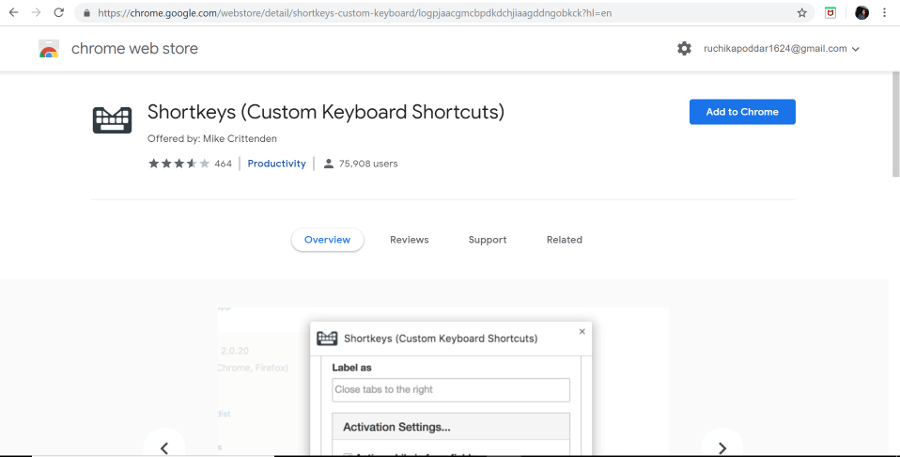
Some keyboard shortcuts function identically in both Chrome and Firefox. Familiarizing yourself with these common shortcuts can streamline your workflow. For instance, Ctrl+D (bookmark page) and Ctrl+T (open new tab) work the same way in both browsers. Shortkeys, an extension, lets you create your own custom keyboard shortcuts to further streamline your browsing experience.
Key Takeaway: Knowing and utilizing shared keyboard shortcuts enables you to transition between browsers more fluidly.
7. Import Selective Features for Enhanced Functionality
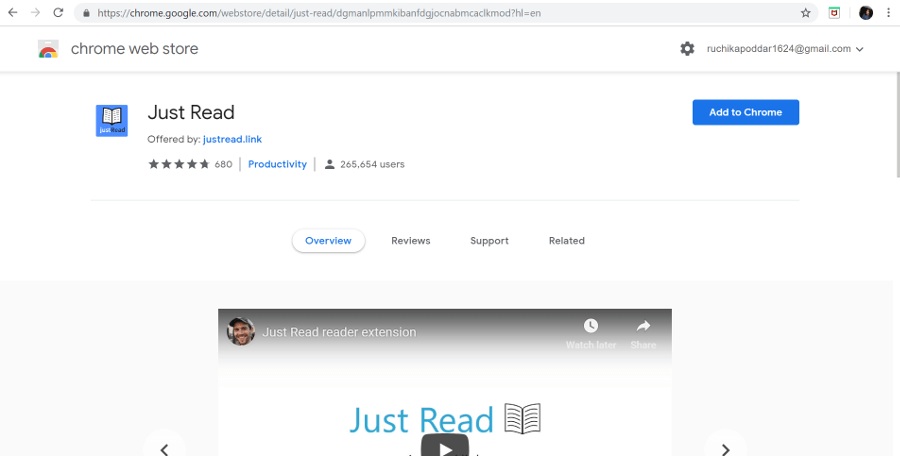
Both Chrome and Firefox have unique features you might find beneficial. Thankfully, you can often “borrow” features from one browser to the other. For instance, the Tree Style Tab extension in Chrome mirrors Firefox’s hierarchical tab management. Conversely, extensions like Just Read in Chrome offer a distraction-free reading experience. Google App Launcher and Download Statusbar extensions offer quick access to Google tools in Firefox.
Key Takeaway: Mix and match your favorite features, allowing you to enjoy the best of both browsers in either one.
8. Use a Common Downloads Folder for Easy File Management
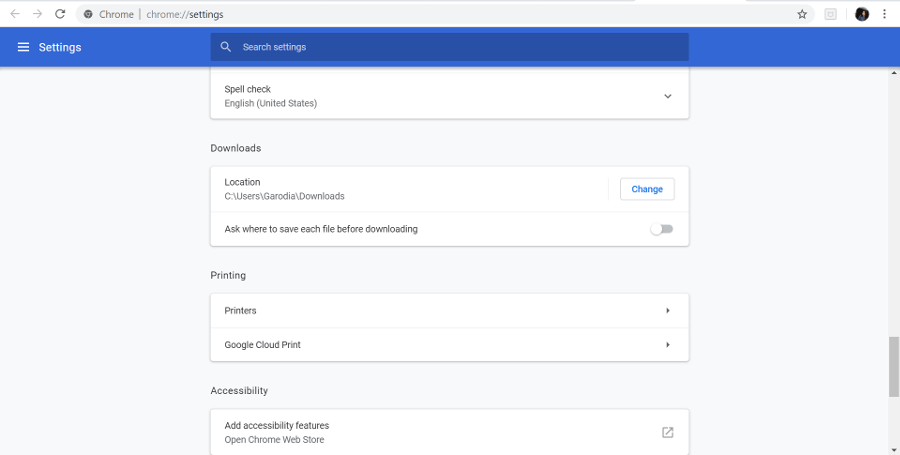
To avoid searching through different download folders, configure both Chrome and Firefox to use the same default download location. In Chrome, go to Settings > Downloads and change the “Location.” In Firefox, go to Settings and locate the Downloads section. Selecting the same folder for both browsers keeps your downloads organized.
Key Takeaway: Maintaining a central downloads folder simplifies file management and enhances overall efficiency.
9. Employ Shared Notepads for Easy Information Sharing
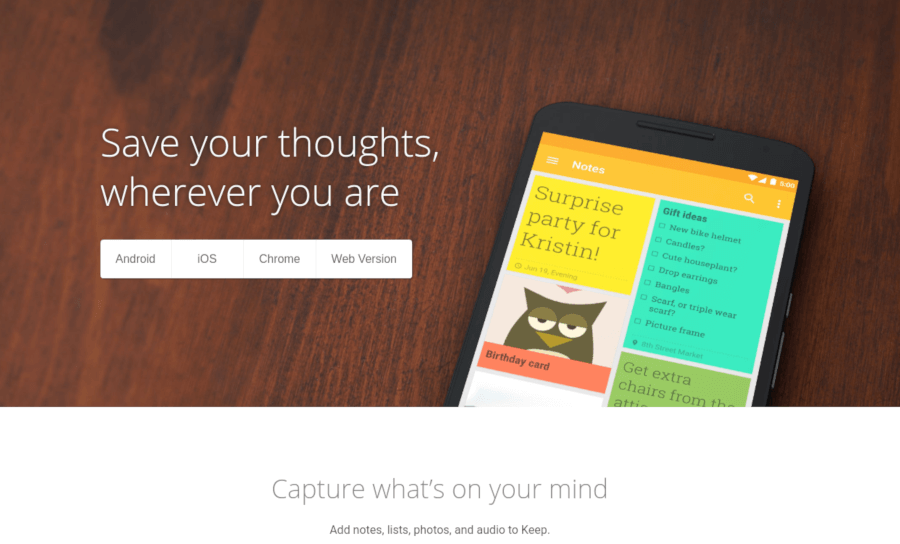
For jotting down notes or creating to-do lists, use a web-based notepad that you can access from either browser. Applications like Laverna, SimpleNote, or Writer allow you to create and synchronize notes. Google Keep is another excellent option, with Chrome and Firefox extensions offering easy access.
Key Takeaway: Shared notepads ensure you always have important information accessible, regardless of your browser.
10. Set a Common Homepage for a Unified Start
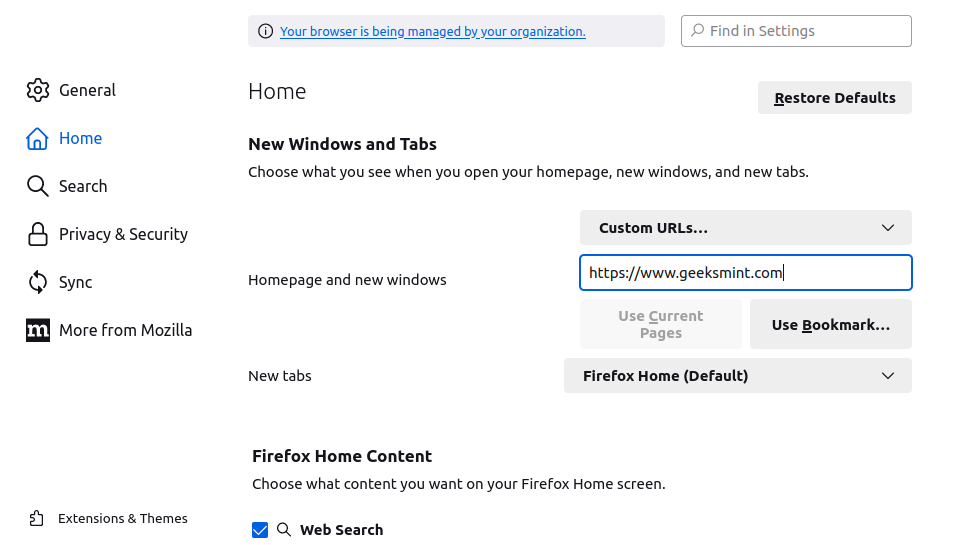
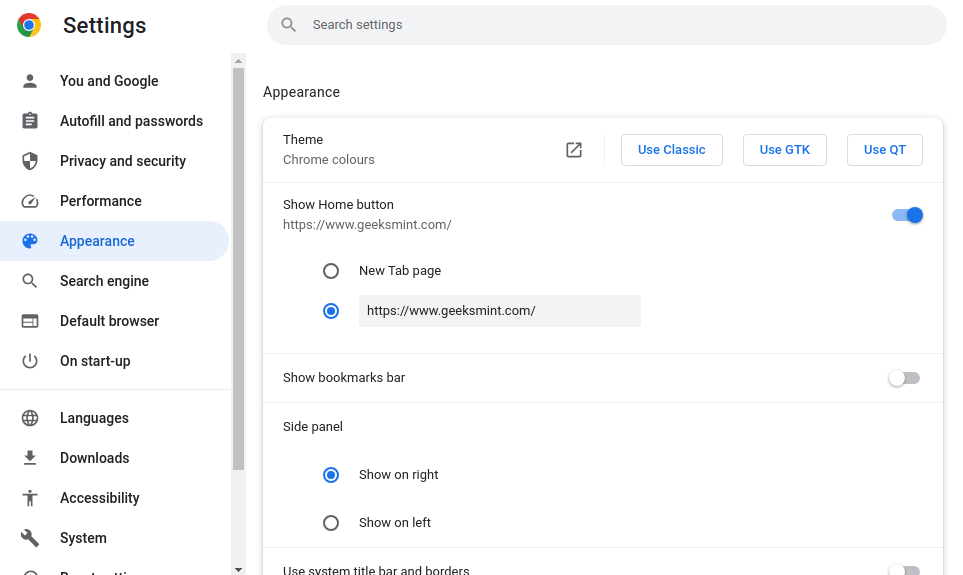
Setting a common homepage in both browsers provides a consistent starting point for your online sessions. This can be a custom start page, a productivity dashboard, or your favorite search engine. The key is to choose a page that provides immediate value and is accessible regardless of the browser you’re using.
Key Takeaway: Utilizing a shared homepage creates a consistent starting point, simplifying your browsing experience.
In conclusion, by implementing these ten tips, you can effectively synchronize your Chrome and Firefox browsers, creating a seamless and efficient browsing experience. Whether it’s managing passwords, synchronizing bookmarks, or customizing appearances, the strategies outlined in this guide empower you to harness the strengths of both browsers without the frustrations of fragmented data. So go forth, embrace the power of browser synchronization, and unlock a more productive and enjoyable online journey.
And if you'd like to go a step further in supporting us, you can treat us to a virtual coffee ☕️. Thank you for your support ❤️!

We do not support or promote any form of piracy, copyright infringement, or illegal use of software, video content, or digital resources.
Any mention of third-party sites, tools, or platforms is purely for informational purposes. It is the responsibility of each reader to comply with the laws in their country, as well as the terms of use of the services mentioned.
We strongly encourage the use of legal, open-source, or official solutions in a responsible manner.
Comments