

Whether you’re about to join an important Zoom meeting, attend an online class, or catch up with friends on a video call, a non-working webcam can quickly turn into a headache. The good news? Windows 11 includes built-in tools that let you test your webcam in minutes—no third-party software required.
In this guide, you’ll learn how to test your webcam on Windows 11 using the Settings app, check camera permissions, and fix common issues before they disrupt your call.
Why You Should Test Your Webcam on Windows 11
Webcam issues often appear at the worst possible time—right before a meeting or interview. Testing your camera in advance helps you:
- Confirm your webcam is detected by Windows 11
- Verify video quality and image clarity
- Ensure apps have permission to access your camera
- Catch driver or privacy issues early
A quick check now can save you from scrambling later.
How to Test Your Webcam Using Windows 11 Settings
One of the fastest and most reliable ways to test your webcam is directly through the Windows 11 Settings app. This method works with both built-in laptop cameras and external USB webcams.
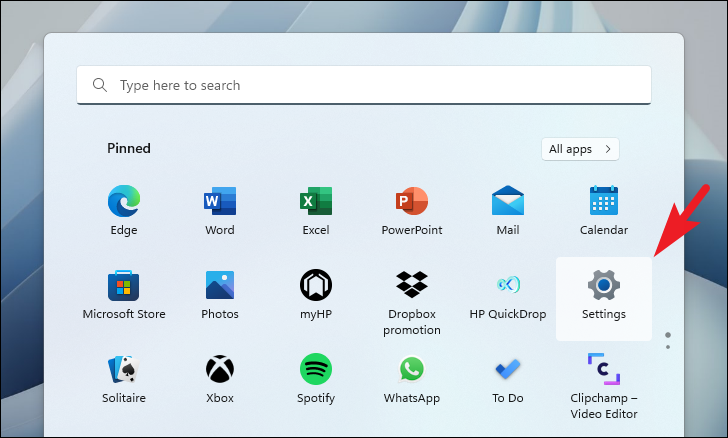
Step 1: Open the Settings App
Click the Start menu (Windows icon) on the taskbar and select Settings.
Alternatively, type Settings in the search bar and press Enter.
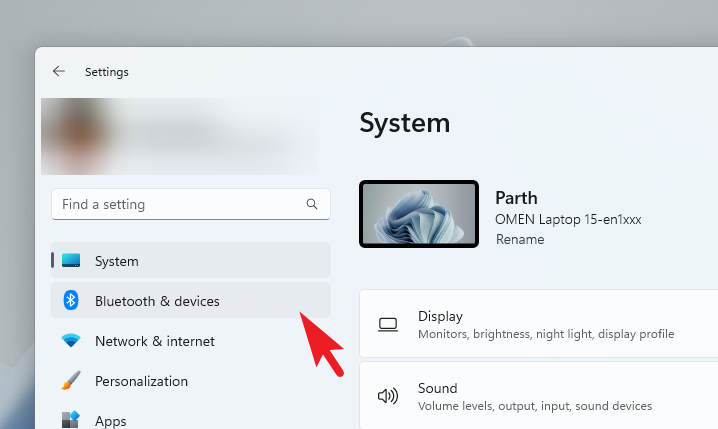
Step 2: Go to Bluetooth & Devices
In the left sidebar, click Bluetooth & devices. This section manages all hardware connected to your PC, including cameras.
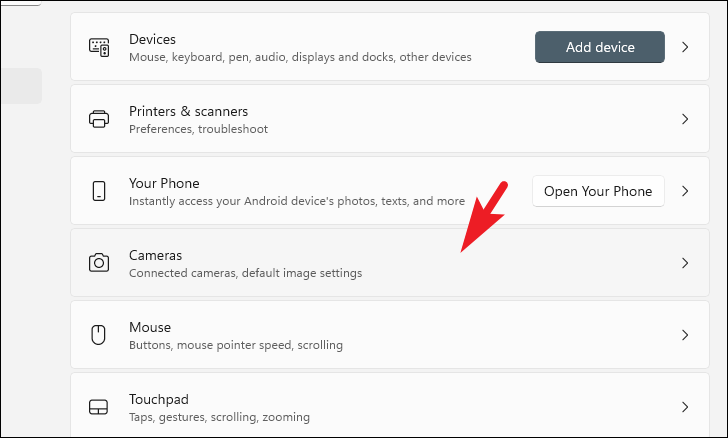
Step 3: Open Camera Settings
Scroll down on the right panel and click Cameras.
Windows 11 will now display all detected camera devices.
Step 4: Select Your Webcam
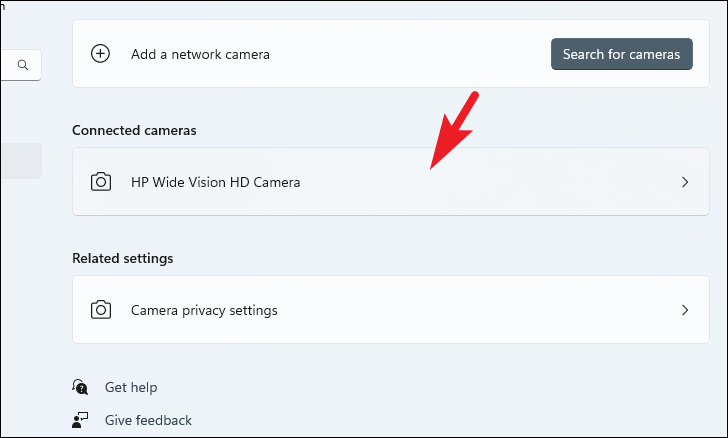
Under Connected cameras, click the webcam you want to test. If you’re using a laptop, this will usually be labeled as an integrated camera.
Step 5: Enable the Webcam (If Disabled)
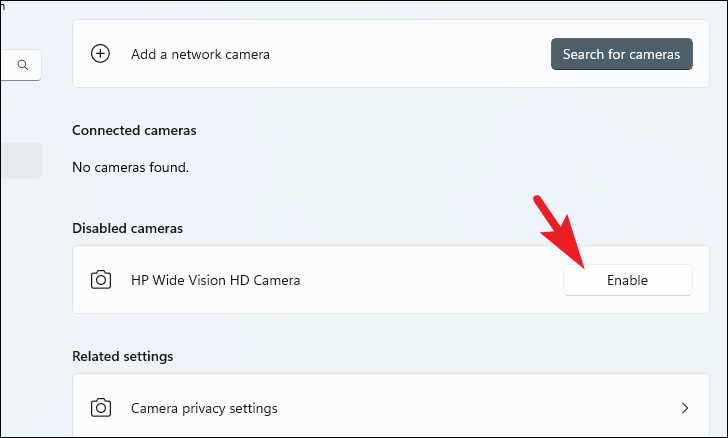
If your webcam is turned off, click Enable next to the camera name.
Windows will immediately activate the device.
Step 6: Check the Live Camera Preview
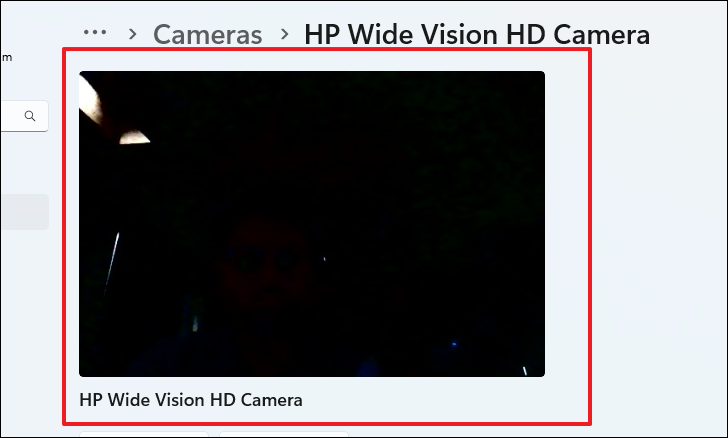
Once enabled, a live preview feed appears at the top of the screen.
If you can see yourself clearly, your webcam is working properly.
No image? That usually indicates a driver, permission, or hardware issue.
Step 7: Adjust Image Quality
Windows 11 allows basic camera tuning. Use the available sliders to adjust:
- Brightness
- Contrast
- Video quality (depending on the camera)
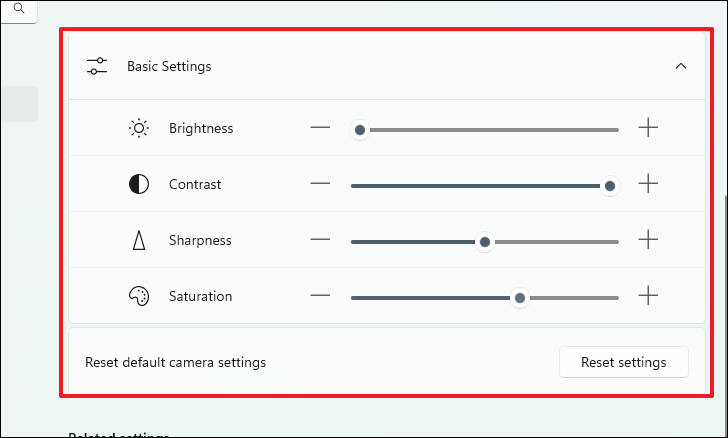
This is especially useful if your image looks too dark or washed out.
Verify Camera Privacy Permissions in Windows 11
If your webcam works in Settings but fails in apps like Zoom or Teams, privacy settings are often the culprit.
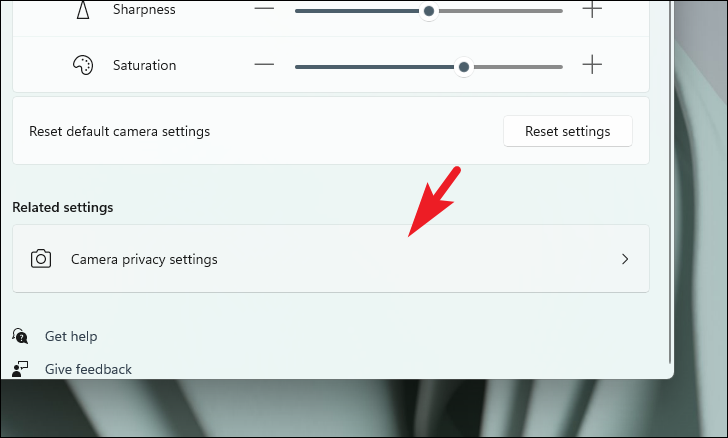
Step 8: Open Camera Privacy Settings
Scroll down and click Camera privacy settings under Related settings.
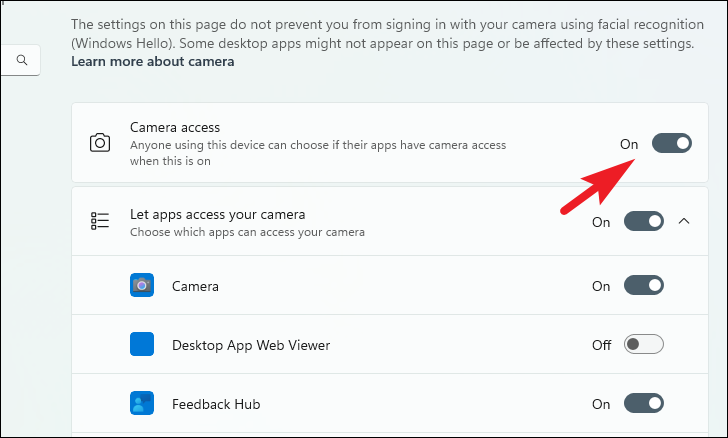
Step 9: Enable Camera Access
Make sure Camera access is toggled On.
This allows Windows and installed apps to use your webcam.
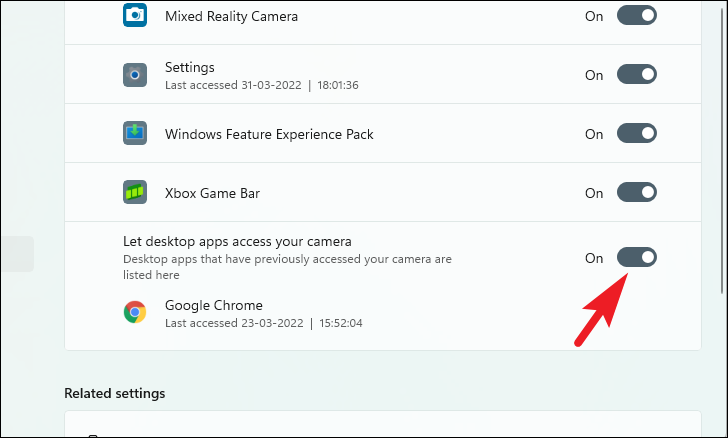
Step 10: Allow Camera Access for Specific Apps
Below, you’ll see a list of apps that can request camera access.
Find the app you’re having trouble with and ensure its toggle is set to On.
Important Browser Note
If you’re using web-based video services like Google Meet, Zoom Web, or Microsoft Teams in a browser:
- Check browser permissions
- Ensure camera access is allowed for that website
- Look for a camera icon in the address bar
Browsers can block webcam access even when Windows settings are correct.
What to Do If Your Webcam Still Doesn’t Work
If your camera doesn’t show a preview after following these steps:
- Restart your PC
- Unplug and reconnect external webcams
- Update camera drivers via Windows Update
- Check for manufacturer-specific camera software
Persistent issues may indicate a driver conflict or hardware failure.
Final Thoughts
Testing your webcam on Windows 11 is simple, fast, and essential—especially if you rely on video calls for work or school. By using the built-in Settings app and checking privacy permissions, you can confirm your camera is ready before you need it most.
A quick two-minute test today can prevent unnecessary stress tomorrow.
And if you'd like to go a step further in supporting us, you can treat us to a virtual coffee ☕️. Thank you for your support ❤️!

We do not support or promote any form of piracy, copyright infringement, or illegal use of software, video content, or digital resources.
Any mention of third-party sites, tools, or platforms is purely for informational purposes. It is the responsibility of each reader to comply with the laws in their country, as well as the terms of use of the services mentioned.
We strongly encourage the use of legal, open-source, or official solutions in a responsible manner.
Comments