


Apple’s iOS 26 introduces a device-side Call Screening feature that lets your iPhone handle unknown numbers before the phone even rings. Instead of being interrupted by spam or mystery calls, your iPhone will automatically answer silently, ask the caller to state their name and reason, then transcribe it so you can decide whether to pick up.
This guide walks you through setting up Call Screening, silencing or filtering calls, enabling caller ID, blocking contacts, and troubleshooting if the option doesn’t appear.
Turn on Call Screening (Ask Reason for Calling)
1- Open Settings → Tap Apps at the bottom of the list.

2- Tap Phone.

3- Under Screen Unknown Callers, select Ask Reason for Calling.
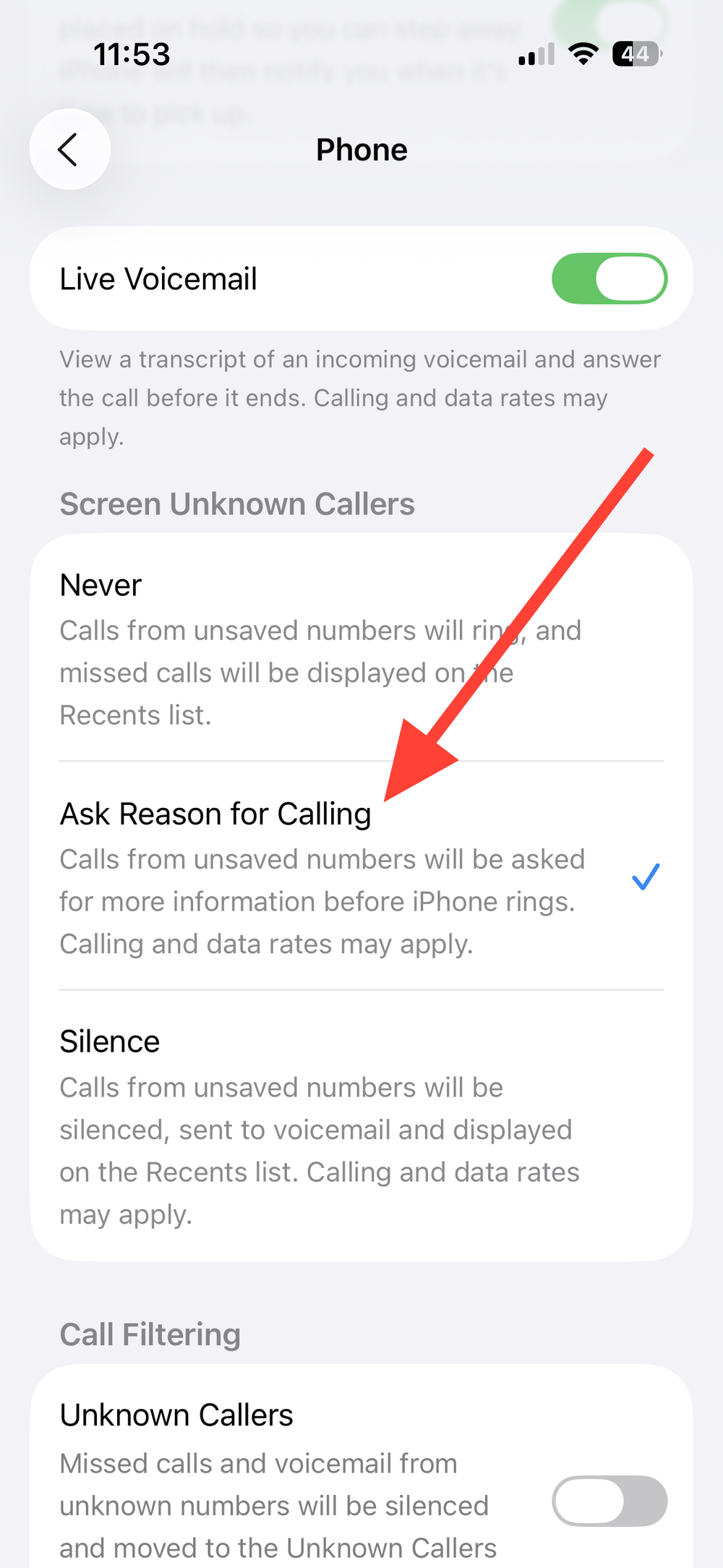
👉 Your iPhone will silently answer unknown numbers, ask for the caller’s name and reason, and transcribe it before ringing.
Note: Siri speaks to callers using your device’s default language. To change this, go to Settings > General > Language & Region.
Silence Unknown Callers Instead
1- Go to Settings > Apps > Phone.
2- Under Screen Unknown Callers, choose Silence.

- Calls from numbers not in Contacts go directly to voicemail and appear in your call history.
T3- o allow all calls again, return here and choose Never.
Filter Unknown and Spam Calls into Separate Lists
- Open Settings > Apps > Phone.
- Toggle Unknown Callers → Moves missed calls/voicemails from unsaved numbers into a separate Unknown Callers list.
- Toggle Spam → Flags calls marked by your carrier as fraud or spam, silences them, and sends them to a Spam list.
👉 To mark a caller as known: Open the Phone app → Tap Filter → Go to Unknown Callers → Tap Mark as Known.
Enable Caller Identification (Business and Apps)
- Go to Settings > Apps > Phone > Call Blocking & Identification.
- Turn on Business Call Identification.
- Enable trusted caller ID apps (e.g., Truecaller, Hiya, or carrier-provided options).
Block or Unblock Specific Numbers
- Open the Phone app > Contacts.
- Tap a contact → Block Contact.
- Blocks calls, texts, and FaceTime.
- To unblock: Settings > Apps > Phone > Blocked Contacts > Edit > Unblock.
View Screened, Filtered, or Spam Calls
- Open the Phone app.
- Tap the Filter button (top right).
- Choose Unknown Callers or Spam to review, play voicemails, or mark numbers.
Troubleshooting: Call Screening Missing or Not Working
- Method 1: Match language & region. Use English (US) + United States or another supported combo. Restart your iPhone.
- Method 2: Update to the latest iOS 26 build via Settings > General > Software Update.
- Method 3: Restart your iPhone to reload Phone services.
- Method 4: Remember: Saved Contacts are never screened. Remove test numbers from Contacts to check behavior.
- Method 5: Carrier support varies. If your carrier doesn’t label spam, the Spam toggle may not appear.
- Method 6: After updates, recheck Phone settings to confirm Call Screening is enabled.
✅ Once configured, Call Screening in iOS 26 helps you avoid robocalls and spam while ensuring real callers can still reach you. Adjust the filters until your iPhone rings only for the people you want.
And if you'd like to go a step further in supporting us, you can treat us to a virtual coffee ☕️. Thank you for your support ❤️!

We do not support or promote any form of piracy, copyright infringement, or illegal use of software, video content, or digital resources.
Any mention of third-party sites, tools, or platforms is purely for informational purposes. It is the responsibility of each reader to comply with the laws in their country, as well as the terms of use of the services mentioned.
We strongly encourage the use of legal, open-source, or official solutions in a responsible manner.
Comments