


If you juggle between multiple Windows PCs daily, constantly switching keyboards and mice can feel like a productivity killer. Enter Mouse Without Borders, a hidden gem inside Microsoft’s PowerToys suite. This free tool lets you control up to four Windows computers using a single mouse and keyboard — no extra hardware, subscriptions, or complex network configurations required.
Whether you’re a gamer managing multiple setups, a developer testing on different systems, or a remote worker with a laptop and desktop side-by-side, Mouse Without Borders can streamline your workflow like magic. Here’s how it works and why it’s worth trying.
What Is Mouse Without Borders?

Mouse Without Borders is Microsoft’s free software KVM (Keyboard, Video, Mouse) alternative built into PowerToys. It allows you to:
- Move your mouse seamlessly across up to four linked Windows PCs
- Use a single keyboard for all connected systems
- Share your clipboard and transfer files (up to 100MB) between devices
- Control any linked PC from any of the others — not just the primary
Unlike many paid KVM solutions, Mouse Without Borders works over your local network and doesn’t require a Microsoft account.
How to Set Up Mouse Without Borders
Setting up Mouse Without Borders is surprisingly straightforward:
- Install PowerToys on all the Windows PCs you want to link.
- Launch PowerToys and enable Mouse Without Borders from the left-hand menu.
- On your primary PC, generate a security key.
- On each secondary PC, enter the same security key to connect.
- Arrange your devices in either a single row or a 2×2 grid to match your desk layout.

This layout functions like multiple monitors, so your mouse moves naturally from one device to the next.
💡 Pro Tip: Run PowerToys as an administrator to enable control on the Windows lock screen or over apps that require elevated permissions.
Key Features That Make It Stand Out
1. Seamless Mouse & Keyboard Sharing
Once connected, your mouse glides from one PC to another without delay. Keyboard input automatically follows the mouse, ensuring a smooth, intuitive experience.
2. Shared Clipboard & File Transfers
Copy text, links, or images on one PC and paste them instantly on another. You can also drag and drop files up to 100MB between systems — no USB drives or cloud uploads needed.

3. Any PC Can Control Any PC
You’re not limited to one main controller. Each linked device can take over the others, whether you’re using a mouse, an external keyboard, or a built-in laptop touchpad.
4. Highly Customizable Options
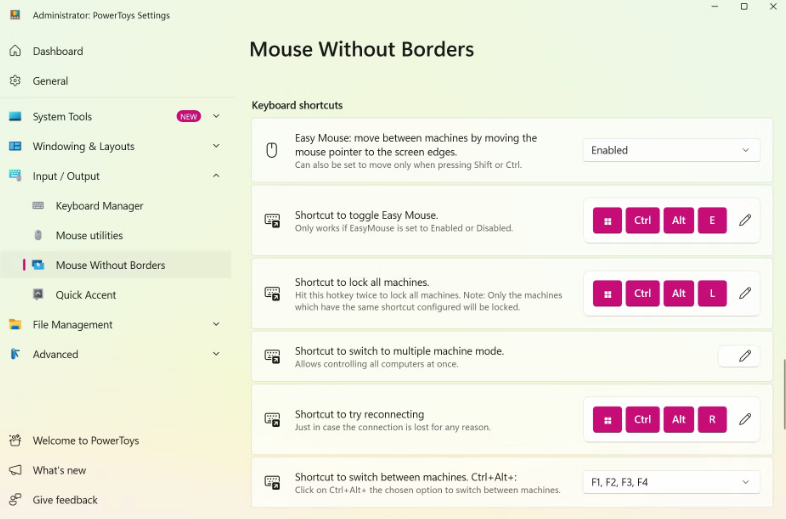
Mouse Without Borders offers a range of settings, including:
- Easy Mouse Mode: Automatically transition between PCs when hitting the screen edge (can be disabled to require a key press).
- Relative Mouse Movement: Adjusts for different DPI settings between devices.
- Subnet Restrictions: Limit connections to devices on the same network.
- Manual IP Binding: Solve tricky connection issues.
- Connection Indicators: Monitor link and clipboard status via the taskbar.
Limitations and Wishlist Features
While Mouse Without Borders is incredibly powerful, it’s not a remote desktop tool — you still need all linked devices physically accessible. A future addition of live screen preview would make it even more versatile for remote management.
Why You Should Try It
For anyone managing multiple PCs — especially within the same workspace — Mouse Without Borders can transform your workflow. It eliminates desk clutter, speeds up file transfers, and lets you jump between machines instantly.
Best of all? It’s completely free, ad-free, and built by Microsoft, so you can trust it’s secure and regularly updated.
Final Thoughts
It’s hard to imagine using multiple Windows PCs without Mouse Without Borders once you’ve tried it. Whether you’re a multitasker, a content creator, or just someone who hates switching peripherals, this PowerToys feature will save you time and frustration.
If you already have PowerToys installed, enable Mouse Without Borders today — and if you don’t, downloading it might be the best productivity upgrade you make all year.
And if you'd like to go a step further in supporting us, you can treat us to a virtual coffee ☕️. Thank you for your support ❤️!

We do not support or promote any form of piracy, copyright infringement, or illegal use of software, video content, or digital resources.
Any mention of third-party sites, tools, or platforms is purely for informational purposes. It is the responsibility of each reader to comply with the laws in their country, as well as the terms of use of the services mentioned.
We strongly encourage the use of legal, open-source, or official solutions in a responsible manner.
Comments