
Your friend says they sent you a text. Their iPhone even shows “Delivered,” but your Android phone has no message, no notification, and no obvious error.
This problem can be especially frustrating when you can receive texts from other people without any issues. You might assume something is wrong with your Android phone, but that isn’t always the case.
When an Android phone stops receiving texts from an iPhone, the problem often involves iMessage registration, RCS messaging, MMS settings, or a carrier issue. If you recently switched from an iPhone to Android, your phone number might still be registered with Apple’s messaging service, preventing some messages from reaching your new device.
The good news is that you can usually identify the cause without resetting your phone or contacting technical support. Start with the checks below, then follow the solution that matches your situation.
1. Check Whether the iPhone Is Using iMessage, RCS, or SMS
Before changing any settings on your Android phone, ask the iPhone owner to open your conversation and check the message bubble color and the label in the text field.
These details can help identify where the problem originates.
- Blue bubbles — iMessage: The iPhone is sending messages through Apple’s messaging service. If your phone number is still registered with iMessage after switching to Android, messages may continue going to Apple’s service instead of reaching your Android phone.
- Green bubbles — RCS: The iPhone is using Rich Communication Services, a modern messaging standard that supports features such as read receipts and typing indicators. If messages aren’t arriving, check RCS registration and carrier compatibility on both devices.
- Green bubbles — SMS: The iPhone is sending a standard text message. If these messages also fail, investigate blocked numbers, network connectivity, messaging settings, and carrier problems.
The distinction matters because iMessage, RCS, and SMS use different delivery systems. Identifying the messaging method first can save you from trying fixes that have nothing to do with your problem.
If the conversation remains blue even though you’re using Android, start with the next solution.
2. Deregister iMessage After Switching From iPhone to Android
One of the most common reasons for missing texts after switching phones is that your number remains associated with iMessage.
When you use an iPhone, Apple can register your phone number for iMessage. If you move your SIM card or transfer your number to an Android device without properly disabling the service, other iPhones may continue trying to deliver messages through Apple’s servers.
This can make it appear as though messages were sent successfully even when they never reach your Android phone.
If you still have your old iPhone
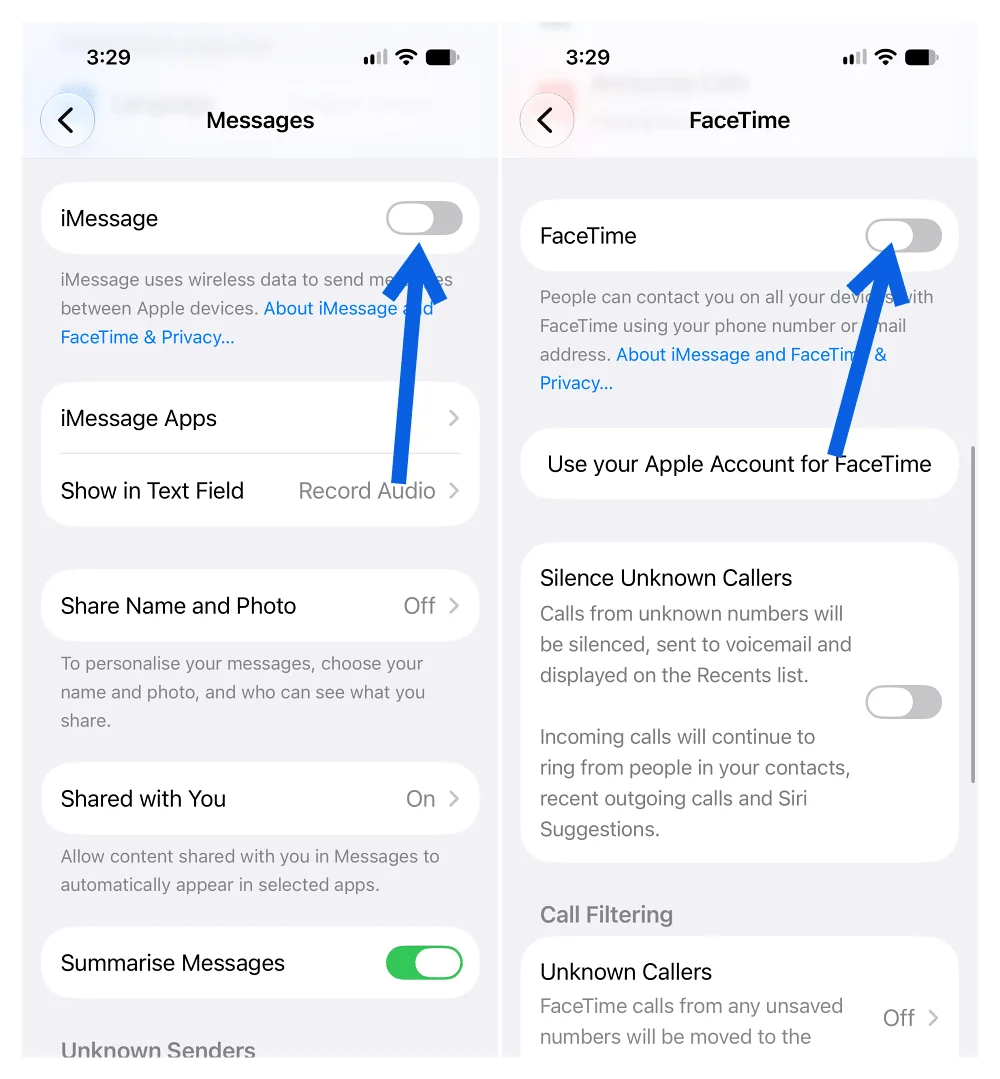
Follow these steps to disable Apple’s messaging services:
- Insert your SIM card into the old iPhone or transfer your eSIM back to it, if necessary.
- Open Settings > Apps > Messages.
- Turn off iMessage.
- Return to Settings and open Apps > FaceTime.
- Turn off FaceTime.
You can use this reference image to locate the relevant settings:
If you no longer have your old iPhone
You can remove your phone number from iMessage online without accessing the old device.
- Open Apple’s official Deregister iMessage page.
- Enter the phone number you want to deregister.
- Wait for Apple to send a confirmation code to your Android phone.
- Enter the code and submit the request.
After deregistration, new messages should begin arriving as standard text messages or through another supported messaging service.
However, the change might not take effect immediately on every Apple device. If a particular contact continues sending blue-bubble messages after the deregistration process, ask them to start a new conversation with your phone number. You should also check whether your number remains associated with Messages on an old Mac or iPad.
Best for: People who recently switched from an iPhone to Android and cannot receive messages from iPhone users.
3. Check RCS Messaging on Both Phones
If the iPhone sends green-bubble messages but your Android phone still doesn’t receive them, RCS is another possible cause.
RCS, or Rich Communication Services, improves traditional texting with features such as higher-quality media sharing, typing indicators, and read receipts. Apple introduced support for RCS on compatible iPhones starting with iOS 18, but availability depends on carrier support.
If RCS registration fails or becomes stuck, messages may not be delivered as expected.
Check RCS on your Android phone
If you use Google Messages, follow these steps:
- Open Google Messages.
- Tap your profile picture.
- Select Messages settings > RCS chats.
- Check the connection status.
Google Messages can display several statuses:
- Connected: RCS is active on your phone.
- Connecting: The app is attempting to activate or verify your number.
- Trouble connecting. Awaiting retry: Registration or connectivity has encountered a problem.
- Not supported: RCS may be unavailable because of your carrier, device, or connection.
If the status remains stuck on Connecting or Awaiting retry, check your mobile data or Wi-Fi connection and make sure Google Messages is updated.
You can also review the available resend options and enable fallback to SMS/MMS when offered. This allows supported failed RCS messages to be resent as traditional texts rather than remaining undelivered.
For more details, see our guide to Google Messages check marks and what they mean.
Check RCS on the iPhone
The person sending you messages should also verify their settings:
- Open Settings on the iPhone.
- Select Apps > Messages.
- Find RCS Messaging.
- Make sure the option is enabled.
If the sender recently changed carriers or enabled RCS for the first time, activation may take some time.
Avoid repeatedly switching RCS on and off. Google warns that disabling RCS can remove a user from RCS group chats. If you need to retry activation, toggle the setting once, restart the phone if necessary, and allow time for registration to complete.
Best for: Cases where ordinary texts work inconsistently, RCS messages fail, or one device shows an activation error.
4. Fix Missing Group Texts by Checking MMS Settings
Do you receive individual texts from iPhone users but miss messages from group conversations?
The problem may be related to MMS, particularly when a group includes both Android and iPhone users and RCS isn’t available to everyone.
MMS, or Multimedia Messaging Service, allows phones to exchange group messages and multimedia content through carrier messaging systems. Incorrect settings or disabled mobile data can interfere with delivery.
Enable MMS and group messaging on the iPhone
Ask the iPhone owner to check the following:
- Open Settings > Apps > Messages.
- Enable MMS Messaging, if the option is available.
- Enable Group Messaging, if the option is available.
The exact options can vary depending on the carrier and iOS version. If the carrier doesn’t support a particular feature, the corresponding setting might not appear.
Enable mobile data on Android
On your Android phone:
- Open Settings.
- Go to Network & Internet, Connections, or the equivalent menu on your device.
- Turn on Mobile data.
- Return to Google Messages and check whether the missing group messages arrive.
MMS delivery commonly relies on cellular data, so having Wi-Fi connected does not necessarily mean multimedia messages will work when mobile data is disabled.
If the problem involves photos or videos rather than text alone, check your MMS configuration and any data restrictions imposed by your carrier.
You can also consult our guide to Android status bar icons and symbols to identify your mobile network indicators.
Best for: Missing group conversations, photos, videos, or messages that fail only when Android and iPhone users share a group.
5. Samsung Galaxy Users: Switch to Google Messages
If you own a Samsung Galaxy phone, check which messaging app you’re using.
Samsung has been transitioning users toward Google Messages, which supports modern RCS messaging and communication with compatible iPhones. If your device still relies on an older messaging app, switching to Google Messages may help resolve compatibility problems.
To set Google Messages as your default SMS app:
- Open Settings.
- Select Apps.
- Tap Choose default apps.
- Select SMS app.
- Choose Messages, making sure you select Google Messages rather than a different messaging app with a similar name.
Next, open Google Messages and check the RCS connection status using the steps in the previous section.
If Google Messages isn’t installed, obtain it from the official Google Play Store.
Changing your default messaging app does not automatically fix every carrier or registration problem, but it gives you access to Google’s current RCS implementation and troubleshooting options.
Best for: Galaxy users who still use an older messaging application or experience problems with RCS compatibility.
6. Check Spam Filters and Blocked Numbers
Sometimes, your Android phone receives a message but moves it into a filtered folder or blocks the sender.
Google Messages includes spam protection that can identify suspicious messages and move them out of your main inbox. Depending on the circumstances, this can make a legitimate conversation appear to have disappeared.
To check your filtered messages:
- Open Google Messages.
- Tap your profile picture or the app menu.
- Select Spam & blocked.
- Look for the missing conversation or sender.
- If you find a legitimate message, open it and select the option to report it as not spam or unblock the sender.
You should also check your phone’s blocked-number list.
Open the Phone app, navigate to its settings, and look for Blocked numbers. If the sender’s number appears there, remove it from the list.
Menu names vary between Android manufacturers, so you might need to look under Call settings or similar options.
After unblocking the number, ask the iPhone owner to send a new message. Previously missed messages may not automatically reappear.
Best for: Situations where messages from one specific iPhone user never appear, while texts from other contacts arrive normally.
7. Troubleshoot Carrier and Network Problems
If iMessage registration, RCS, MMS, spam filtering, and blocked numbers aren’t responsible, the problem may lie with your carrier or the sender’s network.
Messaging services depend on more than the phone itself. Carrier configuration, number registration, network routing, and service outages can all affect delivery.
For example, an RCS activation failure can prevent messages from being delivered even when both devices appear to be configured correctly. In these situations, repeatedly changing phone settings may accomplish very little.
Work through the following checks before contacting support.
Step 1: Update both phones
Install available operating system updates on the iPhone and Android device.
On Android, open the Google Play Store, search for Google Messages, and install any available update.
Updates can resolve known messaging bugs, improve compatibility, and fix problems affecting RCS registration.
Step 2: Restart both devices
Restarting the phones can refresh network connections and messaging services.
After restarting, ask the iPhone owner to send you a new message. Test both an individual conversation and, if relevant, a group conversation.
Step 3: Reset the iPhone’s network settings
If the problem affects multiple Android contacts, the iPhone’s network configuration may be responsible.
The iPhone owner can reset network settings by following this path:
Settings > General > Transfer or Reset iPhone > Reset > Reset Network Settings
Be aware that this removes saved Wi-Fi networks and passwords, along with other network-related settings. It should not be your first troubleshooting step.
Step 4: Test messages with other contacts
Ask the iPhone owner to send messages to at least two other Android users.
- No Android users receive messages: The issue may involve the iPhone, its messaging configuration, or the sender’s carrier.
- Other Android users receive messages normally: Your phone number, Android settings, or receiving carrier may be responsible.
- Only group messages fail: Focus on RCS group compatibility, MMS, and mobile data.
These tests help narrow down the problem before you contact technical support.
Step 5: Contact your carrier
If the previous steps fail, contact your mobile operator and explain that you’re not receiving messages from iPhone users.
Ask the support representative to check:
- Whether SMS and MMS are correctly provisioned on your line.
- Whether RCS is supported and properly registered, if applicable.
- Whether there are known messaging outages.
- Whether any account restrictions or network configuration problems could affect incoming messages.
If the problem affects several contacts using the same carrier, mention that detail. It can help support identify a network-side issue rather than treating the problem as a fault with your handset.
Best for: Persistent failures affecting multiple contacts or messages that remain undelivered despite correct phone settings.
Does End-to-End Encrypted RCS Prevent Messages From Arriving?
No. End-to-end encryption is not, by itself, a reason to suspect that your Android phone is unable to receive texts from an iPhone.
RCS encryption is designed to protect message contents from being read by unauthorized parties while messages are exchanged between compatible devices. Its availability depends on the messaging implementation, software version, and supported configurations.
When encryption is available and active, the messaging app may display a lock icon or another security indicator.
If a conversation fails to deliver, focus first on registration, carrier compatibility, network connectivity, and the messaging method being used. Encryption does not eliminate the need for a working connection or properly configured messaging service.
Frequently Asked Questions
Why does an iPhone say “Delivered” when my Android phone receives nothing?
The sender may be seeing a delivery indication associated with an Apple messaging conversation or another connected Apple device. It doesn’t necessarily prove that the message reached your Android phone. Check whether the conversation uses blue iMessage bubbles or green RCS/SMS bubbles, then troubleshoot the corresponding service.
Why can I receive texts from Android users but not iPhone users?
The problem may involve an old iMessage registration, RCS compatibility, or a carrier issue affecting communication between the two platforms. Start by checking whether the iPhone is using iMessage, RCS, or SMS.
Do I need to factory-reset my Android phone?
Usually, no. Factory resetting your phone is a drastic step that can erase personal data and is unlikely to help if the real problem is an iMessage registration or carrier configuration issue. Try the targeted fixes in this guide first.
Why am I missing iPhone group texts but receiving individual messages?
Mixed-device group conversations may rely on MMS when RCS isn’t supported by every participant. Check MMS and group messaging settings on the iPhone, enable mobile data on Android, and verify that your carrier supports the required messaging features.
Will deregistering iMessage delete my old messages?
Deregistering your phone number removes its association with iMessage; it is not intended to erase your existing message history. Messages already stored on your old iPhone or other Apple devices are a separate matter.
Final Thoughts
When you’re not receiving texts from an iPhone on Android, the problem isn’t necessarily your Android phone. The cause could be an old iMessage registration, an RCS activation failure, incorrect MMS settings, a blocked contact, or a carrier-side issue.
The most efficient approach is to identify the messaging type first, then troubleshoot the service responsible for delivering it.
If you recently switched from an iPhone, deregister your number from iMessage. If the conversation uses RCS, check its connection status on both devices. For missing group messages, verify MMS and mobile data settings. Finally, investigate blocked numbers and carrier problems if nothing else works.
You shouldn’t need to replace your phone or erase your data to solve a problem that may originate with the sender’s messaging service or mobile network.
Add Tech2Geek as a preferred source on Google to see more of our latest tech articles.
Support Tech2Geek ❤️
Did this guide help you? If Tech2Geek saves you time or helps you solve a problem,
consider buying me a coffee. ☕
Your support helps keep Tech2Geek independent and free.
Comments