
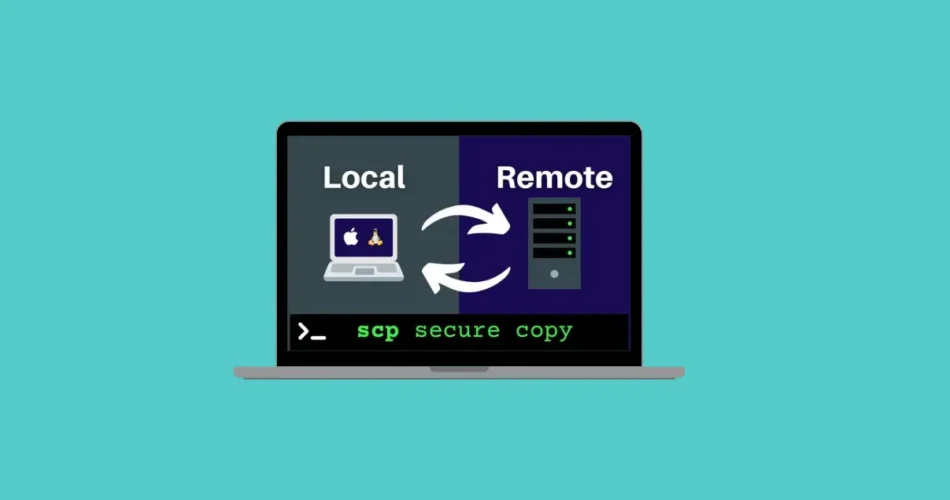
SCP (Secure Copy) allows you to securely transfer files between a local host and a remote host—or even between two remote hosts. It is based on the SSH protocol, which means it inherits strong authentication and encryption. SCP is popular for its simplicity, security, and wide availability, as it comes pre-installed on most Linux distributions.
Basic SCP Examples
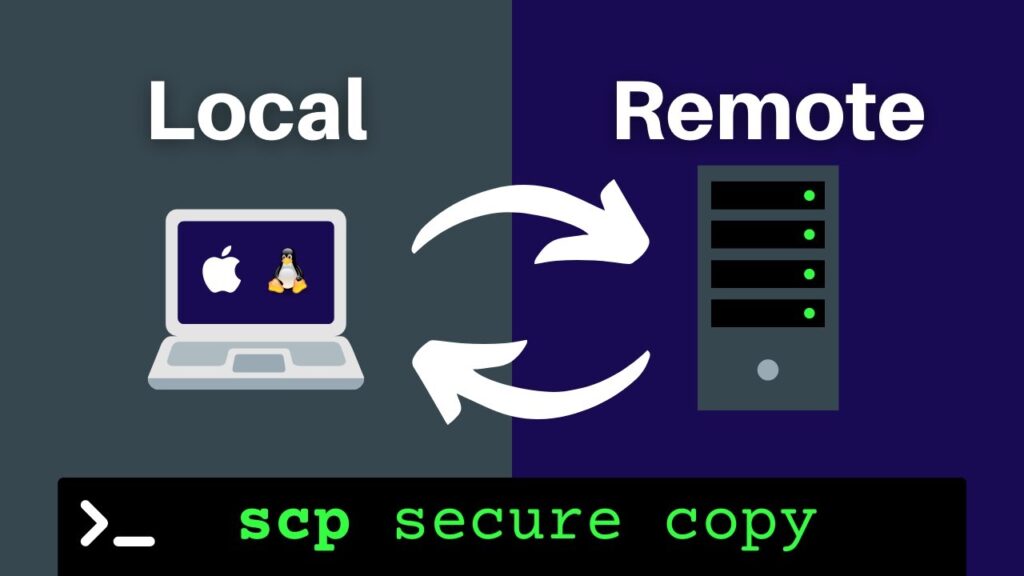
Copy a file from a remote host to a local host
scp username@from_host:file.txt /local/directory/
Copy a file from a local host to a remote host
scp file.txt username@to_host:/remote/directory/
Copy a directory from a remote host to a local host
scp -r username@from_host:/remote/directory/ /local/directory/
Copy a directory from a local host to a remote host
scp -r /local/directory/ username@to_host:/remote/directory/
Copy a file between two remote hosts
scp username@from_host:/remote/directory/file.txt username@to_host:/remote/directory/
Advanced SCP Usage
Copying files using a specific port
Specify a custom SSH port (e.g., 2222):
scp -P 2222 username@from_host:file.txt /local/directory/
Enable compression during transfer
Useful for large files:
scp -C username@from_host:file.txt /local/directory/
Limit bandwidth usage
Limits bandwidth to 1000 Kbit/s:
scp -l 1000 username@from_host:file.txt /local/directory/
Preserve file attributes
Keeps original modification times, access times, and modes:
scp -p username@from_host:file.txt /local/directory/
Using SSH Options with SCP
Use a jump host
You can go through a jump host before connecting to the target:
scp -o "ProxyJump user@jump_host" username@from_host:file.txt /local/directory/
Quiet mode
Suppresses progress meter and warnings:
scp -q username@from_host:file.txt /local/directory/
Verbose mode
Prints debugging messages for troubleshooting:
scp -v username@from_host:file.txt /local/directory/
Recursive copy with compression and SSH options
Combines multiple flags for advanced transfers:
scp -r -C -o "ProxyJump user@jump_host" username@from_host:/remote/directory/ /local/directory/
SCP Options Summary
| Option | Description |
|---|---|
-r | Recursively copy directories (follows symbolic links). |
-C | Enable compression. |
-l limit | Limit bandwidth in Kbit/s. |
-o ssh_option | Pass custom SSH options (e.g., ProxyJump). |
-P port | Specify the SSH port (capital P). |
-p | Preserve modification, access times, and file modes. |
-q | Quiet mode: disables progress and warnings. |
-v | Verbose mode for debugging and connection messages. |
Notes and Best Practices
- Testing first: When using advanced options, test in a safe environment before production.
- File overwrites: SCP replaces the contents of a target file if it already exists. Be careful!
- Host identification: Use either an IP address or domain name. SSH password will be prompted after pressing Enter.
- Cross-platform: These commands work on Linux and macOS. On Windows, use tools like WinSCP or PowerShell with SCP support.
- Example backup command:
scp -r root@123.123.123.123:/var/www/html/ /home/hydn/backups/test/
Conclusion
SCP remains a reliable and secure method for transferring files over SSH. With options for compression, bandwidth limiting, preserving file attributes, and jump hosts, it can handle simple transfers as well as advanced backup workflows.
For frequent Linux sysadmins and power users, mastering SCP is essential for secure, efficient, and reliable file transfers.
And if you'd like to go a step further in supporting us, you can treat us to a virtual coffee ☕️. Thank you for your support ❤️!

We do not support or promote any form of piracy, copyright infringement, or illegal use of software, video content, or digital resources.
Any mention of third-party sites, tools, or platforms is purely for informational purposes. It is the responsibility of each reader to comply with the laws in their country, as well as the terms of use of the services mentioned.
We strongly encourage the use of legal, open-source, or official solutions in a responsible manner.
Comments