

Are you the type who loves getting a sneak peek at what’s coming next? Do you thrive on exploring the cutting edge of technology? If so, you’re in the right place. Windows, with its ever-evolving feature set, often keeps exciting new additions under wraps. But what if you could bypass the wait and experience these hidden gems firsthand? Enter ViVeTool, a powerful, open-source utility that lets you do just that. This guide will walk you through everything you need to know to unlock the secrets of Windows and explore its experimental features.
What is ViVeTool?
ViVeTool is a command-line tool developed by Rafael Rivera and Lucas (aka @thebookisclosed), designed to enable or disable hidden experimental features in Windows. These features are often in development, not yet fully released, or being tested internally by Microsoft. They are identified by unique numerical identifiers known as “feature IDs.” ViVeTool acts as a key, allowing you to interact with these IDs and control the activation (or deactivation) of specific functionalities.
Think of it as a backstage pass to Windows’ inner workings, giving you access to features before they reach the mainstream.
Why are Features Hidden?
Microsoft uses a system called ViVe (Virtual Feature Control) to test new features within its Insider builds. This allows them to remotely activate or deactivate functionalities for a select group of users, gathering feedback and ensuring stability before a wider rollout.
This means that even within the same Windows version, different users might experience different features. Some are gradually rolled out through remote testing, while others are present in the system but remain inactive. This is where ViVeTool becomes invaluable.
Downloading and Using ViVeTool:
ViVeTool is a free, open-source project available on GitHub. It’s easy to use, requiring no complex installation. Here’s how to get started:
Download ViVeTool:
- Visit the official ViVeTool website or the project’s GitHub page.
- Download the latest ViVeTool-vx.x.x.zip file.
- Extract the contents to a readily accessible folder (e.g., Desktop or C:\ViVeTool).

Open Command Prompt as Administrator:
- Click the Start button, type “cmd,” and right-click “Command Prompt.”
- Select “Run as administrator.”
Navigate to the ViVeTool Directory:
- In the Command Prompt, use the
cdcommand to navigate to the folder where you extracted ViVeTool. For example:cd C:\ViVeTool
Essential Commands: Here are the core commands you’ll need:
- Enable a Feature:
vivetool /enable /id:featureID
- Replace
featureIDwith the actual ID of the feature you want to activate. Example:vivetool /enable /id:12345678

- Disable a Feature:
vivetool /disable /id:featureID

- List Active Features:
vivetool /queryThis command displays a list of detectable features and their status on your system.

After enabling or disabling a feature, a system restart may be necessary for the changes to take effect. The need for a restart depends on the type of feature.
Other commands:
/reset /id:<ID>: Resets an ID to its original state./fullreset: Removes all changes made with ViVeTool (use with caution).- For command options, type
/after the command. For example,vivetool /enable /? vivetool /appupdate: Checks for updates to ViVeTool.vivetool /dictupdate: Checks for feature name dictionary updates.
Finding Feature IDs:
Microsoft doesn’t provide an official list of feature IDs. You’ll need to rely on community resources:
- @PhantomOfEarth: Regularly posts lists of IDs with screenshots.
- @TheBobPony: Active on X (formerly Twitter), sharing examples of feature activations.
- Reddit: Explore subreddits like r/Windows11, r/WindowsInsiders, and r/techsupport.
- Other tech blogs and websites: Keep an eye out for articles that mention specific feature IDs.
The /query command can also help you identify features already present on your system.
ViVeTool GUI: The Graphical Alternative:
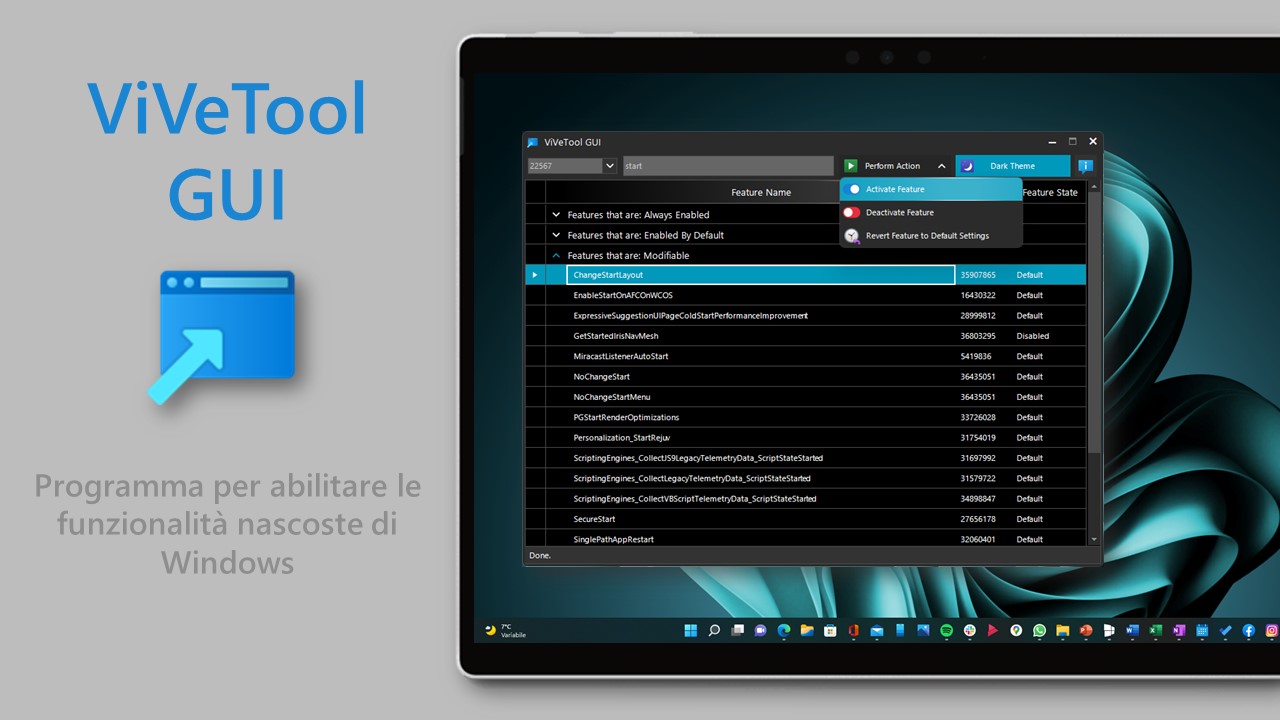
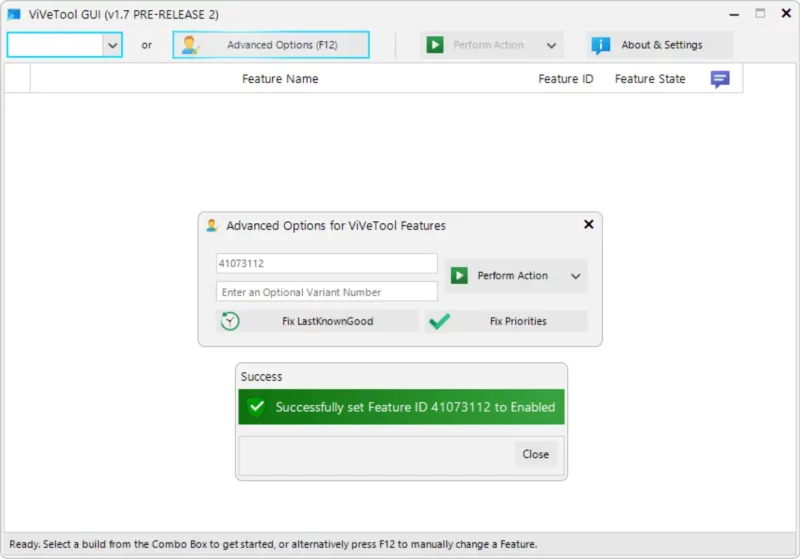
If you prefer a graphical interface, ViVeTool GUI is an excellent option. It offers a user-friendly way to view available features and enable or disable them with a click. You can find it on GitHub.
Summary:
ViVeTool is the perfect tool for those eager to explore hidden or in-development Windows features. However, it’s essential to use it responsibly. While bugs are rare, it’s best to test features in a virtual machine before enabling them on your primary PC. With ViVeTool, you’re not just a user; you’re an explorer, charting the course of future Windows features. So, go ahead, dive in, and discover the exciting possibilities that await!
And if you'd like to go a step further in supporting us, you can treat us to a virtual coffee ☕️. Thank you for your support ❤️!

We do not support or promote any form of piracy, copyright infringement, or illegal use of software, video content, or digital resources.
Any mention of third-party sites, tools, or platforms is purely for informational purposes. It is the responsibility of each reader to comply with the laws in their country, as well as the terms of use of the services mentioned.
We strongly encourage the use of legal, open-source, or official solutions in a responsible manner.
Comments