


If the latest version of Outlook isn’t to your liking, you can completely uninstall it and get back the old Mail and Calendar application. This article will guide you through the steps to rid yourself of this intrusive new iteration.
For some time now, Microsoft has introduced a new Outlook to replace the Mail and Calendar applications from Windows 10 and 11. With an interface inspired by Outlook Web, this version is now pre-installed on Windows, aiming to eliminate the old applications. Despite Microsoft’s efforts to convince users by adding new features, the new Outlook has faced substantial criticism.
Unfortunately, simply uninstalling the application from Windows settings doesn’t completely remove it. The new Outlook tends to reappear, frustrating users who want to get rid of it for good. This article highlights the reasons why one might consider getting rid of the New Outlook and the steps to follow to achieve that.

The Downsides of the New Outlook
Intrusive Ads
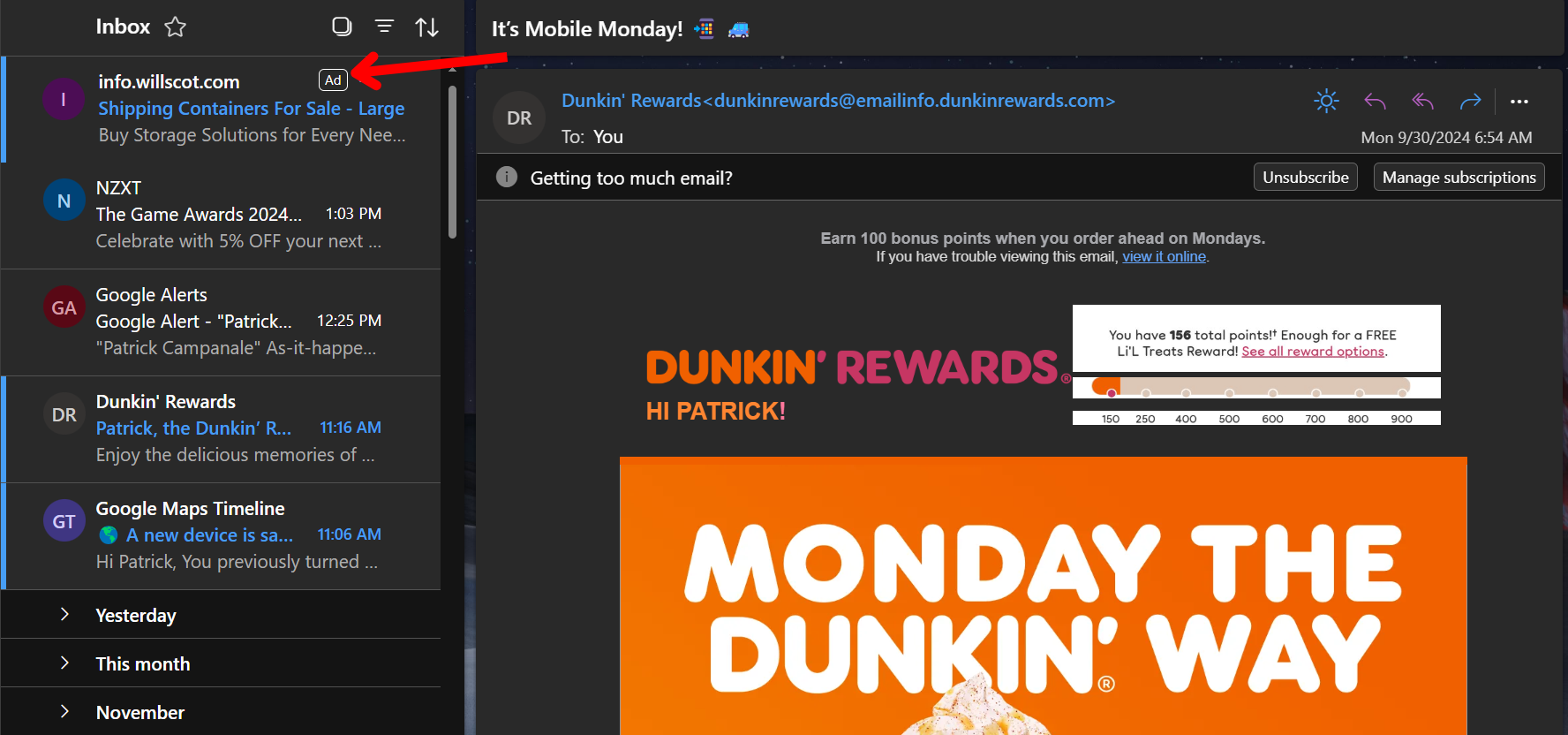
For some strange reason, Microsoft decided to incorporate ads into the new Outlook. These ads can only be removed by subscribing to Microsoft 365 Basic, which costs 1.99permonthor1.99permonthor19.99 per year. For users unwilling to pay for an ad-free experience, this represents a major drawback.
Lack of a Unified Inbox
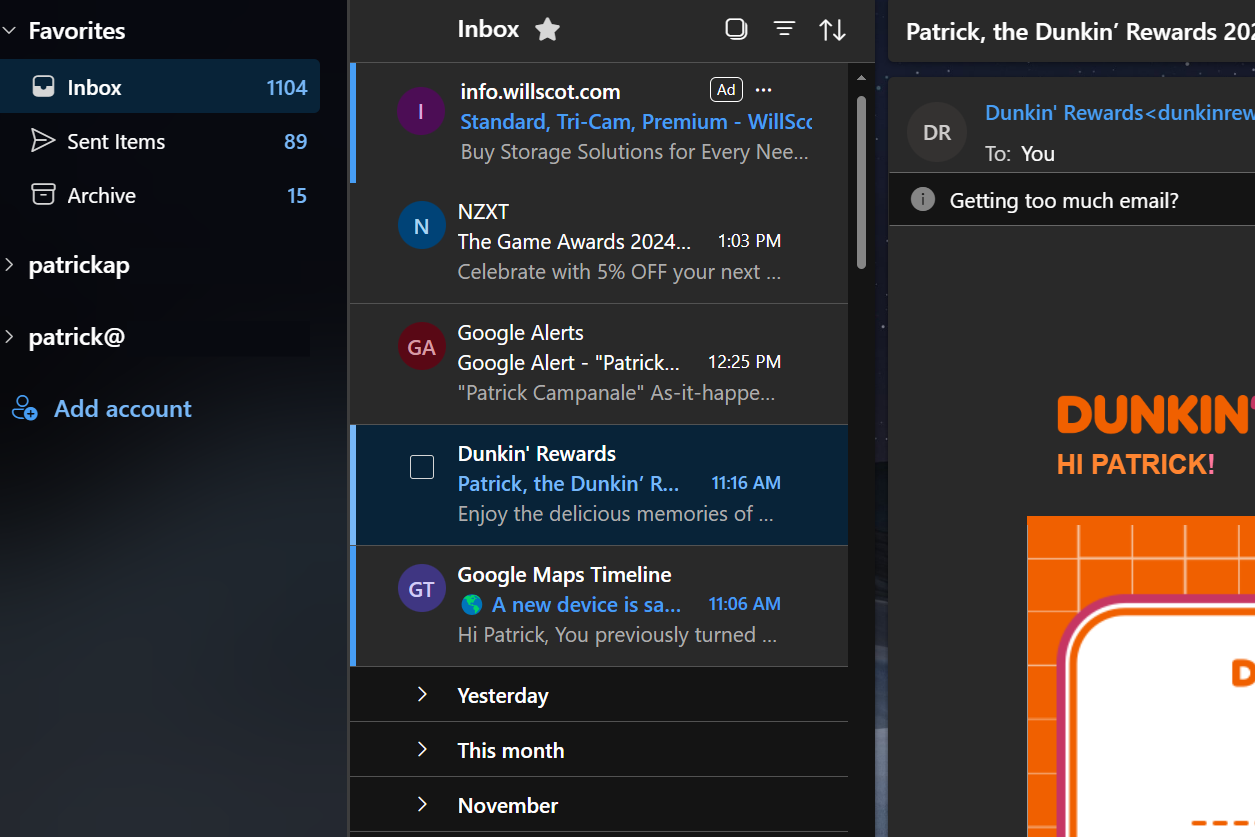
In 2025, it is surprising that the new Outlook still does not offer a unified inbox, which would facilitate the management of multiple email accounts. Users have to navigate through each mailbox individually, making it impractical, especially for those managing several email addresses.
Complex Access to Settings
Navigating through the settings of New Outlook can be quite a challenge. After I set up all my email accounts, it took me considerable time to find them again. Accessing the settings is far from intuitive, making the customization of the user experience frustrating.
Unfriendly Interface
While Windows 11 has modernized its interface, the aesthetic of New Outlook seems stuck in the past. Navigation is often cumbersome and irritating, making the daily use of the mail client unpleasant.
How to Uninstall the New Outlook
Here’s how to permanently eliminate the new Outlook using a small free script, successfully tested by users like those from XDA Developers.
1- Download the Script
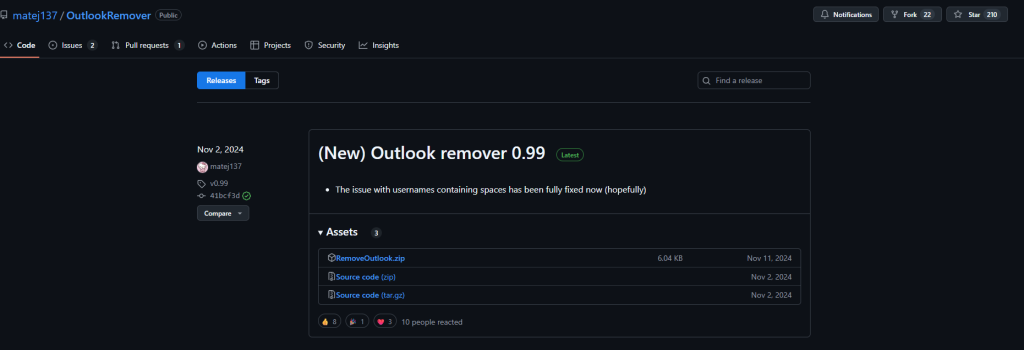
Visit the GitHub page for the OutlookRemover project. Download the RemoveOutlook.zip file to your hard drive.
2- Run the Script
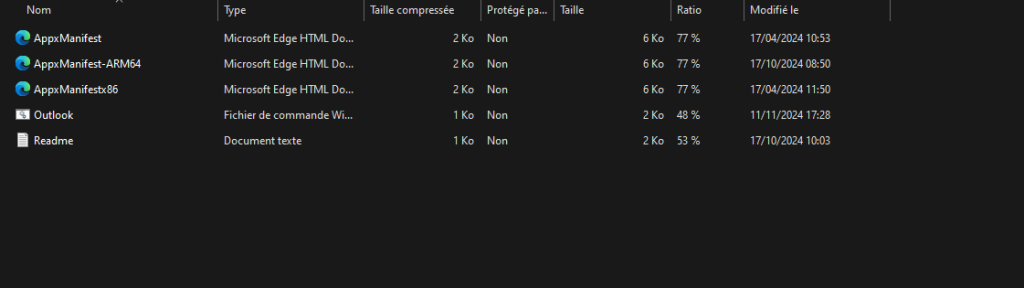
Extract the zip file and run the script as an administrator. To do this, right-click on the outlook.bat file and select “Run as administrator.” If Windows Defender shows a warning, don’t worry: the script is safe. Click on “More info” and then “Run anyway.” Confirm the User Account Control window to complete the process.
3- Look for an Alternative
After uninstalling the new Outlook, you can still find the Mail and Calendar applications available for download in the Microsoft Store. Other mail clients, such as Mozilla Thunderbird, Spark, eM Client, or Betterbird, are also excellent alternatives to consider.
Conclusion
The new Outlook is not universally accepted and presents several drawbacks that may disrupt your productivity. Fortunately, uninstalling this intrusive version is quite possible with straightforward solutions. By following the mentioned steps, you can reclaim an email environment that suits you better while exploring a variety of other options available on the market
And if you'd like to go a step further in supporting us, you can treat us to a virtual coffee ☕️. Thank you for your support ❤️!

We do not support or promote any form of piracy, copyright infringement, or illegal use of software, video content, or digital resources.
Any mention of third-party sites, tools, or platforms is purely for informational purposes. It is the responsibility of each reader to comply with the laws in their country, as well as the terms of use of the services mentioned.
We strongly encourage the use of legal, open-source, or official solutions in a responsible manner.
This is just what I needed. One thing though – when the new Outlook gets reinstalled in its unwanted way, it’s listed in Installed Apps as “Outlook”. Not as “Outlook (new)”. I think this is an emerging situation.
Will this tool still block it from being reinstalled?
– Kevin
Yes
To permanently get rid of outlook you have to uninstall the calendar and email that pops up at every boot first.
I ran that batch file, but that new version is still dominating