

Microsoft is preparing a major upgrade for one of Windows 11‘s most frequently used features: Windows Search. The redesigned experience aims to make finding files, getting information from the web, and performing everyday PC tasks easier, with less clutter and more help from artificial intelligence.
The update introduces a cleaner interface, file previews, richer answers to web searches, and natural-language commands that can control certain Windows settings. Microsoft is also working toward connecting these capabilities with smartphones through Phone Link and expanding AI-powered features on Copilot+ PCs.
The new experience is currently being tested with Windows Insiders, meaning it isn’t yet available to everyone. However, the planned changes offer a glimpse of how Microsoft wants Windows Search to evolve from a basic search box into a more capable assistant.
Windows 11 Search Gets a Cleaner, More Useful Design
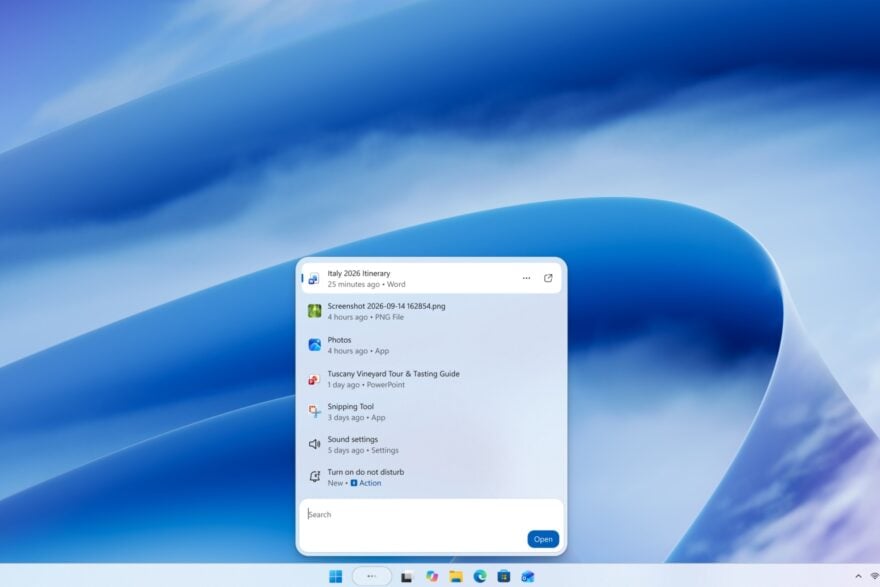
One of the first changes is a redesigned Windows Search interface.
Microsoft wants to make search results easier to navigate by reducing visual clutter and distractions. The goal is to help users find what they need without having to sift through an overloaded interface.
Although the visual redesign is important, the bigger improvement is how Windows presents information.
Instead of simply displaying a list of matching results, the updated experience can provide more context directly within the search interface. This should make it easier to identify the correct document, retrieve useful information, and move on with a task without opening several different apps.
For people who regularly use Windows Search to launch applications, locate documents, or find settings, these improvements could make an everyday workflow noticeably more convenient.
File Previews Make Finding Documents Easier
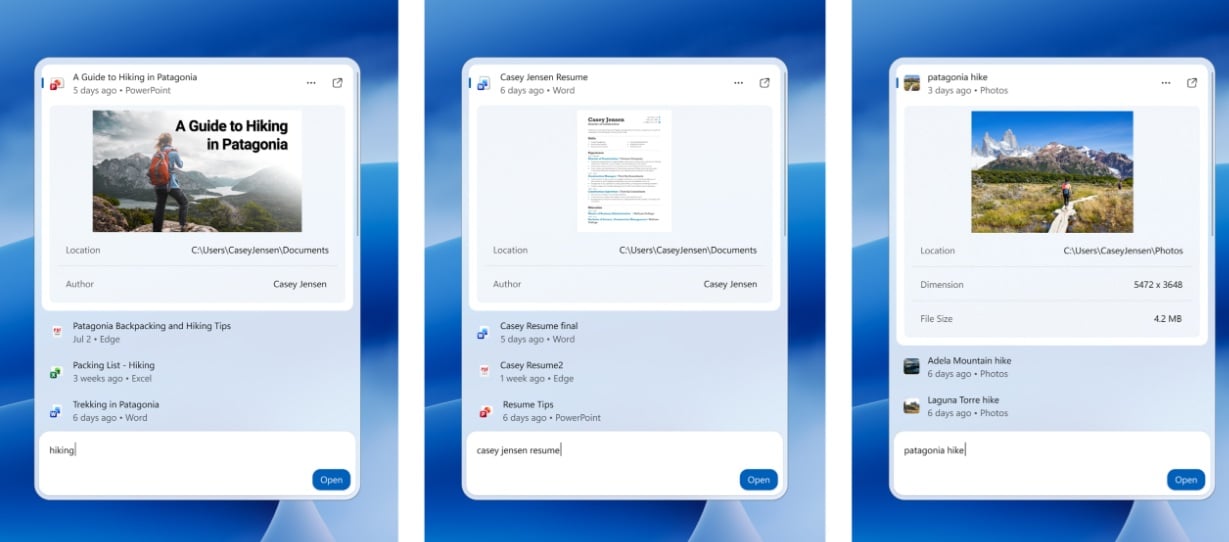
The redesigned search experience also introduces file previews to help users identify the documents they’re looking for.
When several files have similar names, a traditional list of search results can make it difficult to determine which one contains the right information. File previews can provide additional context, helping users recognize a document before opening it.
This could be especially useful when searching for work documents, saved files, or other content stored across a PC.
The idea is straightforward: spend less time opening files one by one and more time getting directly to the information you need.
Windows Search Can Answer Web Questions Directly
Microsoft is also improving how Windows Search handles queries that require information from the web.
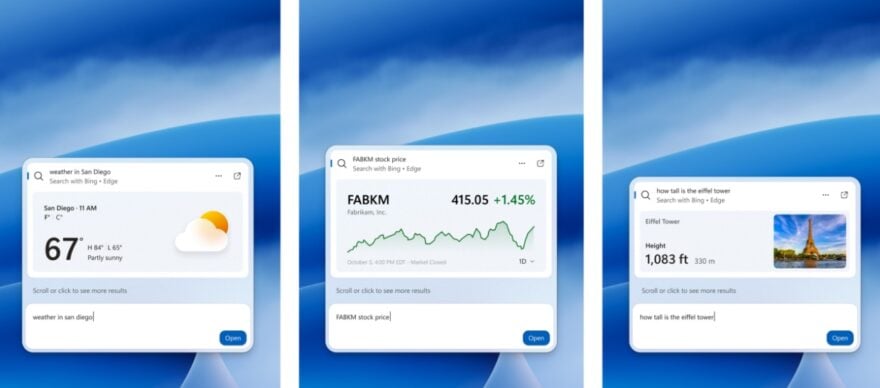
Rather than simply returning a collection of links, the updated experience can display visual information cards for certain searches. These cards resemble the quick-answer interfaces found on search engines.
Depending on the query, users could see information such as:
- Weather conditions and forecasts
- Stock market information
- Quick answers to common questions
- Other contextual information relevant to a search
The advantage is that users can retrieve certain types of information without opening a browser and navigating to a separate website.
These results won’t replace a full web search for every question, but they could make Windows Search more useful for quick lookups throughout the day.
Windows 11 Search Can Perform Tasks Using Natural Language
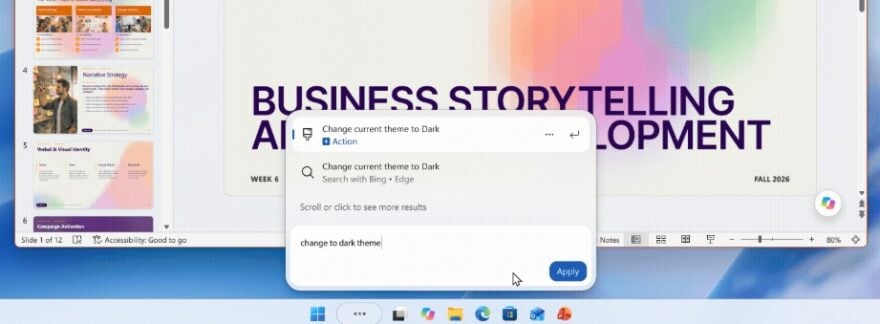
One of the most interesting additions is the ability to issue commands in everyday language.
Instead of navigating through Settings or remembering where a particular option is located, users will be able to describe what they want to do. Windows Search can then help perform supported actions.
Examples of the kinds of commands Microsoft is demonstrating include:
- “Turn on dark mode.”
- “Enable Bluetooth.”
- “Minimize all windows.”
This approach could make Windows easier to use, particularly for people who aren’t familiar with every setting or menu in the operating system.
It also changes the role of Windows Search. Instead of acting solely as a way to locate information, it becomes a potential starting point for carrying out tasks.
The exact commands supported will depend on the capabilities Microsoft makes available in the finished experience.
Windows Search Could Also Control Your Connected Smartphone
Microsoft is looking beyond the PC itself.
Windows 11 already supports smartphone integration through Phone Link, which connects a compatible phone to a Windows computer. Microsoft is developing additional actions that could allow users to interact with their connected smartphones through Windows Search.
For example, a user could type a natural-language instruction asking Windows to send a text message from the connected phone.
If implemented as demonstrated, this would reduce the need to switch between the PC and smartphone to complete simple tasks.
The feature could be particularly convenient for people who spend most of their working day at a computer but still need to send messages or interact with their phones.
However, availability will depend on Microsoft’s rollout, device compatibility, and the integrations supported by the final version.
Microsoft Wants Windows Search to Work More Naturally With Copilot
The broader goal is to make Windows Search more capable by combining natural-language input, contextual information, and actions that can be completed directly from the search interface.
Microsoft describes its objective as making Windows Search more powerful through more natural ways of expressing requests, richer contextual information, and additional ways to complete tasks, including integrations with experiences such as Copilot.
This strategy fits into Microsoft’s wider effort to integrate AI throughout Windows rather than keeping it confined to a separate chatbot or application.
Instead of asking users to open Copilot for every request, Microsoft is working toward bringing AI-assisted capabilities into familiar parts of the operating system.
For everyday users, that could mean fewer steps between deciding what they want to do and actually completing the task.
Copilot+ PCs Will Get More Advanced AI Features
The search improvements are part of a broader push to make Windows more useful for AI-powered workflows, particularly on Copilot+ PCs.
These computers include hardware designed to accelerate AI workloads locally, allowing compatible features to run on the device rather than relying entirely on remote servers.
Microsoft is developing what it calls hybrid intelligence, an approach in which Copilot can use locally available AI models while also relying on cloud computing when additional processing power is needed.
This combination could offer several advantages.
Local processing can help run supported AI tasks directly on a compatible PC, while cloud models can provide additional capabilities for requests that require more computational resources.
The actual experience will depend on the feature, the PC’s hardware, and whether a particular task requires an internet connection.
AI Agents Could Perform More Complex Windows Tasks
Microsoft is also working toward more autonomous AI capabilities that can help users complete tasks directly on their devices.
Potential use cases include:
- Organizing files
- Checking device diagnostics
- Troubleshooting technical problems
- Assisting with coding
- Executing multi-step workflows
Rather than responding only with instructions, an AI assistant could eventually help carry out parts of a task on the user’s behalf.
Microsoft also says that, with the user’s permission, the assistant could access files to provide more relevant answers and perform actions with additional context.
This could make AI assistance more useful because the system would have a better understanding of the documents and information relevant to a request.
At the same time, granting an AI assistant access to personal files raises important privacy considerations. Users should understand what information a feature can access, what permissions it requires, and how that information is processed before enabling it.
These more advanced capabilities are still part of Microsoft’s broader development plans, so their availability and exact behavior may vary.
When Will the New Windows 11 Search Arrive?
Microsoft is currently testing the redesigned search experience with Windows Insiders.
The company has not made the entire experience generally available to all Windows 11 users. As development continues, individual features may arrive at different times, and Microsoft could adjust their behavior based on feedback from testers.
Users who participate in the Windows Insider Program may get access to eligible preview features earlier, although availability can depend on the specific build, device, and rollout.
If you prefer a stable Windows installation, the sensible option is to wait until Microsoft releases the relevant improvements through a public update.
Final Thoughts
Microsoft’s Windows 11 Search update could make one of the operating system’s most familiar features considerably more useful.
A cleaner interface and file previews should make it easier to find documents, while visual web answers could reduce the need to open a browser for simple questions. Natural-language commands could be an even bigger change, allowing users to control supported settings and potentially interact with connected smartphones directly from the search box.
Meanwhile, hybrid AI and agent-based features point toward a broader vision in which Windows can do more than find files and launch applications.
The key question is how reliably these capabilities will work in everyday use, and how Microsoft will handle permissions, privacy, and device compatibility. For now, the new search experience remains under development, but it shows how Microsoft wants Windows 11 to become a more intelligent and task-oriented operating system.
Add Tech2Geek as a preferred source on Google to see more of our latest tech articles.
Support Tech2Geek ❤️
Did this guide help you? If Tech2Geek saves you time or helps you solve a problem,
consider buying me a coffee. ☕
Your support helps keep Tech2Geek independent and free.
Comments