

Using Apple AirPods with a Windows PC works—at least technically. You can connect them through Bluetooth, listen to music, and take calls. But the moment you step outside the Apple ecosystem, most of the features that make AirPods feel smart and seamless suddenly disappear.
There’s no animated connection popup, no battery indicator for each earbud, no automatic pause when you remove one from your ear, and often an annoying audio delay when starting playback.
That’s exactly the gap MagicPods aims to fill. For less than $2 as a one-time purchase, this Windows utility restores much of the native AirPods experience you normally get on iPhone or Mac, bringing smart features back to Windows 10 and Windows 11.
If you regularly use AirPods on a PC, MagicPods can make them feel almost as integrated as they do on Apple devices.
Using AirPods on Windows: What’s Missing?
AirPods are compatible with virtually any Bluetooth device, including Windows PCs. Pairing them is easy and audio playback works fine.
However, once connected, the experience is extremely basic.
Unlike on Apple devices, Windows does not support most of the software layer that powers AirPods’ advanced features. That means users typically lose access to:
- The animated connection popup when opening the charging case
- Battery level indicators for each earbud and the case
- Automatic playback pause when removing an earbud
- Active Noise Cancellation controls
- Fast device reconnection
- Seamless device switching
Another common annoyance is the audio delay when starting playback, which causes the first syllable of a video or the first beat of a song to be cut off.
These limitations can make premium earbuds feel surprisingly basic when used with a PC.
MagicPods was created specifically to solve these problems.
MagicPods: The Missing Software Layer for AirPods on Windows
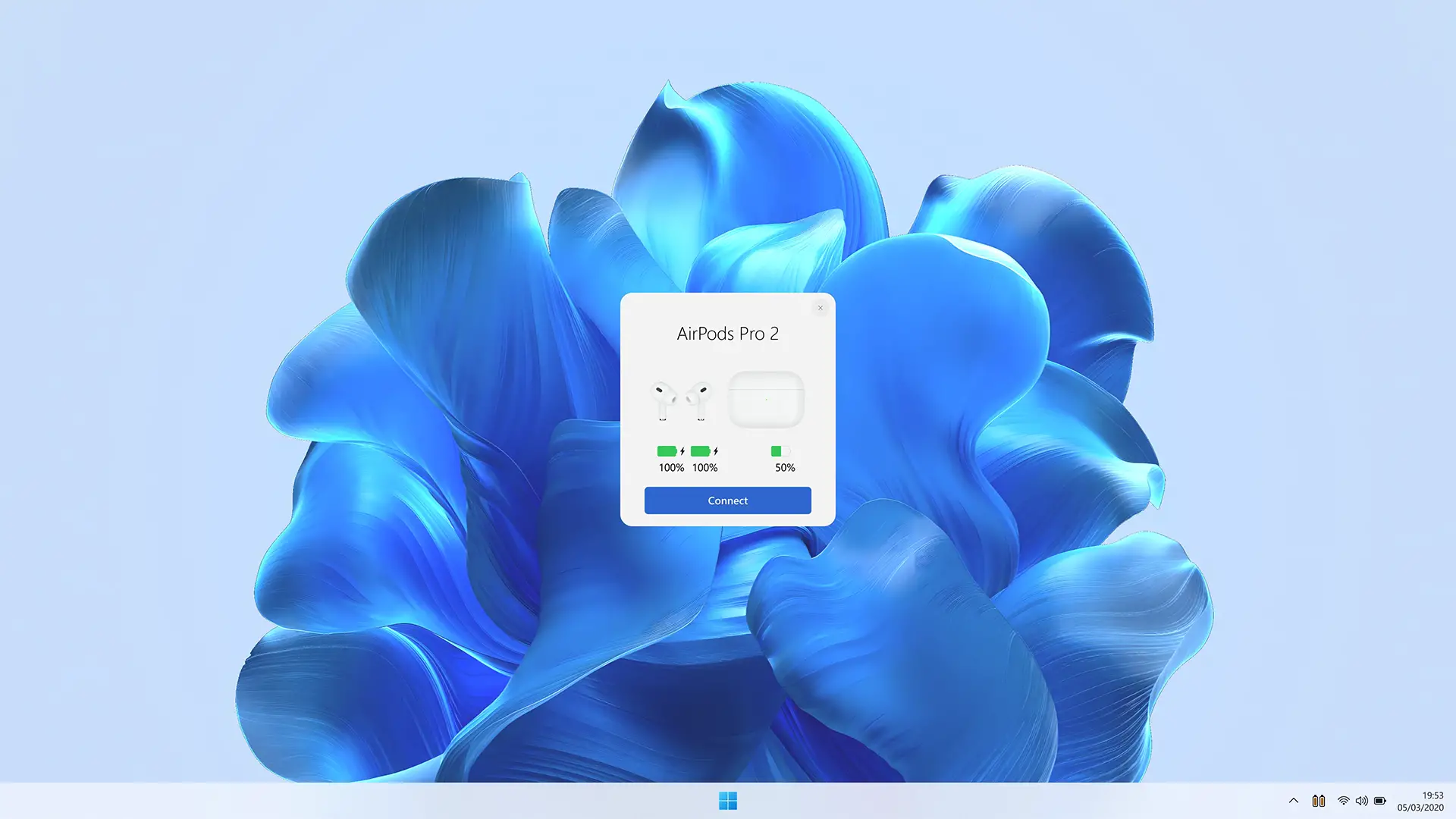
MagicPods essentially recreates the software experience that Apple provides on its own devices.
When you open your AirPods case near your PC, a smooth animated popup appears in the center of the screen—very similar to the connection window seen on iOS. The popup shows the battery level of:
- Left earbud
- Right earbud
- Charging case
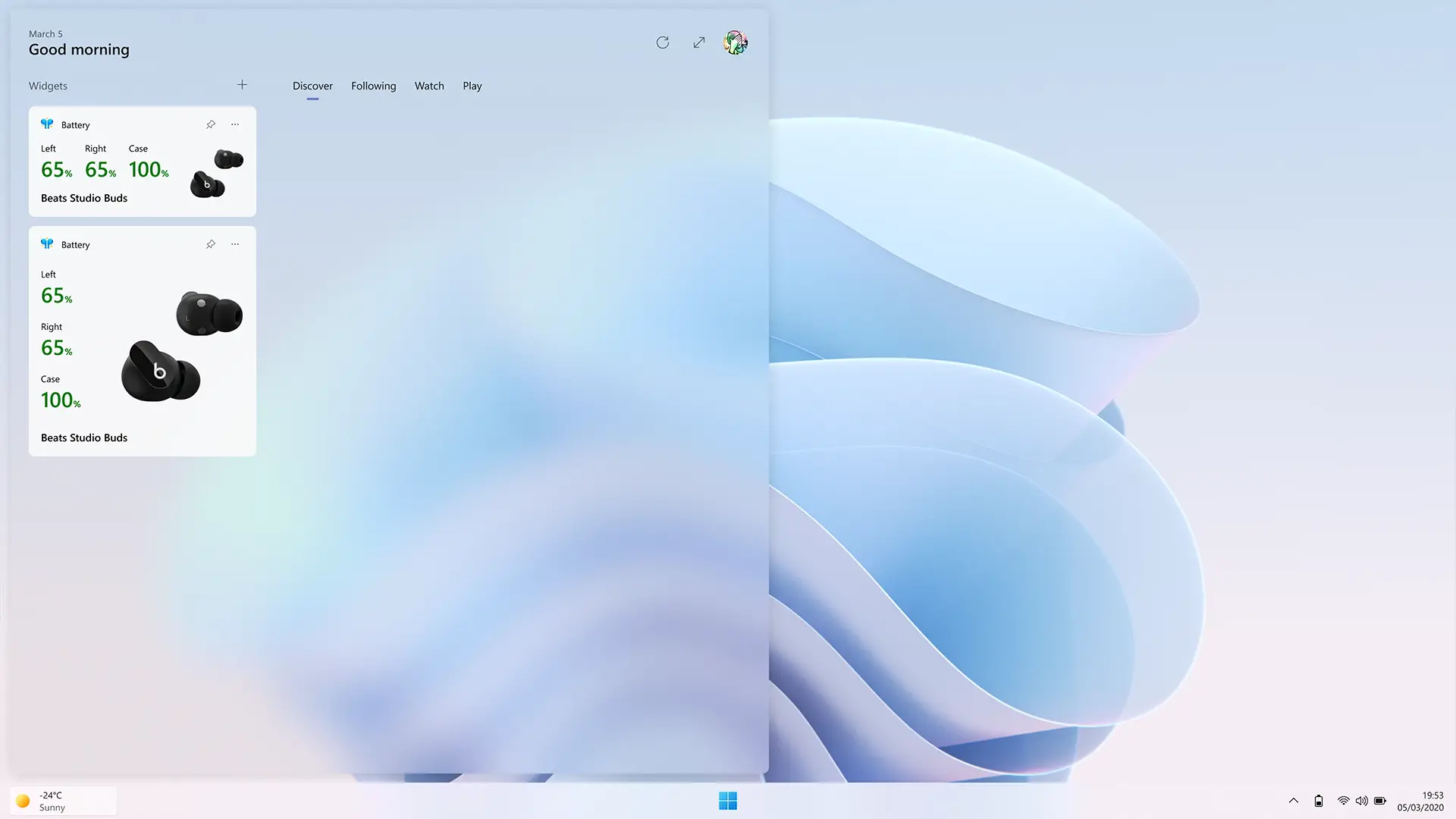
Afterward, battery information remains visible through a system tray icon, which can display percentages or colored icons depending on your preferences.
On Windows 11, the app can even show battery levels inside a dedicated Widgets panel widget.
Smart Playback Features That Actually Work
MagicPods also restores several intelligent behaviors that Windows normally lacks.
Automatic Ear Detection
Just like on Apple devices, the app enables in-ear detection:
- Removing one earbud pauses playback
- Putting it back resumes audio
- Removing both switches audio output back to the PC speakers
This makes everyday listening far more seamless.
Low Latency Mode
A special low-latency mode eliminates the usual audio lag that occurs when playback starts.
This is especially useful for:
- Video editing
- Watching movies
- Gaming
Without the delay, audio begins instantly instead of skipping the first moment of sound.
Noise Control and Sound Modes
MagicPods also provides quick access to Active Noise Cancellation settings directly from the taskbar.
Users can switch between modes such as:
- Noise Cancellation
- Transparency
- Adaptive
- Off
This means you no longer have to interact with the earbuds themselves just to change sound modes.
VoiceOver Notifications in Your Ear
Another interesting feature is VoiceOver notifications.
MagicPods can read Windows notifications aloud directly through your AirPods. The feature works entirely offline and can be configured per application.
This allows you to receive alerts without needing to check your screen.
Turn Your PC Into a Bluetooth Audio Receiver
MagicPods also includes a unique function: it can transform your PC into a Bluetooth audio receiver.
This means you can stream sound from other devices—such as an Nintendo Switch, an Android smartphone, or an iPhone—to your PC, which then forwards the audio to your connected AirPods.
This setup effectively turns your computer into a hub for wireless audio streaming.
The MagicAAP Driver: Optional but Powerful
MagicPods works out of the box for basic features, but the developer also offers an optional driver called MagicAAP.
This additional driver allows Windows to communicate with AirPods using Apple’s proprietary protocols, which are normally inaccessible through the standard Bluetooth stack.
Once installed, users gain access to advanced capabilities such as:
- Precise battery level reporting
- Full control over Active Noise Cancellation
- Button and Digital Crown customization
- Improved in-ear detection
- Conversation Awareness
- Accessibility settings similar to iOS
The driver is available in two versions.
The official version is not signed by Microsoft, meaning Windows must be placed into Test Mode to install it.
A community-signed version avoids this limitation and installs normally, though it still uses a third-party signature.
Users should be cautious when installing the driver on certain systems. For example:
- Some anti-cheat software used in PC games may flag it as suspicious.
- Work or school computers with strict security policies may also block it.
Compatibility Beyond AirPods
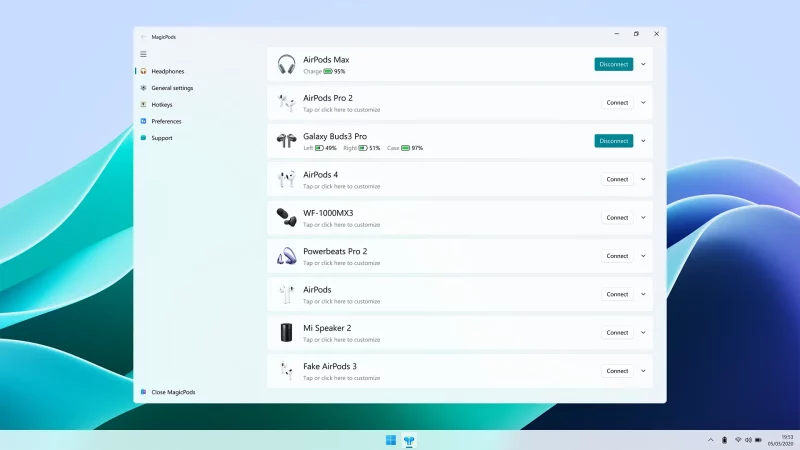
Despite its name, MagicPods supports far more than just Apple earbuds.
The application works with several popular Bluetooth headphones and earbuds.
For example:
- Samsung Galaxy Buds 3 Pro and other Galaxy Buds models support battery monitoring and ANC controls.
- Sony WH‑1000XM4 headphones can switch between noise control modes.
- Many generic AirPods clones using Airoha chips are also supported.
Some of these “fake AirPods” can even gain surprisingly advanced features through MagicPods, including:
- Noise cancellation controls
- In-ear detection
- Head tracking
- Button customization
- Gaming mode
In addition, users of the Steam Deck can install a dedicated plugin via Decky Loader that brings similar features to the handheld console.
Extensive Customization Options
MagicPods doesn’t just restore missing features—it also gives users a high level of customization.
Each connected headset has its own configurable settings, including:
- In-ear detection behavior
- Low battery alert threshold (30% by default)
- Automatic switching to PC speakers
- Low latency mode
- Auto connect
- Auto play when connected
- Auto pause on disconnection

There’s also an experimental option to disable the Handsfree audio profile, preventing Windows from switching to low-quality audio when the microphone is activated.
Keyboard Shortcuts and UI Customization
Keyboard shortcuts can be fully customized in the Hotkeys section.
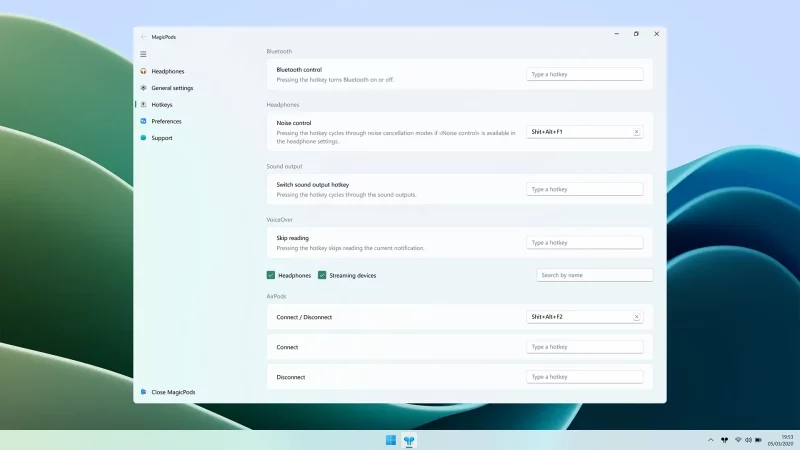
Users can assign shortcuts for actions such as:
- Connecting or disconnecting devices
- Switching ANC modes
- Changing audio output
- Controlling VoiceOver notifications
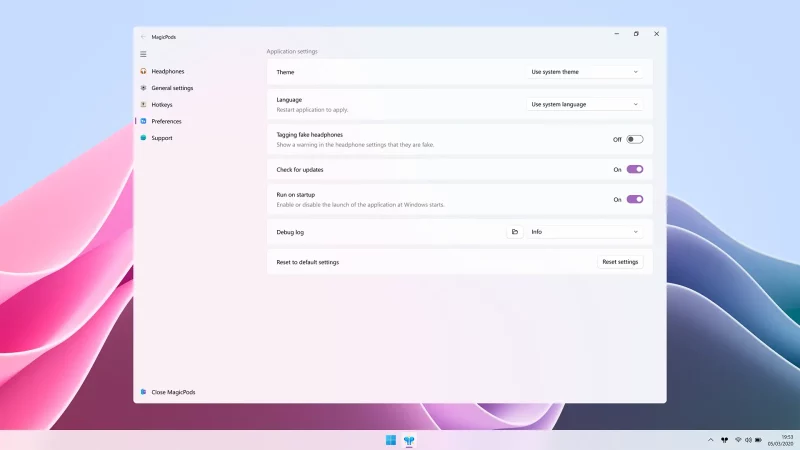
Even the system tray icon is customizable. You can modify:
- Display style (text or icon)
- Font and size
- Colors for light and dark themes
The connection popup itself can also be repositioned, resized, or customized with your own images.
By default, MagicPods follows the system theme in Windows, but users can manually force either light or dark mode.
Price, Availability, and Privacy
MagicPods is available through the Microsoft Store for $1.99 as a one-time purchase, with no subscription required.
A free trial version is also available so users can test the app before buying.
The developer, Aleksandr Maslov, has created several other Windows utilities including MagicSelect and MagicTranslate.
From a privacy perspective, MagicPods is designed to be lightweight and secure:
- No user data collection
- No advertisements
- Fully offline operation
- No account required
The developer also emphasizes that no AI features are included in the application.
Conclusion
Using AirPods on a Windows PC has always felt like a compromise. While Bluetooth connectivity works, most of the smart features that make AirPods convenient simply vanish outside the Apple ecosystem.
MagicPods solves this problem by restoring the missing software layer. From animated connection popups and battery indicators to automatic playback control and noise cancellation switching, the app dramatically improves the AirPods experience on Windows.
For less than $2, it’s a small investment that can make a huge difference for anyone who regularly uses AirPods with a PC.
If you want your AirPods to feel truly smart on Windows again, MagicPods is one of the simplest—and most effective—solutions available.
And if you'd like to go a step further in supporting us, you can treat us to a virtual coffee ☕️. Thank you for your support ❤️!

We do not support or promote any form of piracy, copyright infringement, or illegal use of software, video content, or digital resources.
Any mention of third-party sites, tools, or platforms is purely for informational purposes. It is the responsibility of each reader to comply with the laws in their country, as well as the terms of use of the services mentioned.
We strongly encourage the use of legal, open-source, or official solutions in a responsible manner.
Comments