

After a Windows update builds KB5053598, KB5053606, and KB5053602), many users have reported that Copilot has mysteriously disappeared from their systems. Whether you rely on it for coding assistance, writing suggestions, or other AI-powered tasks, losing access can be frustrating. Fortunately, there are several ways to restore Copilot and get it working again. In this guide, we’ll explore the possible causes of this issue and walk you through step-by-step solutions to fix it.
Method 1: Reinstall Copilot from Microsoft Store (Recommended)
The simplest and most effective way to restore Copilot is to reinstall it directly from the Microsoft Store.
Step 1: Press the Windows key, type Microsoft Store, and launch the app.
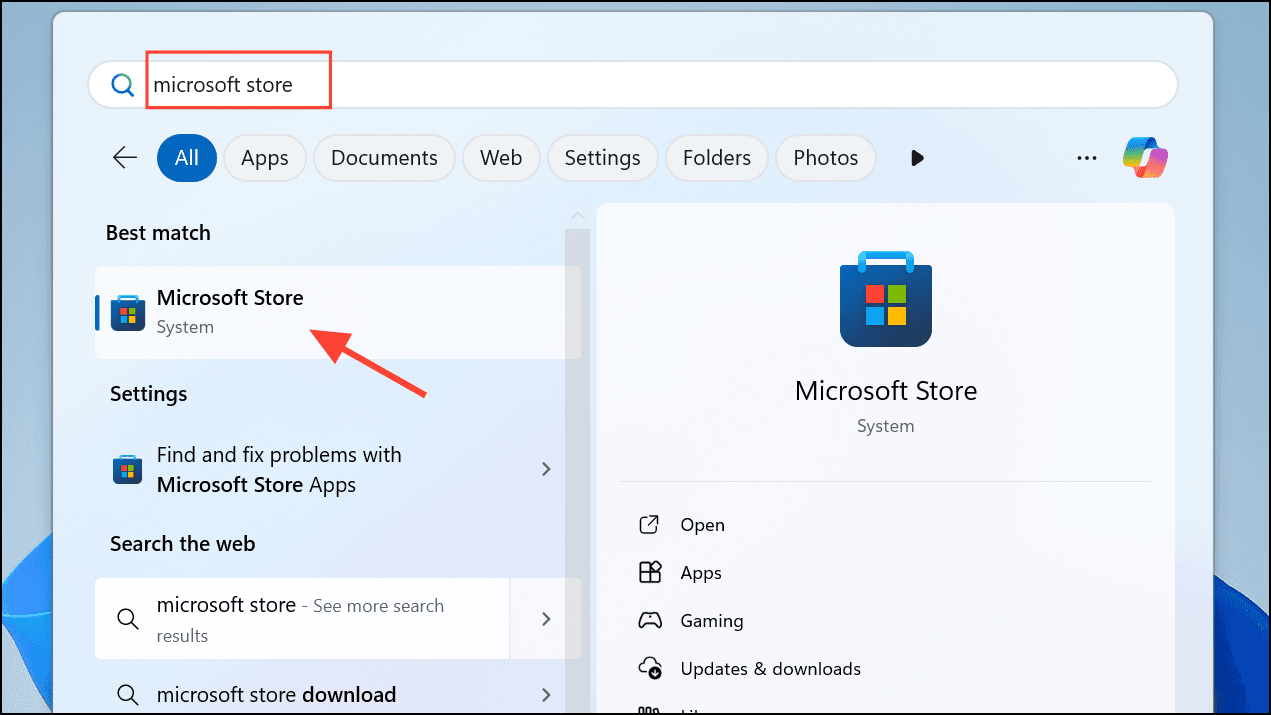
Step 2: Within the Microsoft Store, type Microsoft Copilot in the search bar. Click on the Copilot app page and choose Install. After installation, open the app to confirm it’s working correctly.
Step 3: To re-pin Copilot to your taskbar, click the Start button, find Copilot in the list of installed apps, right-click its icon, navigate to More, and select Pin to taskbar.
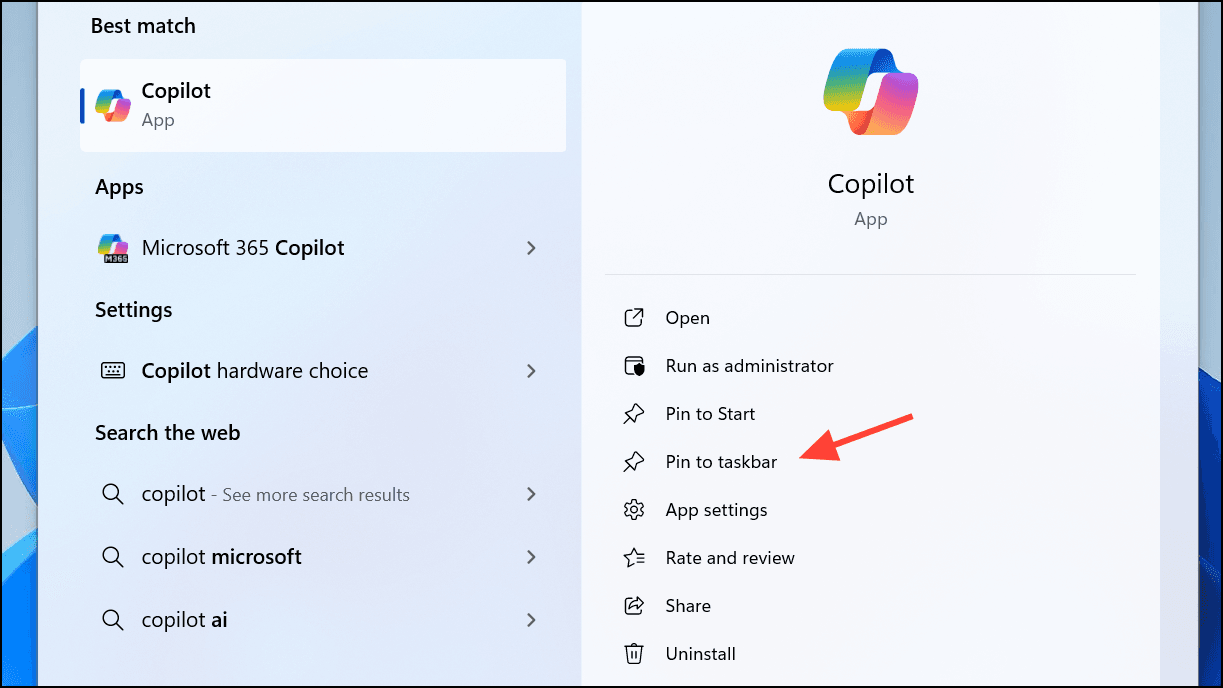
This method quickly restores Copilot and ensures it’s readily accessible from your taskbar.
Method 2: Enable Copilot via Taskbar Settings
If Copilot is installed but not showing on the taskbar, you can enable it manually through Taskbar settings.
Step 1: Right-click on an empty area of your taskbar and select Taskbar settings.

Step 2: In the settings window, expand the Taskbar items section. Locate the toggle switch for Copilot and switch it to On.
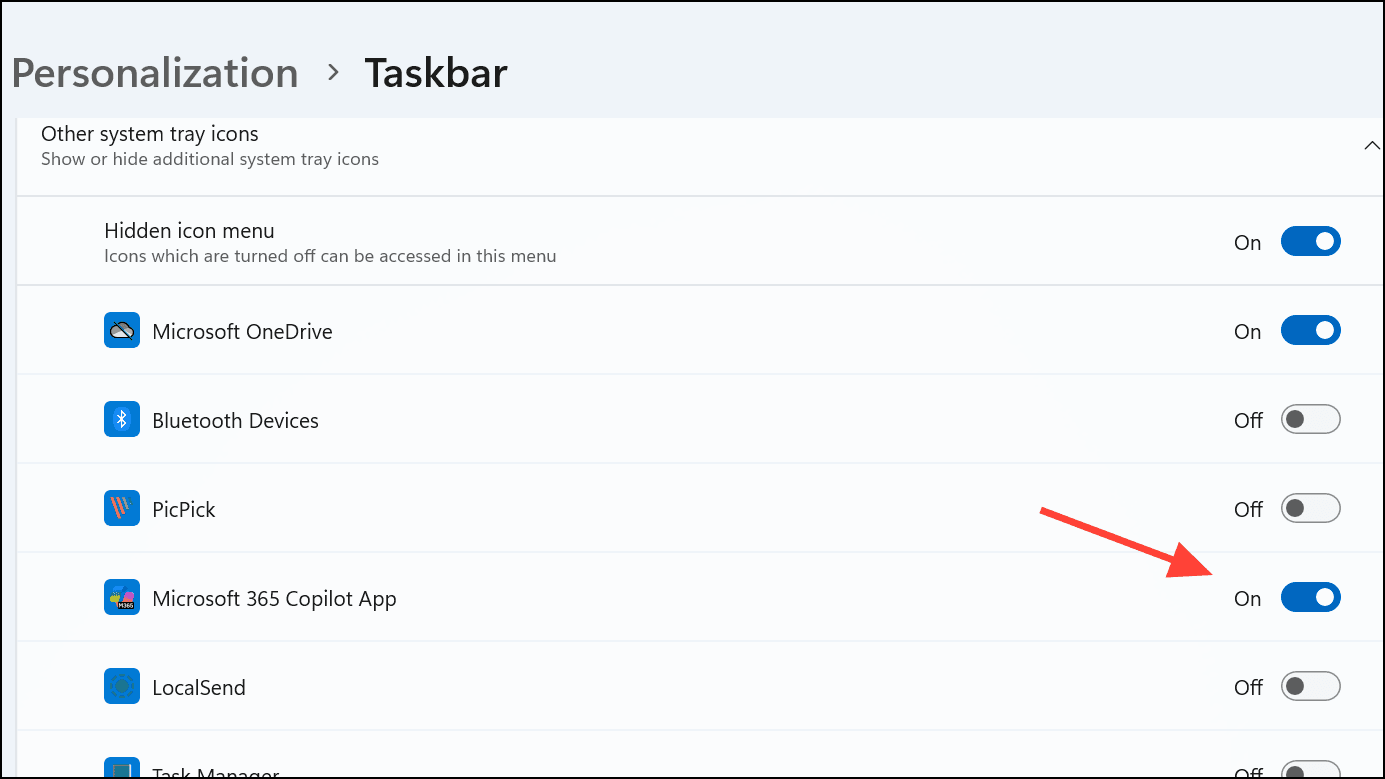
This action will immediately display the Copilot icon on your taskbar, allowing quick access.
Method 3: Use Registry Editor to Re-enable Copilot
If the above methods don’t work, you can manually enable Copilot through the Windows Registry. Before proceeding, it’s crucial to back up your registry to avoid potential issues.
Step 1: Press Windows + R, type regedit, and press Enter to open the Registry Editor.
Step 2: Navigate to the following registry path:
HKEY_CURRENT_USER\Software\Policies\Microsoft\Windows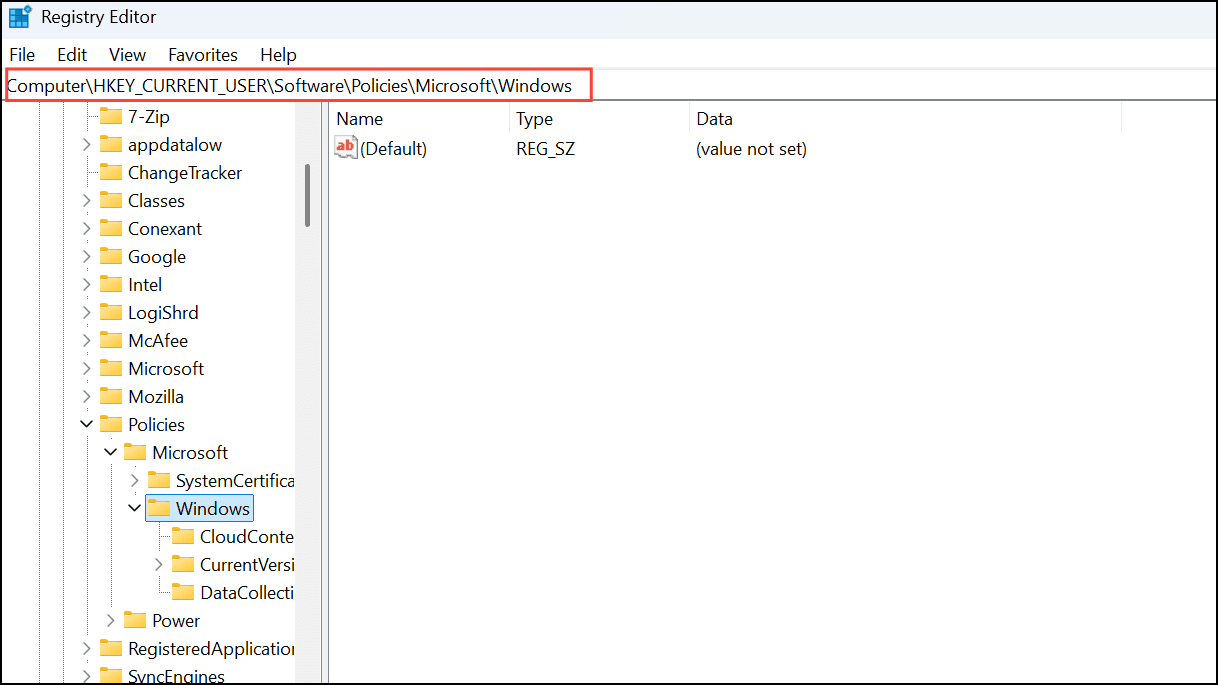
Step 3: Right-click the Windows key, select New, then choose Key. Name this new key WindowsCopilot.
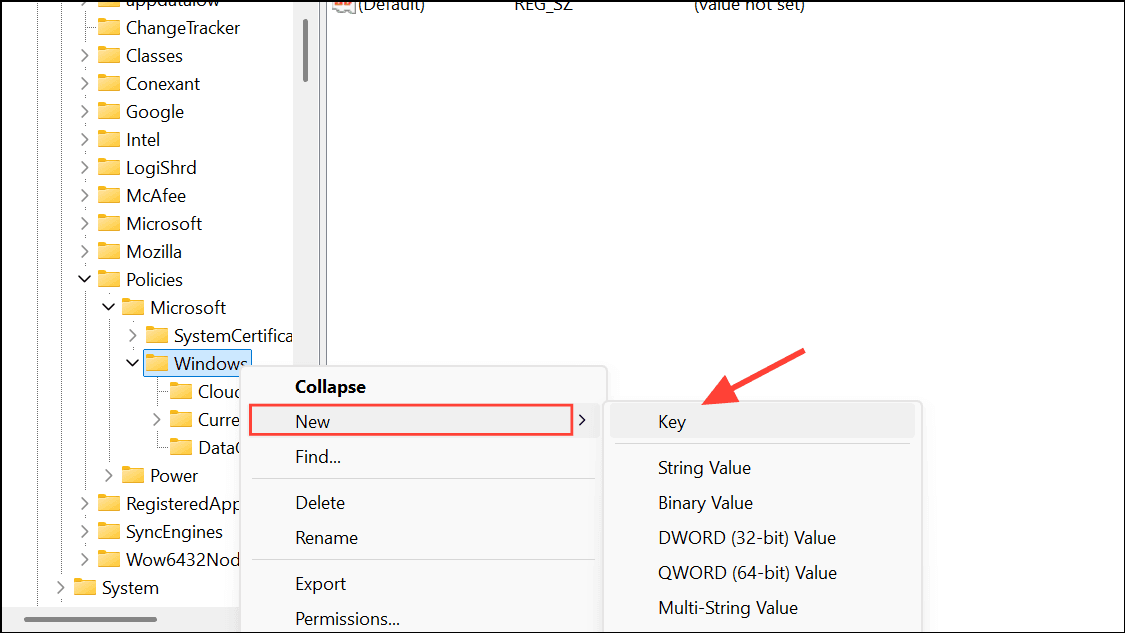
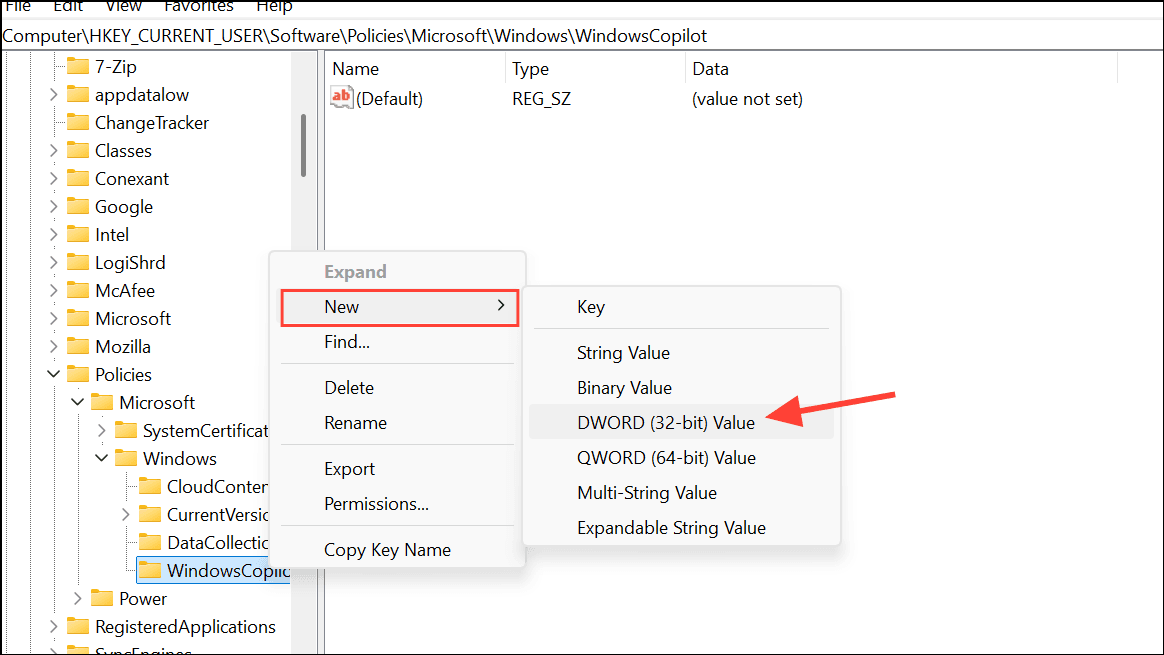
Step 4: Right-click the newly created WindowsCopilot key, choose New, and then select DWORD (32-bit) Value. Name this value TurnOffWindowsCopilot.
Step 5: Double-click the TurnOffWindowsCopilot entry and set its value to 0. Click OK, close the Registry Editor, and restart your computer to apply the changes.
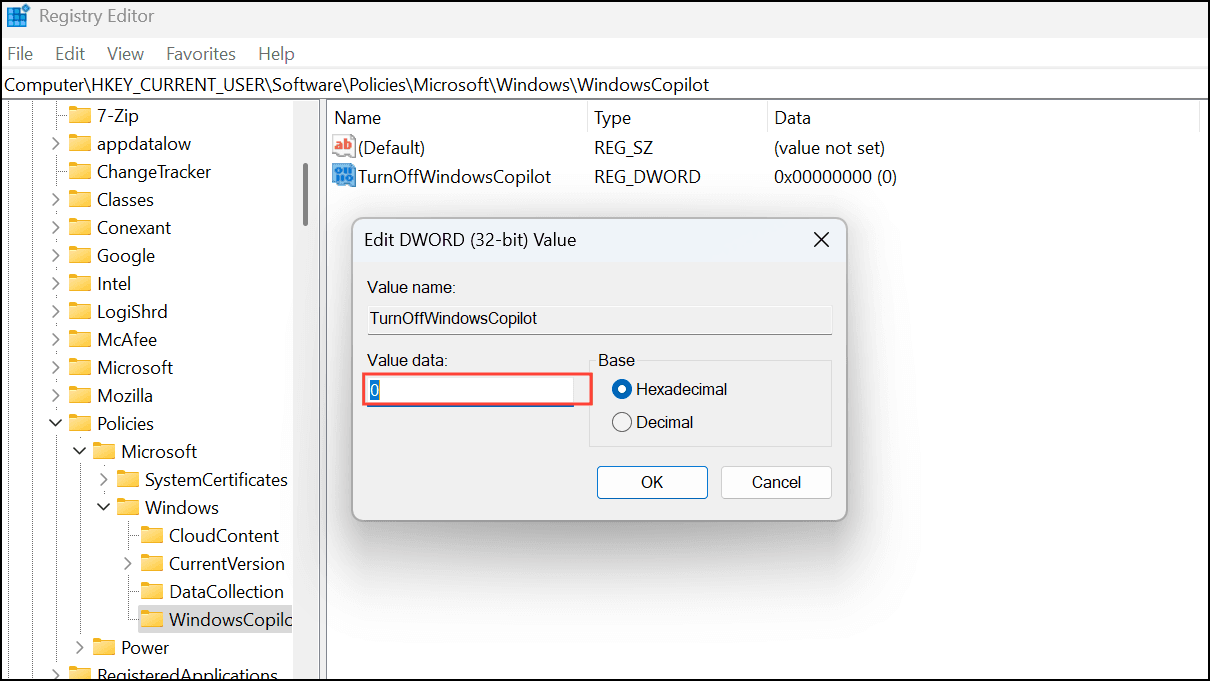
After rebooting, Copilot should be restored and available for use.
Method 4: Roll Back the Problematic Windows Update
If none of the above methods resolve your issue, consider rolling back the recent Windows update that caused Copilot to disappear.
Step 1: Open Control Panel by typing it into the Start menu search bar and selecting it from the results.
Step 2: Click Programs and Features when the Control Panel opens.

Step 3: On the left sidebar, select View installed updates.
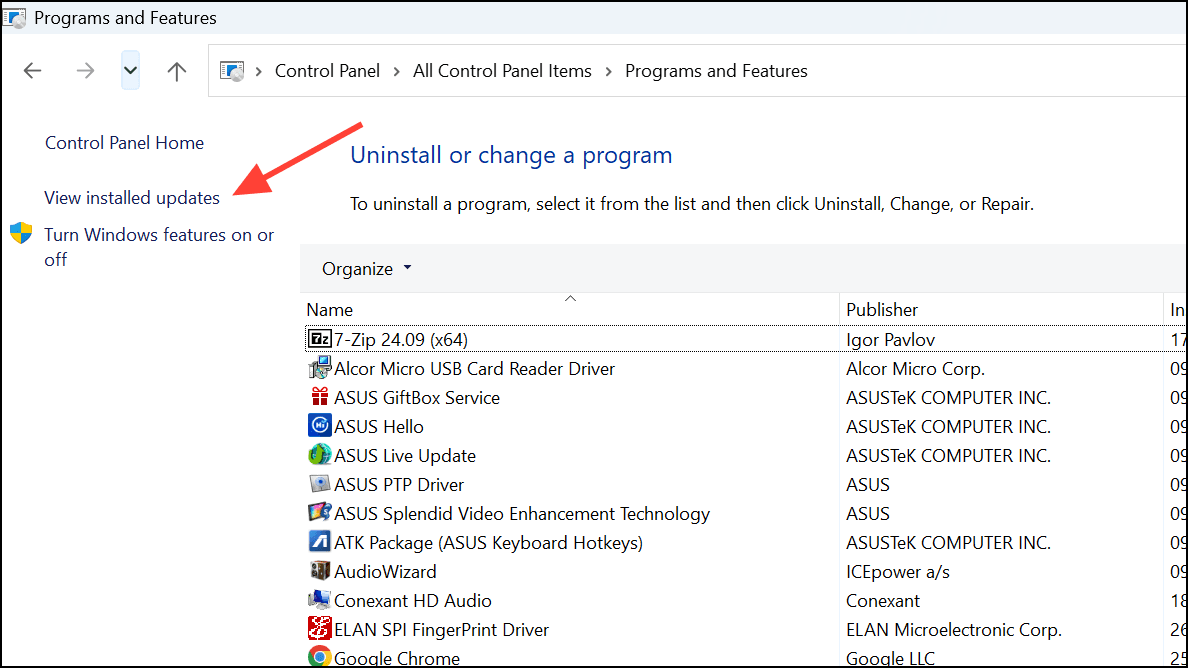
Step 4: Locate the problematic update (KB5053598, KB5053606, or KB5053602), right-click on it, and choose Uninstall.
Restart your system after uninstalling the update. Copilot should now reappear as normal.
Caution: Rolling back updates can leave your system vulnerable to security issues. Use this method only if other solutions fail, and ensure you regularly check for new updates that fix this issue.
Losing access to Copilot after a Windows update can be frustrating, but thankfully, there are several ways to restore it. Whether it’s enabling the feature in Windows settings, updating your system drivers, or reinstalling Copilot, one of these solutions should get it back up and running. If the issue persists, consider checking for future Windows updates or seeking support from Microsoft. By following these steps, you can ensure a seamless AI-assisted experience without disruptions.
And if you'd like to go a step further in supporting us, you can treat us to a virtual coffee ☕️. Thank you for your support ❤️!

We do not support or promote any form of piracy, copyright infringement, or illegal use of software, video content, or digital resources.
Any mention of third-party sites, tools, or platforms is purely for informational purposes. It is the responsibility of each reader to comply with the laws in their country, as well as the terms of use of the services mentioned.
We strongly encourage the use of legal, open-source, or official solutions in a responsible manner.
Comments