

Internet Download Manager (IDM) is one of the most popular download accelerators for Windows, known for its multi-threaded download engine and seamless browser integration. Developed by Tonec Inc., IDM significantly boosts download speeds and supports pause/resume functionality for large files.
However, IDM is officially designed for Microsoft Windows and does not offer a native Linux version. If you’ve recently switched from Windows 11 to Linux (such as Ubuntu, Pop!_OS, Fedora, or Arch), you may be wondering how to run IDM on your new system.
In this 2026 guide, we’ll explain:
- Whether IDM works natively on Linux
- How to install IDM using Wine
- A more stable method using Bottles
- The best Linux alternatives to IDM
Can You Install IDM Natively on Linux?
Short answer: No.
There is no official Linux version of Internet Download Manager. But you can run it using compatibility tools such as:
- Wine
- Bottles
- PlayOnLinux
The most reliable method in 2026 is using Wine or Bottles.
1. Open your terminal and execute the following commands for installing Wine on Linux:.
$ sudo apt install wine                                                                    #For Debian, Ubuntu, Linux Mint
$ sudo dnf install wine                                                                    #For RHEL, Fedora, AlmaLinux
$ sudo pacman -S wine                                                                  #For Arch, Manjaro, EndeavourOS
2. Make sure to download the latest version of IDM from the official site, and once downloaded, navigate to the download directory.
$ cd Downloads/Output:

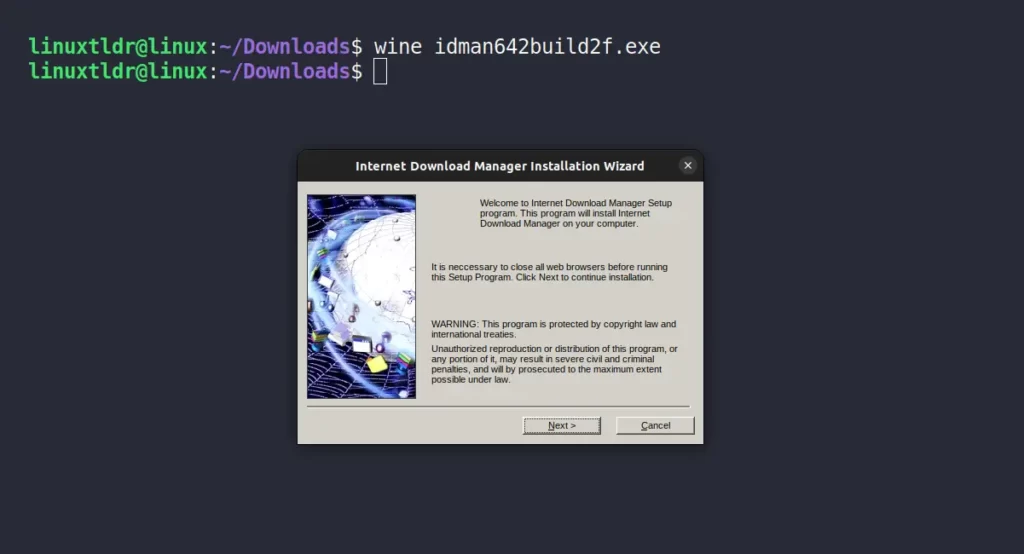
3. Initiate the IDM Windows installer through Wine to begin the installation on Linux.
$ wine idman642build2f.exeExecuting the above command will prompt the installation wizard; simply follow the process as you would in Windows by agreeing to the license agreement and setting the installation destination—basically, just click the “Next” button to proceed with the default settings.
4. After completing the IDM installation, a license pop-up appears; if you have purchased one, please provide it here. In my case, since I don’t have a license, I will close the IDM registration window.
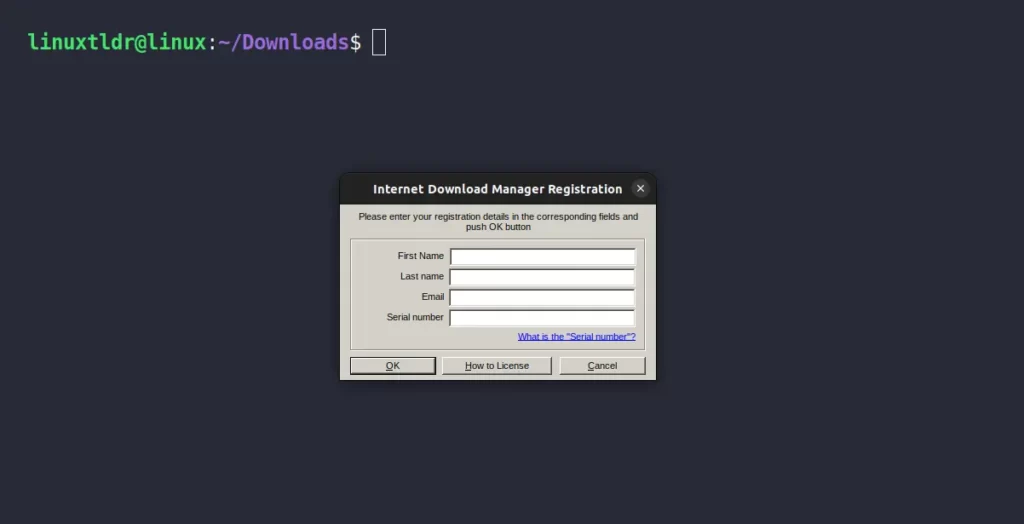
Here, your IDM installation process on Linux is complete. If you want to take advantage of the benefits of the IDM extension, you need to install your preferred browser via Wine.
Afterward, you can install the IDM extension for your browser to enjoy those additional benefits. However, for now, I’ll skip those steps.
How to Launch and Use IDM on Linux
After completing the IDM installation, you can find and launch it from the application menu.

When you launch it for the first time, you may come across two windows displaying a warning that certain functionalities might not work as expected. This is attributed to the use of a Windows emulator and the absence of the browser integration engine, given that you are using it within Wine.
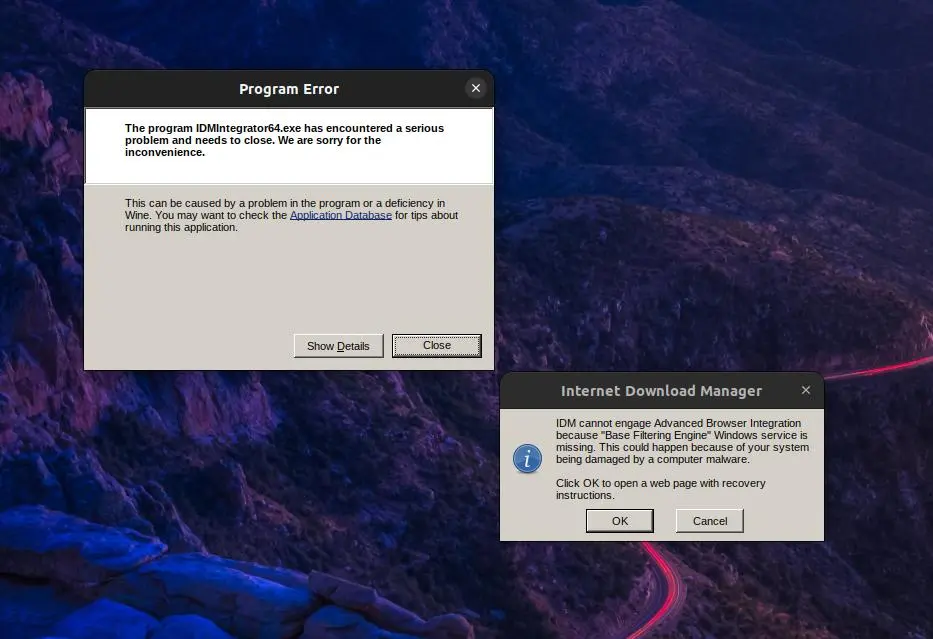
However, this warning won’t have much effect when using the IDM application. You can simply cancel it, and your IDM window will prompt you with a quick tip that you can easily disable.
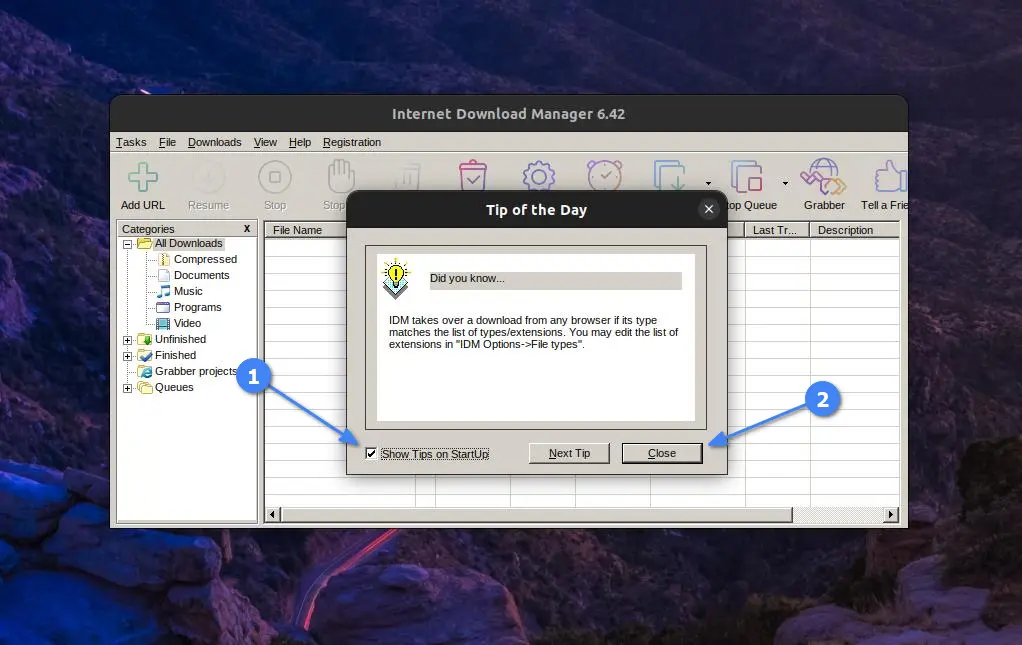
Once you’re done, you will finally be presented with the IDM window, which you can use just like you do on your Windows system.
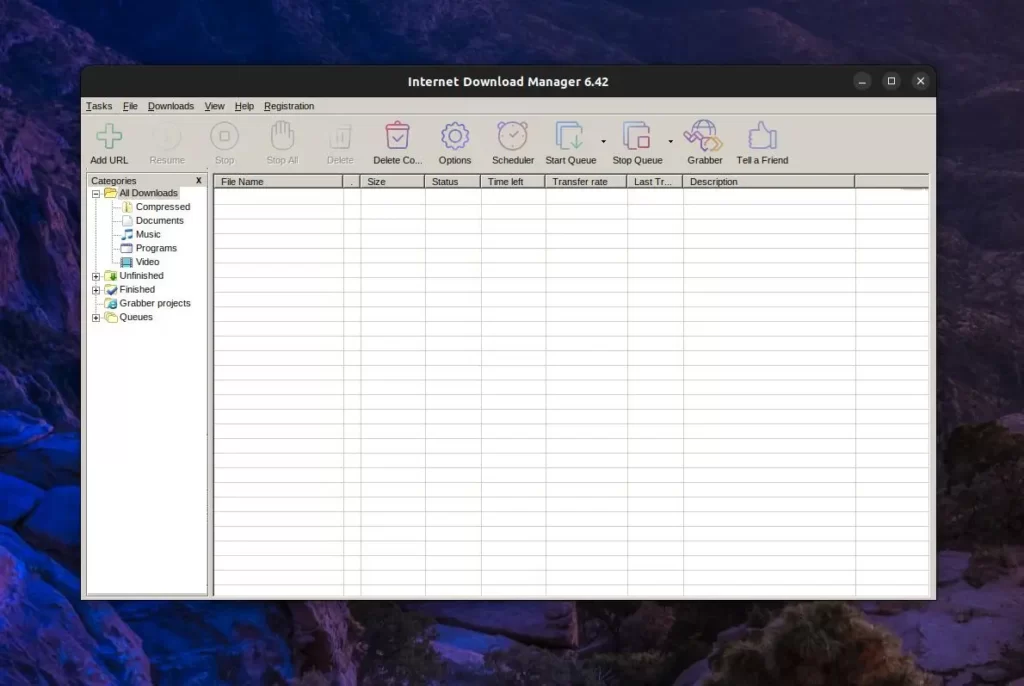
Note that, as mentioned earlier, certain features and functionality may not work as expected due to using IDM on a Windows emulator on Linux.
And don’t forget to change the default download location to your “~/Downloads/” folder; otherwise, the file will be downloaded in the Downloads (a virtual directory) created by Wine to replicate the Windows environment in Linux.
How to Uninstall IDM on Linux
If you find IDM somewhat annoying on Linux and prefer opting for its alternative, like JDownloader, you can uninstall it from your Linux system easily by running the following command:.
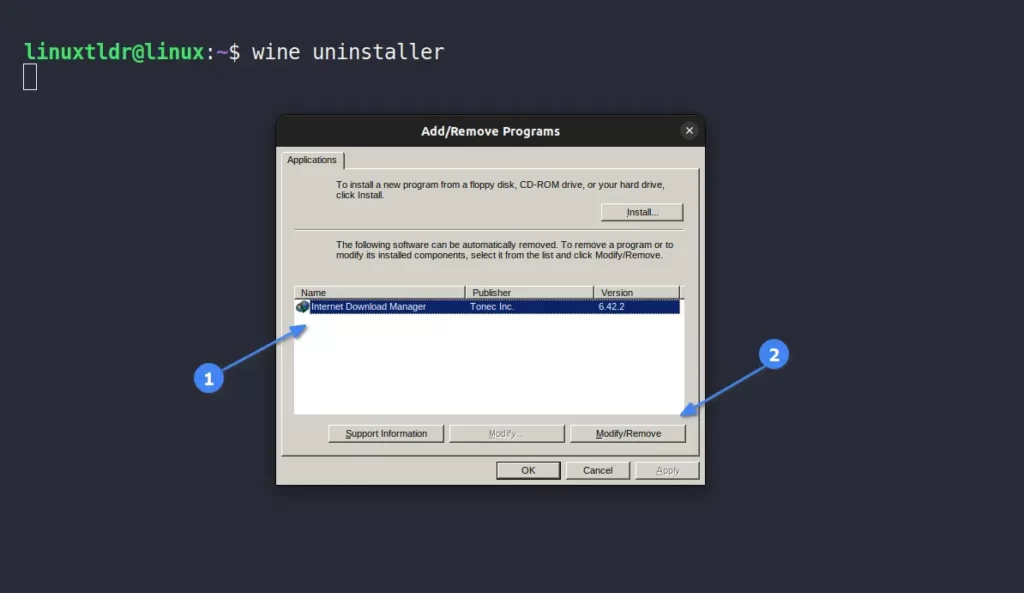
$ wine uninstallerThe command above will open the Wine “Add/Remove Programs” window, where you need to select “Internet Download Manager” and then click the “Remove” button to initiate the uninstallation process.
If you have installed the Wine Windows emulator exclusively for IDM, you can remove it by running one of the appropriate commands.
$ sudo apt remove wine                                                                    #For Debian, Ubuntu, Linux Mint
$ sudo dnf remove wine                                                                    #For RHEL, Fedora, AlmaLinux
$ sudo pacman -R wine                                                                     #For Arch, Manjaro, EndeavourOS
⚠️ Important Limitation: Browser Integration
IDM browser extensions may not work properly in:
- Firefox (Linux version)
- Chrome (Linux version)
Because Linux browsers cannot directly integrate with a Windows application running under Wine.
Workaround:
- Manually copy download links into IDM
- Or use a Linux-native download manager instead
Best IDM Alternatives for Linux (2026)
If you want a native solution, here are better options:
1️⃣ Xtreme Download Manager (XDM)
- Very similar to IDM
- Browser integration works on Linux
- Open-source
- Multi-connection acceleration
2️⃣ aria2
- Command-line based
- Extremely fast
- Supports torrents & Metalink
3️⃣ Persepolis Download Manager
- GUI for aria2
- Lightweight
- Modern interface
4️⃣ uGet
- Simple and stable
- Supports segmented downloading
Is Running IDM on Linux Worth It in 2026?
Running IDM via Wine works — but it’s not perfect. Issues may include:
- Browser extension incompatibility
- Occasional crashes after Wine updates
- Performance inconsistencies
For long-term Linux use, native download managers like XDM offer a smoother experience.
Conclusion
Internet Download Manager remains one of the best download accelerators on Windows, but it does not officially support Linux. While you can install IDM using Wine or Bottles, browser integration limitations and stability concerns make it less ideal for daily Linux use.
If you’re transitioning fully to Linux, especially distributions like Ubuntu or Pop!_OS, using a native alternative such as Xtreme Download Manager may provide a better and more seamless experience.
Still prefer IDM? Wine or Bottles will get the job done — just expect a few compromises.
And if you'd like to go a step further in supporting us, you can treat us to a virtual coffee ☕️. Thank you for your support ❤️!

We do not support or promote any form of piracy, copyright infringement, or illegal use of software, video content, or digital resources.
Any mention of third-party sites, tools, or platforms is purely for informational purposes. It is the responsibility of each reader to comply with the laws in their country, as well as the terms of use of the services mentioned.
We strongly encourage the use of legal, open-source, or official solutions in a responsible manner.
Comments