
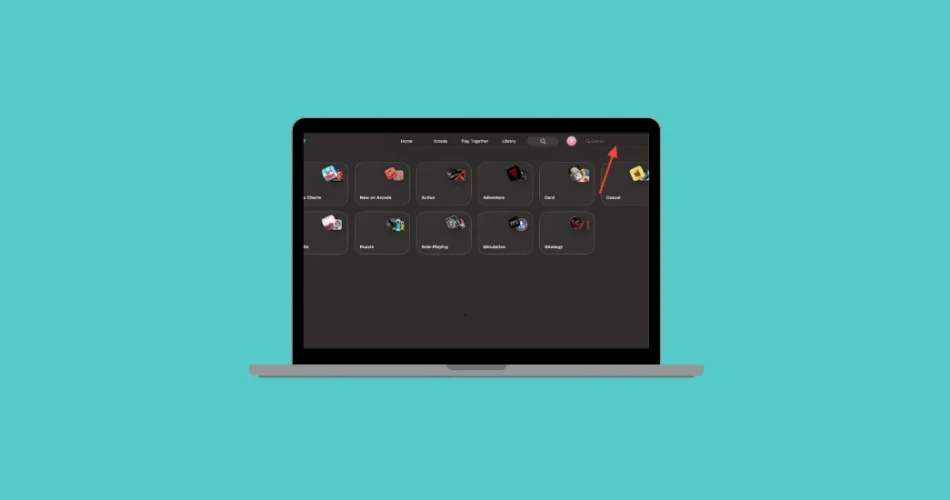
Ready to transform your Mac into a gaming powerhouse? macOS 26 introduces a dedicated Games app, revolutionizing how you discover, organize, and play your favorite titles. Gone are the days of scattered game files and fragmented launchers. This all-in-one hub centralizes your gaming experience, making it easier than ever to dive into the action and connect with friends.
Accessing and Organizing Your Game Library: Your Gaming HQ
The core of the Games app is its Library, acting as a centralized command center for all your Mac games. It solves the long-standing issue of scattered installations and the difficulty of keeping track of your digital collection.
Here’s how to get started:
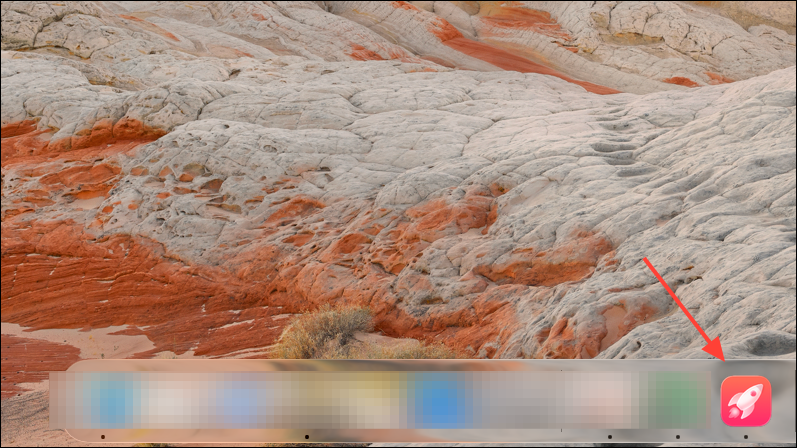
Launch the Games App: Find it in your Applications folder or Dock. Look for the distinctive icon – a red background with a stylized rocket.
Navigate to the Library Tab: Here, your installed games are automatically compiled. This includes games from the App Store, Apple Arcade, and even compatible third-party platforms. Your entire gaming universe is now at your fingertips.
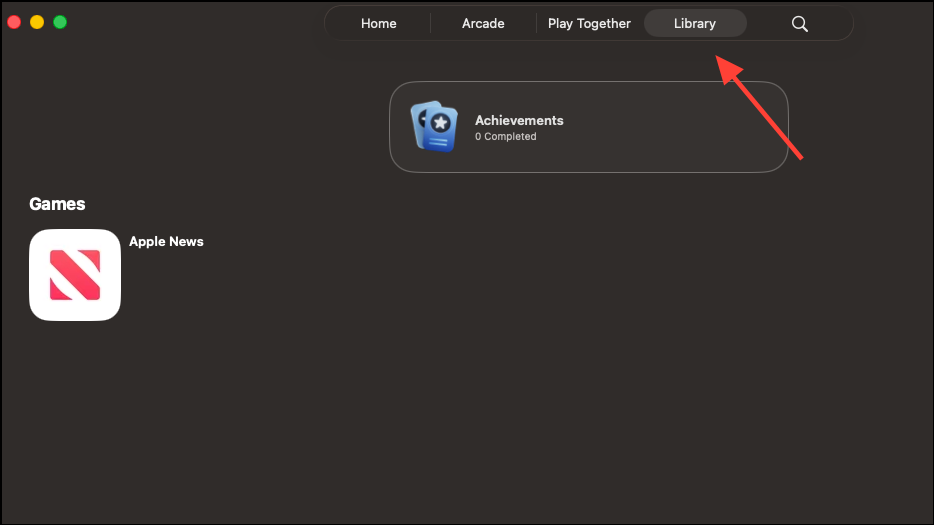
Browse and Sort: The list is chronological, but you can sort it by recent activity or name. Filter to see only the games currently installed on your Mac.
Launch with a Click: Simply click a game’s icon in the Library to launch it. If it’s not installed, you’ll be prompted to download it. Installation from the App Store or Apple Arcade is seamless.
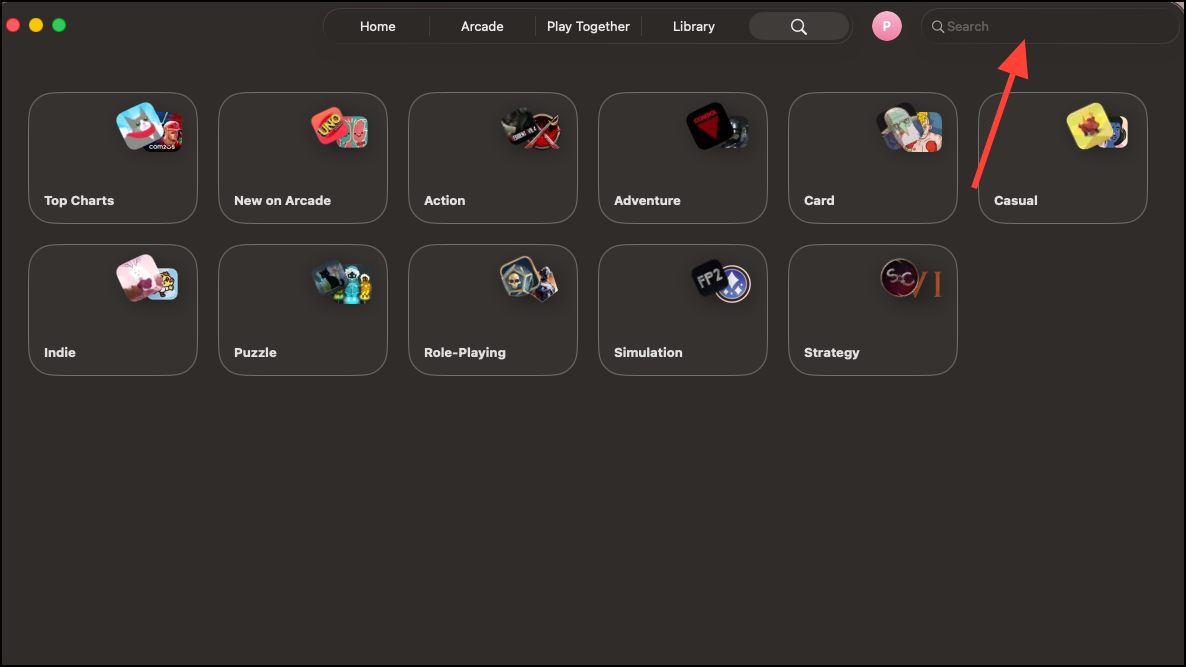
Find What You Need: Use the search function to quickly locate a game by name or genre.
Stay Updated: The “Updates and Events” section at the top of the Library tab highlights new content, patches, and time-limited events. Never miss out on a new update or event!
Integrating Games from Multiple Platforms: A Unified Experience
A key feature is the ability to bring together games from various sources, going beyond just the App Store. The Games app aims to recognize Mac games from platforms like Steam and Epic Games, unifying your library.
Important Considerations:
- Mac-Native Games Only: Games must be Mac-native applications and correctly identified as such within their metadata.
- Steam Compatibility: Some Steam games may not appear if they are just launchers or shortcuts.
- Compatibility Layers: Games installed through compatibility layers like Crossover or Heroic typically don’t appear unless developers have properly configured them.
- Potential Workaround: Launching a game from its original platform might prompt the Games app to recognize it.
- Future Development: While manual addition is currently unavailable, future updates may address this.
Discovering New Games: Tailored Recommendations for You
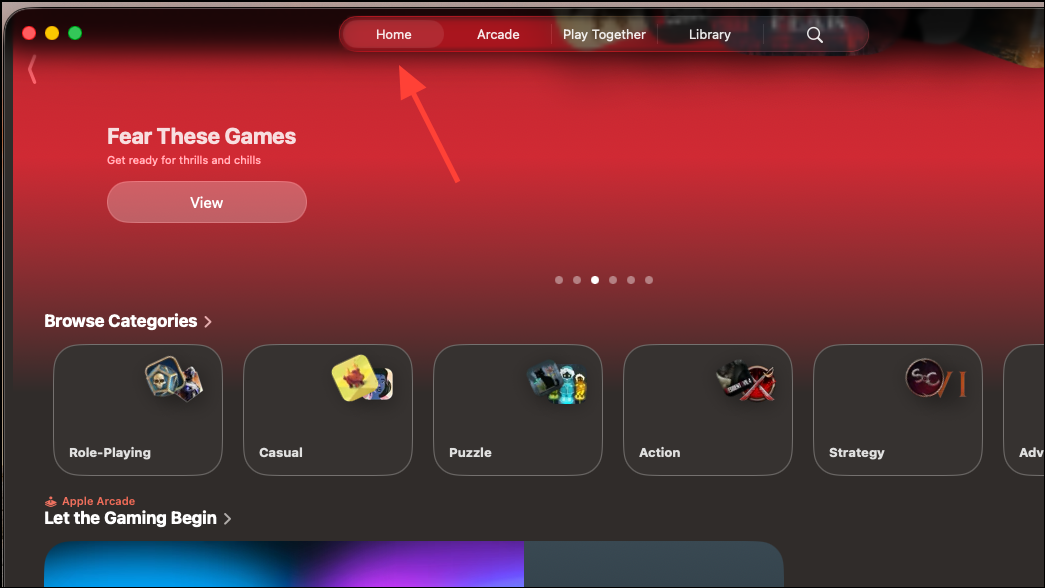
The Home tab is your personal gaming dashboard, offering tailored recommendations based on your playing history, trending games, and what your friends are enjoying. This ensures you discover games that align with your interests.
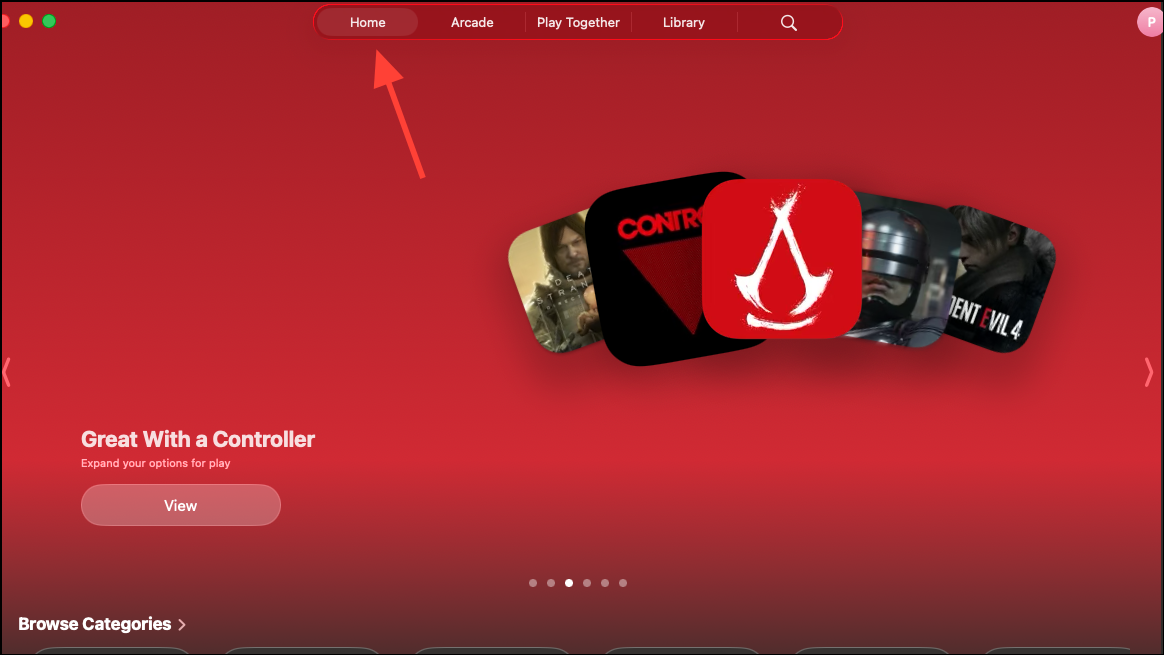
Explore the Home Tab:
- Continue Playing: Jump back into recent games instantly with the “Continue Playing” section.
- Friends are Playing: See what your Game Center friends are playing. Click to join, download, or learn more.
- Top Games and Recommendations: Discover new releases and hidden gems based on playtime data and editorial selections.
- Controller Compatibility: Use the filter to find games with gamepad support.
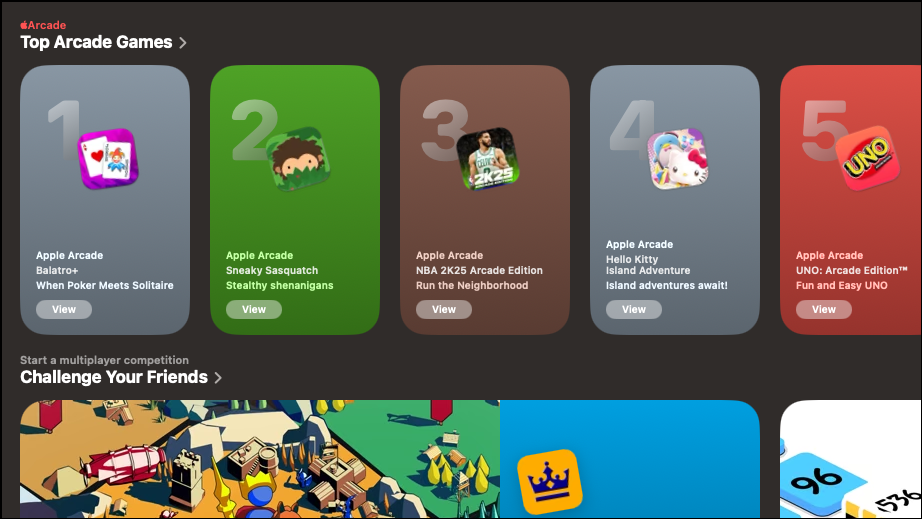
Managing Social Play and Challenges: Connect and Compete
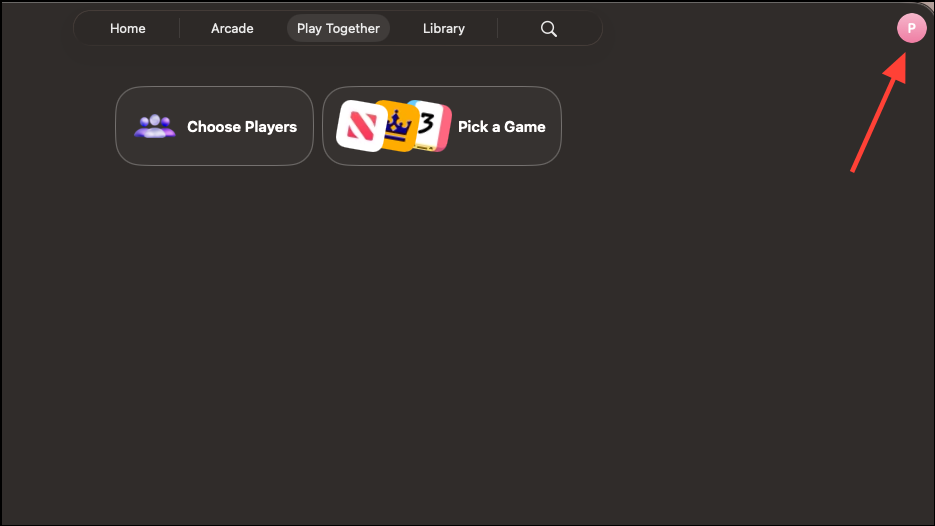
The Play Together tab revives and enhances Game Center’s social features. Connect with friends, track achievements, and issue challenges.
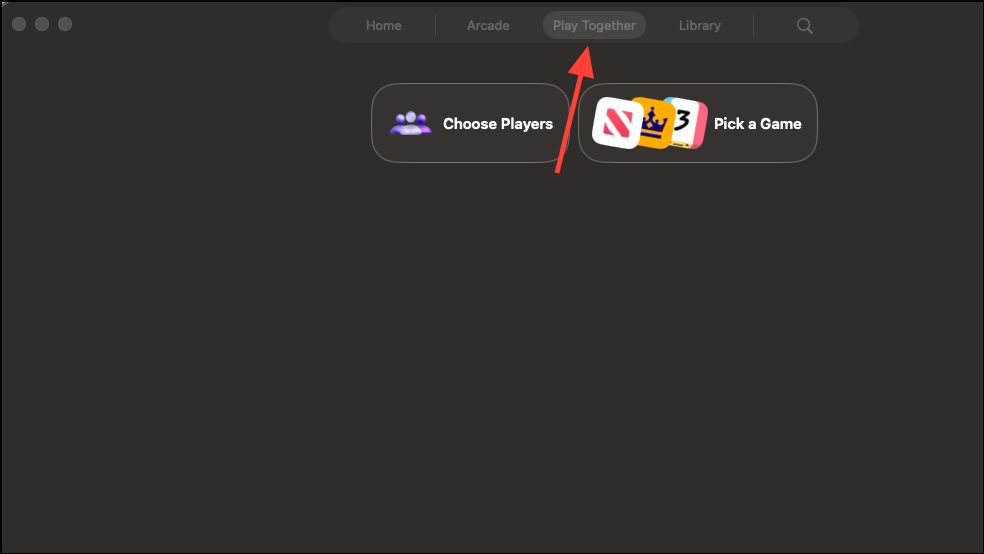
How to Engage:
1- View Friends and Activity: See your Game Center friends and recent group activity.
2- Start a Challenge: Select a friend or group and choose a supported game. Set a target score, and invite your friends.
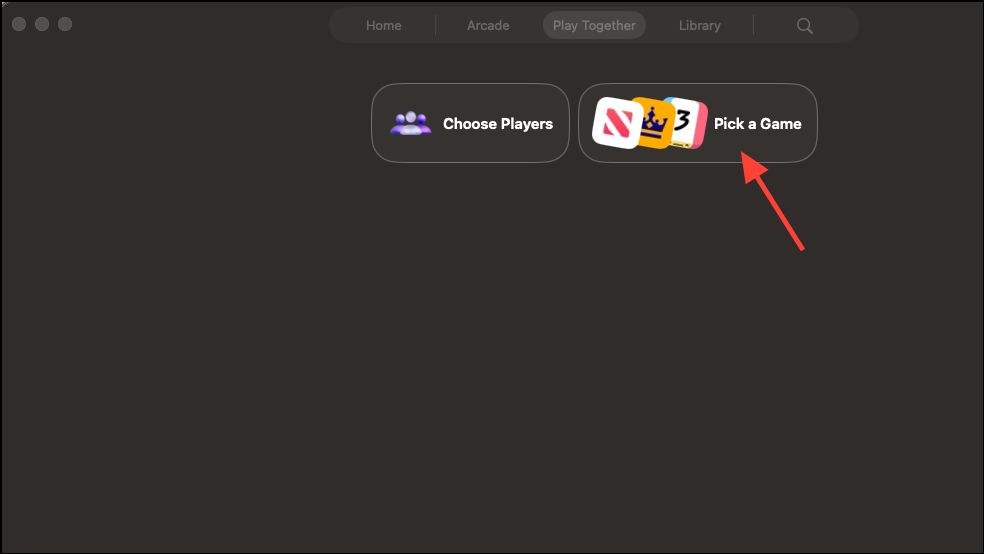
3- Accept Challenges: Respond to challenges via the Play Together tab or notifications.
4- Manage Your Profile: Use the Game Center profile button (your initial) to add friends, manage privacy, and accept invitations.
Staying Informed About Game Updates and Events: Never Miss a Beat
The Games app keeps you in the loop.
- Check Updates and Events: The Library tab’s “Updates and Events” section provides a consolidated view of recent changes and upcoming activities.
- Enable Notifications: Get reminders for events, new content, and challenge invitations.
- Dive Deeper: Visit individual game pages for patch notes, event calendars, and activity feeds.
Using Game Overlay for In-Game Controls and Social Features: Enhance Your Gameplay
macOS 26 introduces a Game Overlay.
- Activate the Overlay: Use the shortcut (Cmd + Shift + G, or as configured).
- Use the Overlay: Invite friends, adjust system settings, and access voice chat.
- Return to Gameplay: Dismiss the overlay anytime.
Apple Arcade Integration and Curated Collections: Explore Premium Titles
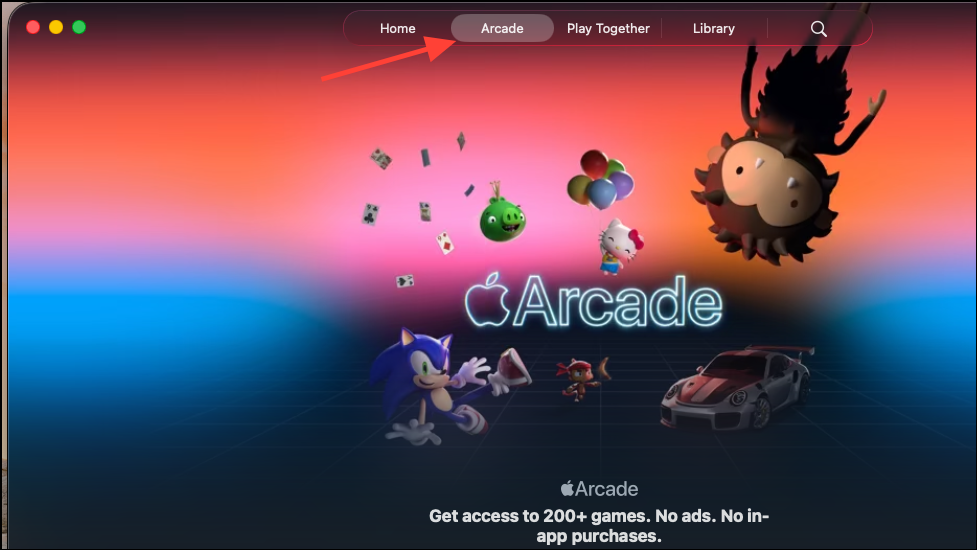
Apple Arcade subscribers have a dedicated tab.
1- Access the Arcade Tab: Browse and launch games.
2- Browse Collections: Find suggestions in the Home tab.
3- Controller Support: Use the filter to find gamepad-optimized titles.
Troubleshooting and Limitations: Know What to Expect
- Third-Party Games: Not all games appear automatically.
- Compatibility Layers: Titles via compatibility layers may not show up.
- Manual Addition: Not currently supported.
- Workaround: Launching a game from its original platform may help.
- Recommendations: Verify apps are Mac-native.
Conclusion:
The new Games app in macOS 26 marks a significant leap forward for Mac gaming. It’s a user-friendly hub that centralizes your collection, streamlines discovery, and enhances social interaction. By embracing this new app, you’ll spend less time managing and more time enjoying your favorite games. Get ready to experience Mac gaming like never before!
And if you'd like to go a step further in supporting us, you can treat us to a virtual coffee ☕️. Thank you for your support ❤️!

We do not support or promote any form of piracy, copyright infringement, or illegal use of software, video content, or digital resources.
Any mention of third-party sites, tools, or platforms is purely for informational purposes. It is the responsibility of each reader to comply with the laws in their country, as well as the terms of use of the services mentioned.
We strongly encourage the use of legal, open-source, or official solutions in a responsible manner.
Comments