

If you’re using Windows 11 version 25H2 but prefer browsing the web with Google Chrome instead of the default Microsoft Edge, you can easily change your system’s default browser.
Setting Chrome as the default ensures that:
- web links open automatically in Chrome
- supported file types like .html or .pdf use Chrome
- web protocols such as HTTP and HTTPS launch Chrome instead of Edge
Below are the two easiest methods to make Chrome your default browser in Windows 11 25H2.

Method 1: Set Chrome as Default from Chrome Settings
The quickest way to change your default browser is directly from Chrome.
Step 1
Open Google Chrome on your Windows 11 PC.
Step 2
Click the three-dot menu in the top-right corner and select Settings.

Step 3
In the left sidebar, click Default browser.

Step 4
Click the Make default button.

Windows will automatically open the Default apps section inside the Settings app.
Step 5
On the Default apps page, click Set default next to Google Chrome.
This will assign Chrome to common web protocols and extensions such as:
- HTTP
- HTTPS
- .HTML
- .HTM
Once completed, Chrome becomes your system’s main web browser.
Method 2: Set Chrome as Default via Windows Settings
You can also configure the default browser manually through Windows Settings.
Step 1
Open the Start menu and select Settings.
Step 2
Click Apps in the left sidebar.

Step 3
Select Default apps.
Step 4
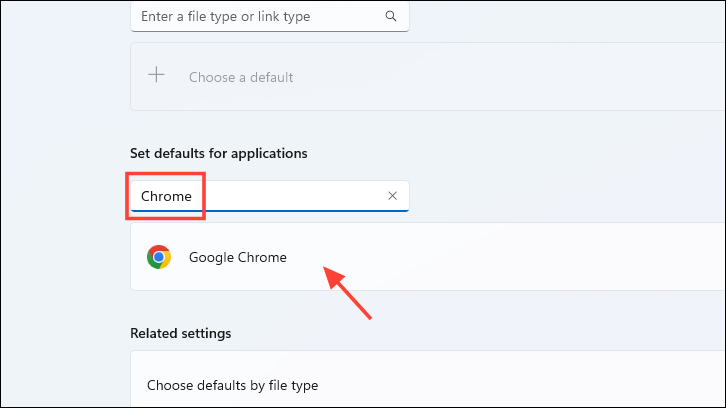
In the search bar, type Google Chrome and click the result.
Step 5
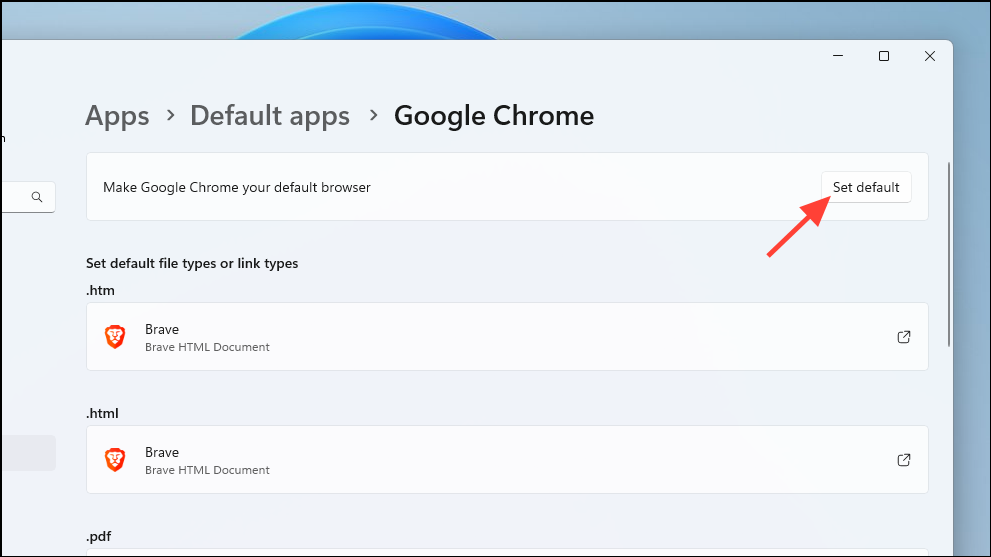
On the Chrome settings page, click Set default at the top.

Windows will automatically assign Chrome as the default browser for major web file types and protocols.

Optional: Set Chrome as Default for Additional File Types
If you want Chrome to open additional web-related files:
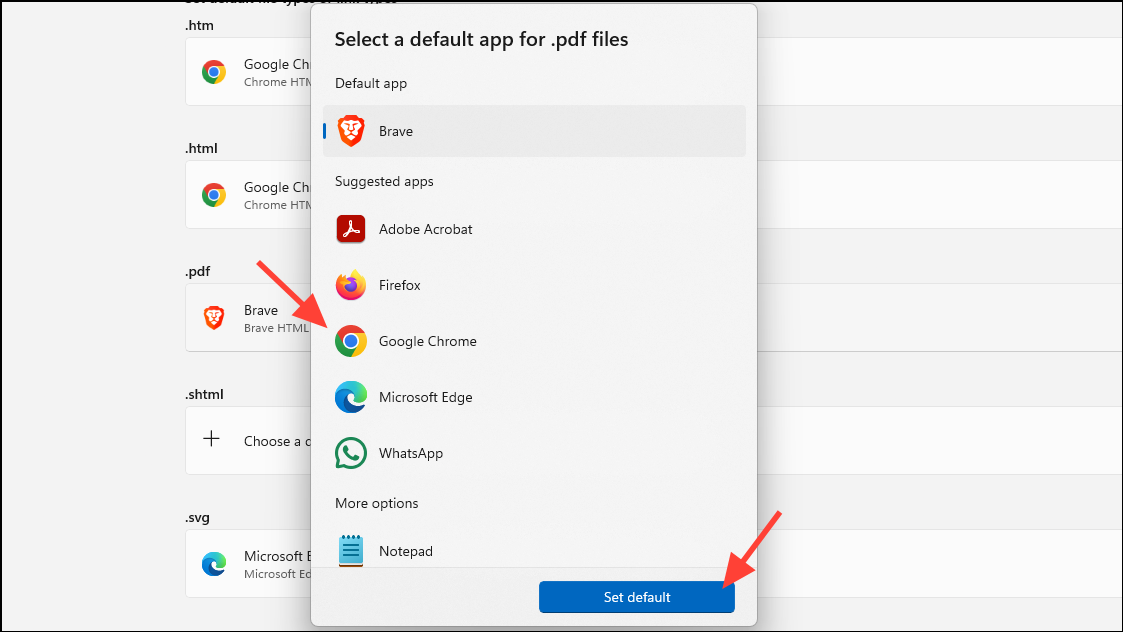
- Scroll down in the Google Chrome Default Apps page.
- Select the file extension you want to change, such as .pdf or .svg.
- Choose Google Chrome from the available apps list.
This ensures those files open directly in Chrome instead of another application.
What Changed in Windows 11 25H2
In Windows 11 25H2, Microsoft simplified the process of setting default browsers. Instead of manually assigning each protocol individually, the Set default button now applies Chrome to most web-related file types automatically.
This improvement makes switching browsers much faster than in earlier versions of Windows 11.
Why Set Chrome as Your Default Browser?
Many users choose Chrome because of its:
- large extension ecosystem
- fast performance
- seamless integration with Google services
- cross-device synchronization
By making Chrome the default browser, every link you click—from email apps to documents—opens directly in Chrome, creating a more consistent browsing experience.
And if you'd like to go a step further in supporting us, you can treat us to a virtual coffee ☕️. Thank you for your support ❤️!

We do not support or promote any form of piracy, copyright infringement, or illegal use of software, video content, or digital resources.
Any mention of third-party sites, tools, or platforms is purely for informational purposes. It is the responsibility of each reader to comply with the laws in their country, as well as the terms of use of the services mentioned.
We strongly encourage the use of legal, open-source, or official solutions in a responsible manner.
Comments