

In an era where digital privacy is paramount, understanding and controlling your computer’s network activity has never been more critical. While macOS comes equipped with its own built-in firewall, it has a significant blind spot: it primarily blocks incoming connections. This leaves a gaping vulnerability for applications or even malicious software to covertly send data out of your Mac without your knowledge or consent. This is precisely where LuLu, a robust and free open-source firewall, steps in to empower you with full control over your macOS device’s network outflow.
Developed by the renowned security expert Patrick Wardle of Objective-See, LuLu offers a vital layer of protection that Apple’s default settings lack. It’s designed to be lightweight, transparent, and remarkably easy to configure, granting you the power to dictate exactly which applications are permitted to “phone home.” Dive into this comprehensive guide to discover how LuLu functions, how to seamlessly integrate it into your macOS environment, and why it’s an indispensable tool for anyone serious about safeguarding their digital privacy.
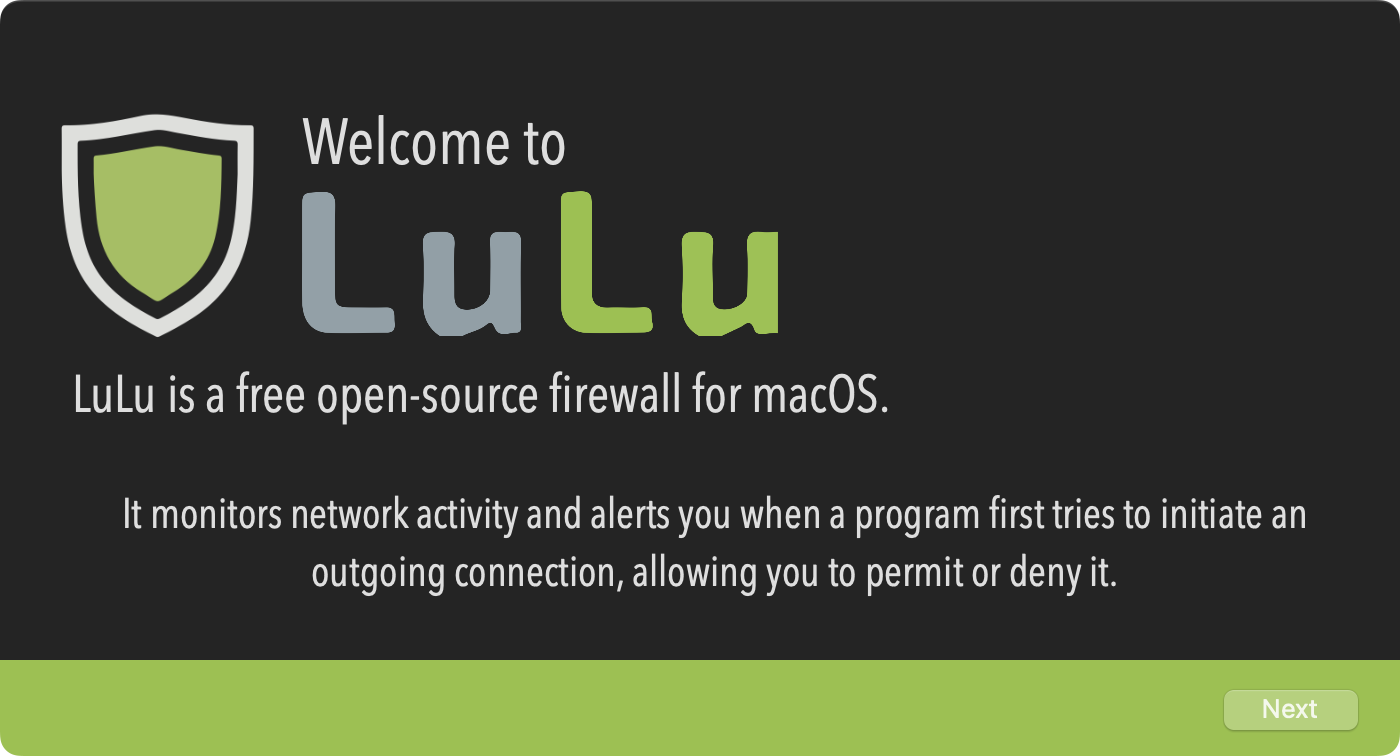
What is LuLu: Your Guardian Against Unwanted Outgoing Connections
LuLu is a standout in the realm of macOS security tools. As a free and open-source firewall, its primary mission is to intercept and block unauthorized outgoing network connections from your Mac. Conceived by Patrick Wardle, a former NSA security specialist and a leading voice in Apple security, LuLu is a flagship project of Objective-See, a trusted source for simple yet powerful macOS security utilities.
First launched in 2018, LuLu has consistently received updates, maintaining its relevance and efficacy in the ever-evolving threat landscape. Its operational philosophy is straightforward: any unapproved application attempting to establish an internet connection will trigger an immediate alert. This puts you in the driver’s seat, allowing you to either block or permit the connection – either temporarily for a single instance or permanently for future attempts.
This granular level of control is invaluable for:
- Identifying “Chatty” Applications: Discover which legitimate apps are making unnecessary or excessive connections.
- Containing Intrusive Software: Prevent applications from sending telemetry data or personal information without permission.
- Neutralizing Malware Communication: Block malicious programs from contacting command-and-control servers or exfiltrating your data.
All this is achieved without a convoluted interface or obscure settings, making advanced network security accessible to every Mac user.
Why LuLu is an Essential Mac Security Tool
LuLu is built on Apple’s Network Extension framework, ensuring deep integration and stable performance. It supports a wide range of macOS versions, starting from macOS 10.15 (Catalina) and is fully compatible with both Intel-based Macs and those powered by Apple Silicon chips (M1, M2, M3, M4, etc.).
Key Advantages:
- 100% Free and Open Source: No hidden costs, subscriptions, advertisements, or telemetry. You get a transparent, community-vetted security solution.
- Focus on Outgoing Traffic: Fills the critical gap left by macOS’s built-in firewall, which only handles incoming connections.
- User-Friendly Alerts: Provides clear, actionable information for every connection attempt, allowing informed decisions.
- Developer Pedigree: Backed by Patrick Wardle, a respected figure in the macOS security community.
- Continuous Development: Regular updates ensure ongoing compatibility and protection against new threats.
In essence, LuLu offers a clean, effective solution for reclaiming control over your Mac’s outbound network activity, offering peace of mind in a connected world.
Seamless Installation: Setting Up LuLu on macOS
Installing LuLu is a straightforward process, though it requires a few specific steps due to macOS’s stringent security protocols. Follow these instructions to get LuLu up and running smoothly:
- Download LuLu: Begin by downloading the official LuLu application from the trusted Objective-See website.
- Install the Application: Locate the downloaded
LuLu.dmgfile, open it, and then drag the LuLu application icon into your Applications folder. - Launch LuLu: Navigate to your Applications folder and launch LuLu.
- Grant System Extensions: Upon its first launch, macOS will prompt you to authorize the installation of a system extension and the associated network filter. These permissions are absolutely crucial for LuLu to function as a firewall.
- Click “Open System Settings” (or “System Preferences” on older macOS versions).
- Within the System Settings, locate and enable LuLu in the relevant security section.
- You will be asked to authenticate with your administrator password to approve the extension.
- Finally, click “Allow” (or “Approve”) to complete the installation and activate the firewall.

Once these steps are completed, LuLu is active and ready to protect your system. It will automatically launch with your Mac at startup and its small shield icon will appear in your menu bar (unless you choose to hide it in the settings).
Initial Configuration: Smart Defaults for Immediate Protection
Upon its initial launch, LuLu offers a sensible default configuration designed to minimize disruptive alerts while still providing robust protection. By default, LuLu is set to:
- Allow Apple Processes: Permit legitimate Apple applications and services to access the network.
- Allow Installed Applications: Grant network access to applications that were already installed on your system before LuLu.
- Block All Other Outgoing Connections: Any new or unapproved application attempting to connect will be blocked by default, accompanied by a notification.
These default settings are highly recommended, as they provide a good balance between security and usability, preventing an immediate flood of alerts. You always have the flexibility to modify these options later through LuLu’s preferences.

After the initial setup, LuLu operates silently in the background, represented by its shield icon in the menu bar. This icon serves as your gateway to all of LuLu’s features, including rule management, mode selection, and access to advanced settings.

Managing Connections: Alerts, Decisions, and Granular Control
The core of LuLu’s functionality lies in its real-time alerts. Whenever an unauthorized application attempts to establish an outgoing internet connection, LuLu immediately notifies you with a clear, detailed pop-up alert. This is your cue to decide the fate of that connection.
Each alert provides vital information to help you make an informed decision:
- Process Name: The name of the program attempting the connection.
- Remote Address: The target IP address or domain name it’s trying to reach.
- Application Path: A shortcut to view the full file path of the application.
- VirusTotal Link: A quick link to scan the application for known malware on VirusTotal.
- Code Signature Info: Details about the application’s digital signature, indicating its authenticity.
This information is invaluable for identifying suspicious activity, especially if a program you don’t recognize or haven’t launched is attempting to connect.
From the alert, you have several options:
- Allow: Permit the connection (either permanently or just this once).
- Block: Prevent the connection (either permanently or temporarily).
- More Options: Refine the scope and duration of the rule. Here, you can specify:
- Rule Scope: Allow the application to connect to any destination on the internet, or only to the specific target address.
- Rule Duration: Make the rule permanent or temporary, with an optional expiration time.

All your decisions, whether allowing or blocking, are automatically added to LuLu’s rule list. You can review, modify, or delete these rules at any time by accessing LuLu’s menu bar icon and navigating to Rules > Show....
The rule management interface is intuitive, offering various filters to help you sort through your rules:
- Default System Rules
- Apple Rules
- Installed Application Rules
- User-Created Rules
- Recent Rules (added in the last 24 hours)
Each entry clearly shows the application name, its signature identifier, and the action applied (Allow or Block). A right-click or double-click allows you to view the program’s path or delete specific rules. You can also manually add a new rule, which is useful for pre-emptively blocking a known malicious domain or allowing an application before it even attempts a connection.
Customizing LuLu: Deep Dive into Settings
LuLu offers a range of customization options to tailor its behavior to your specific security needs. Access these settings by clicking the LuLu icon in the menu bar and selecting “Settings…” The settings are organized into four distinct tabs: Rules, Modes, Lists, and Update.
1. Rules Tab
This section allows you to toggle default behaviors:
- Allow Apple programs to access the network: Generally recommended to keep enabled for system stability.
- Allow already installed applications: Determines whether applications present before LuLu’s installation are automatically allowed.
- Allow DNS traffic: Essential for internet browsing; typically kept enabled.
- Allow Simulator Apps: Useful for developers working with virtual environments.

2. Modes Tab
LuLu offers different operational modes to suit your workflow:
- Passive Mode: LuLu will apply existing rules but will not display new alerts. Ideal for silent monitoring once you’ve established your ruleset.
- Block Mode: All outgoing connections are blocked by default, except those explicitly allowed by your rules. Use with caution, as it can be highly restrictive.
- No Icon Mode: Hides LuLu’s icon from the menu bar. Only recommended if you are fully familiar with its operation and don’t need quick access to its controls.

3. Lists Tab
This powerful feature allows you to define custom allow or block lists based on IP addresses or domain names. These lists take precedence over individual application rules.
- Local Lists: Create and manage lists directly on your Mac.
- Remote Lists: Import lists from a URL, enabling you to use curated blocklists or share custom allow/block rules across multiple devices. This is particularly useful for blocking known ad servers or malicious domains.

4. Update Tab
By default, LuLu automatically checks for new versions. If you prefer to manage updates manually, you can disable the automatic check here.

Beyond Blocking: Monitoring Network Activity with Netiquette
LuLu isn’t just about blocking and allowing; it also includes a handy integrated tool called Netiquette. This utility provides real-time visibility into your Mac’s network activity, offering a dynamic overview of what’s happening on your system.
To open Netiquette, click the LuLu icon in the menu bar and select “Network Monitor…”
Netiquette displays a live list of active processes communicating over the internet, showing the target IP address or domain name, the port being used, and the protocol. This serves as an excellent complement to LuLu’s alerts. If you suspect unusual network behavior, a quick glance at Netiquette can help pinpoint the offending application or connection. While Netiquette can be downloaded separately, its direct integration within LuLu provides a seamless monitoring experience.

Our Verdict:
Without overstating its capabilities, LuLu consistently delivers on its promises. It effectively blocks unauthorized outgoing connections, operates transparently, is highly customizable, and, crucially, comes without any commercial strings attached. There are no subscriptions, no hidden telemetry, and absolutely no tracking. It is simply an efficient, free, and open-source tool meticulously designed for the Mac user.
For those who wish to regain a sense of control over their Mac’s network activities – especially in an ecosystem where countless applications are constantly “phoning home” – LuLu is an exceptional solution. Its seamless integration with macOS, full compatibility with Apple Silicon Macs, and user-friendly interface make it accessible even to those without extensive network security expertise.
In summary, LuLu is a reliable, free, and open-source outgoing firewall that we wholeheartedly recommend. If you’re looking to monitor and manage what leaves your machine without dedicating countless hours to complex configurations, LuLu is the indispensable tool you’ve been searching for.
And if you'd like to go a step further in supporting us, you can treat us to a virtual coffee ☕️. Thank you for your support ❤️!

We do not support or promote any form of piracy, copyright infringement, or illegal use of software, video content, or digital resources.
Any mention of third-party sites, tools, or platforms is purely for informational purposes. It is the responsibility of each reader to comply with the laws in their country, as well as the terms of use of the services mentioned.
We strongly encourage the use of legal, open-source, or official solutions in a responsible manner.
Comments