
Minecraft remains one of the most popular video games in the world, attracting millions of players across different platforms. For PC gamers, Microsoft has simplified the experience by introducing a unified Minecraft Launcher for Windows 10 and Windows 11. Instead of managing multiple apps for different versions of the game, players can now access everything from a single interface.
Whether you’re a longtime fan or a newcomer exploring Minecraft for the first time, the new launcher makes switching between editions faster and more convenient. In this guide, you’ll learn what the Minecraft Launcher is, how it works, and how to download and install it on your Windows PC.
What Is the Minecraft Launcher?
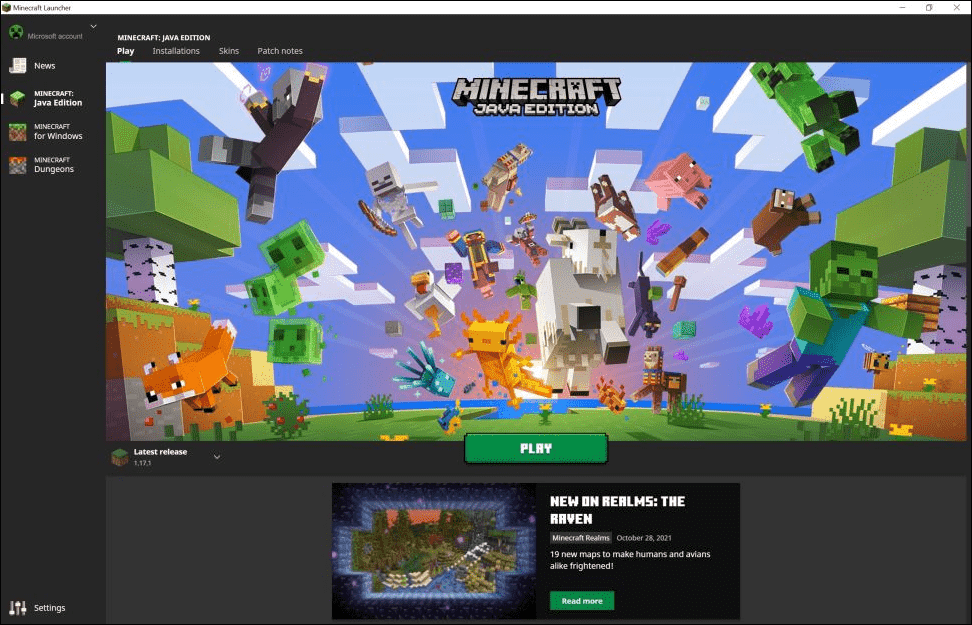
The Minecraft Launcher is a central hub that allows Windows users to manage and play multiple Minecraft titles from one application. With this launcher, you can quickly access:
- Minecraft: Java Edition
- Minecraft: Bedrock Edition
- Minecraft Dungeons
All versions appear in a simple sidebar menu, making it easy to switch between them without installing or launching separate programs.
Previously, each version of Minecraft required its own launcher or application. This created confusion for many players, especially beginners who were unsure which edition they owned or needed. The new launcher removes that complexity by bringing everything together in one place.
This streamlined design also improves game updates, account management, and installation processes, making the overall experience smoother for PC gamers.
Minecraft Launcher and Xbox Game Pass
One of the biggest advantages of the new launcher is its integration with Xbox Game Pass.
If you are subscribed to Xbox Game Pass for PC, you can access the following titles directly through the launcher at no additional cost:
- Minecraft Java Edition
- Minecraft Bedrock Edition
- Minecraft Dungeons
This makes Game Pass an attractive option for players who want to experience every version of Minecraft without purchasing them separately.
However, players who are not subscribed to Game Pass must still buy each title individually. Microsoft has announced plans to simplify this in the future. Eventually, owning either Minecraft Java Edition or Minecraft Bedrock Edition will grant access to the other version automatically.
Keep in mind that Minecraft Dungeons will remain a separate purchase and will not be included in that bundle.
Also note that the launcher does not support Minecraft: Education Edition.
What Happens to Your Existing Minecraft Data?
Switching to the new Minecraft Launcher will not erase your progress.
Once you install the launcher and sign in with your Microsoft or Mojang account, the program automatically detects your existing game files and saved worlds. This means you can continue playing right where you left off.
If you use mods, custom launchers, or modified game files, you may need to manually move those files into the new launcher’s installation directory. Doing this before uninstalling older launchers ensures your mods and custom configurations continue to work correctly.
How to Download the Minecraft Launcher on Windows 10 and 11
Installing the Minecraft Launcher is simple and only takes a few minutes. Follow the steps below to get started.
1. Open the Microsoft Store
On your Windows PC, open the Microsoft Store and search for Minecraft Launcher.
Make sure your system meets the minimum requirement:
- Windows 10 version 1903 (May 2019 Update) or later
- Windows 11 is fully supported
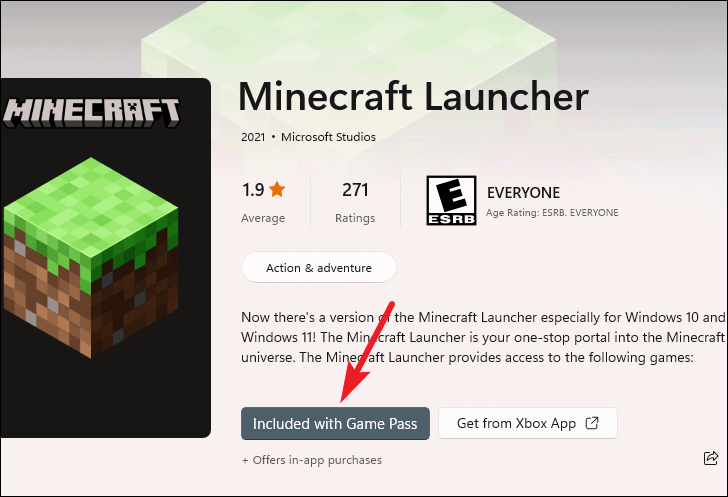
2. Install with Xbox Game Pass (Optional)
If you have an Xbox Game Pass subscription, you will see an Install option directly on the launcher page.
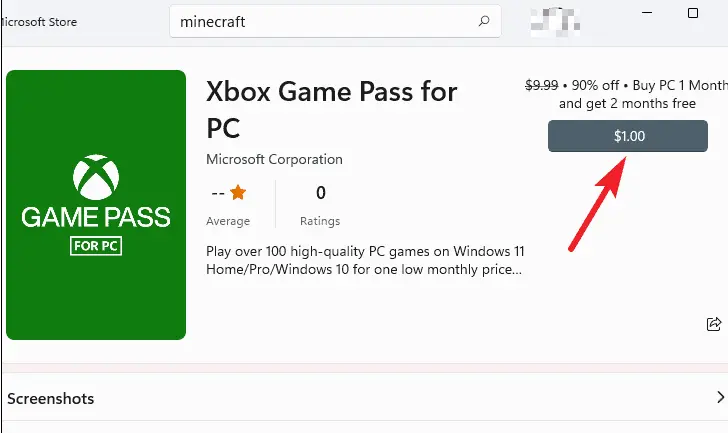
Click Install and the download will begin immediately.

3. Install Without Game Pass
If you are not subscribed to Game Pass, you will see two options:
- Included with Game Pass
- Get from Xbox App

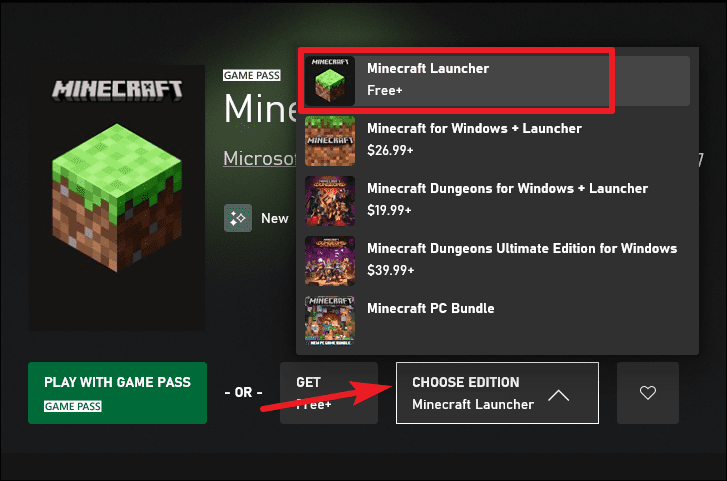
To continue without Game Pass, select Get from Xbox App.
4. Install the Xbox App (If Required)
If the Xbox app is not already installed on your computer, the Microsoft Store will prompt you to download it.
Follow the installation instructions to complete the setup.
Once the Xbox app opens, check if any additional gaming components are required. If you see a banner asking you to install extra services, click Install.

5. Download the Launcher
Inside the Xbox app:
- Go to the Minecraft Launcher page.
- Ignore the Play with Game Pass option if you don’t have the subscription.
- Click Get (Free) to download the launcher.
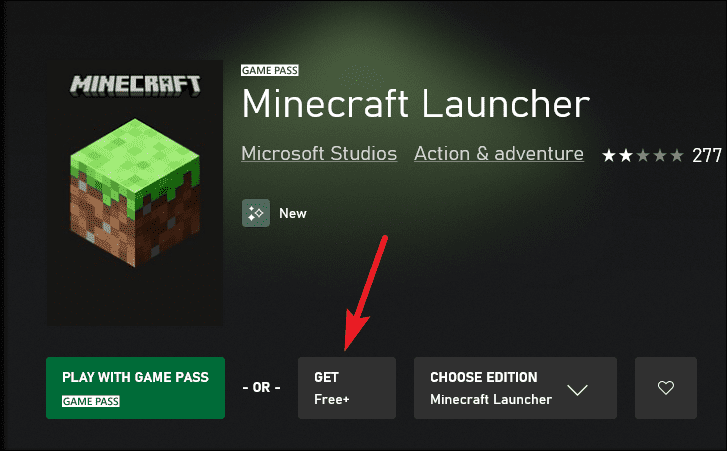
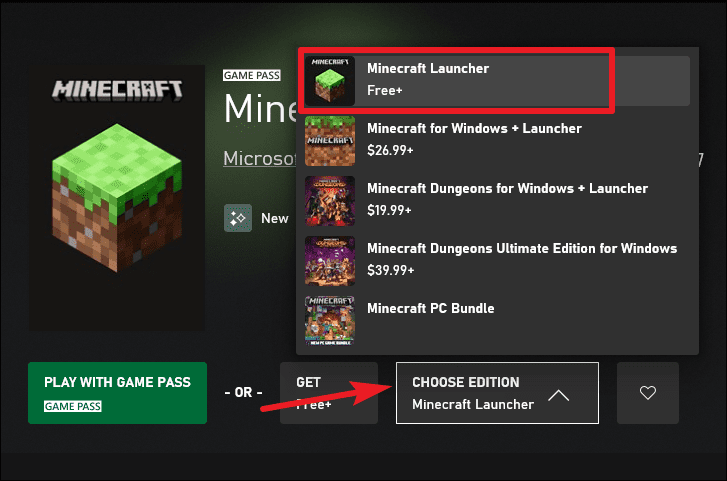
If the Get button does not appear, make sure Minecraft Launcher is selected in the Choose Edition dropdown menu.
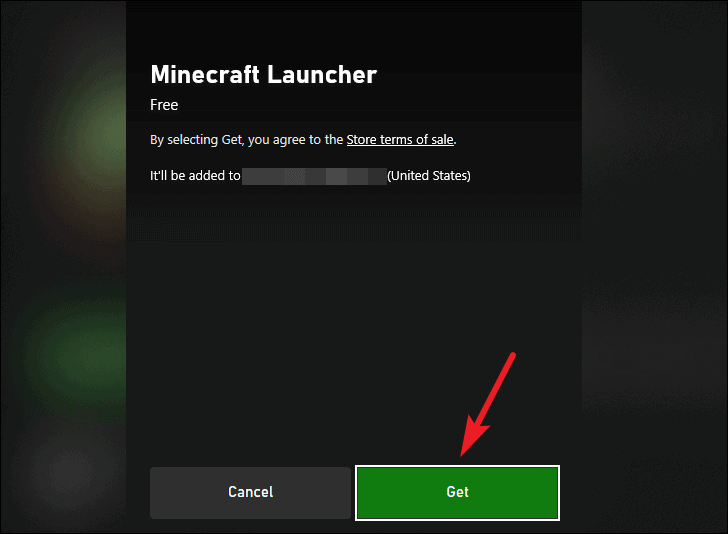
Confirm the installation when prompted.
6. Launch Minecraft
Once the download finishes:
- Open the Minecraft Launcher.
- Log in using your Microsoft account or Mojang account.
- Select the Minecraft edition you own and start playing.

You can track the download progress anytime in the Library section of the Xbox app.
Why the New Minecraft Launcher Is Better
The redesigned Minecraft Launcher offers several improvements for PC players:
Unified Access
All Minecraft titles are available in one application, eliminating the need for separate launchers.
Easier Updates
Game updates are handled automatically through the Microsoft Store.
Better Organization
The sidebar interface makes switching between game editions simple and fast.
Game Pass Integration
Subscribers can instantly access multiple Minecraft titles without additional purchases.
These improvements help reduce confusion while making the overall experience more user-friendly.
Final Thoughts
The Minecraft Launcher for Windows 10 and Windows 11 significantly improves how players access the game on PC. By bringing Java Edition, Bedrock Edition, and Minecraft Dungeons together in a single interface, Microsoft has created a more organized and convenient way to manage the Minecraft experience.
Whether you play casually, enjoy modding in Java Edition, or prefer the cross-platform features of Bedrock, the unified launcher ensures everything is easily accessible. With automatic updates and Game Pass support, it’s now simpler than ever to jump into Minecraft and start building your next adventure.
And if you'd like to go a step further in supporting us, you can treat us to a virtual coffee ☕️. Thank you for your support ❤️!

We do not support or promote any form of piracy, copyright infringement, or illegal use of software, video content, or digital resources.
Any mention of third-party sites, tools, or platforms is purely for informational purposes. It is the responsibility of each reader to comply with the laws in their country, as well as the terms of use of the services mentioned.
We strongly encourage the use of legal, open-source, or official solutions in a responsible manner.
Comments