
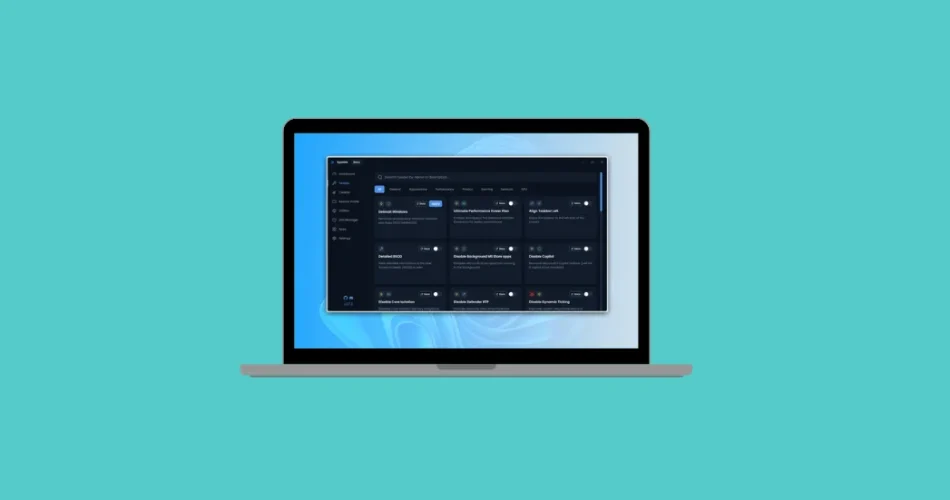
Let’s face it—Windows is a powerful operating system, but with every new version, Microsoft tends to add more clutter. Between preinstalled apps (a.k.a. bloatware), background features that slow things down, excessive telemetry, and even ads disguised as “suggestions,” the experience often feels messy.
Luckily, the Windows community always comes to the rescue. Independent developers regularly release tools to help users reclaim control of their PCs. One of the most promising newcomers is Sparkle, a free and open-source app designed to clean, debloat, and optimize Windows in just a few clicks.
We tested Sparkle, and here’s everything you need to know about what it offers.
What is Sparkle?
Sparkle is an all-in-one utility that gathers multiple Windows optimization tools into a single, clean, and modern interface. With Sparkle, you can:
- Clean up unnecessary files
- Apply performance tweaks
- Disable unwanted features
- Manage DNS settings
- Install or uninstall apps quickly
- Create system restore points
- Access built-in Windows utilities from one place
The best part? You don’t need to edit the registry or dig through endless Windows menus. Everything is handled with simple toggle switches and checkboxes. And if you’re unsure about what a tweak does, Sparkle provides direct links to its online documentation.
Sparkle works on both Windows 10 and Windows 11, and you can install it normally or run it in portable mode—perfect for a USB toolkit.
Dashboard: Quick System Overview
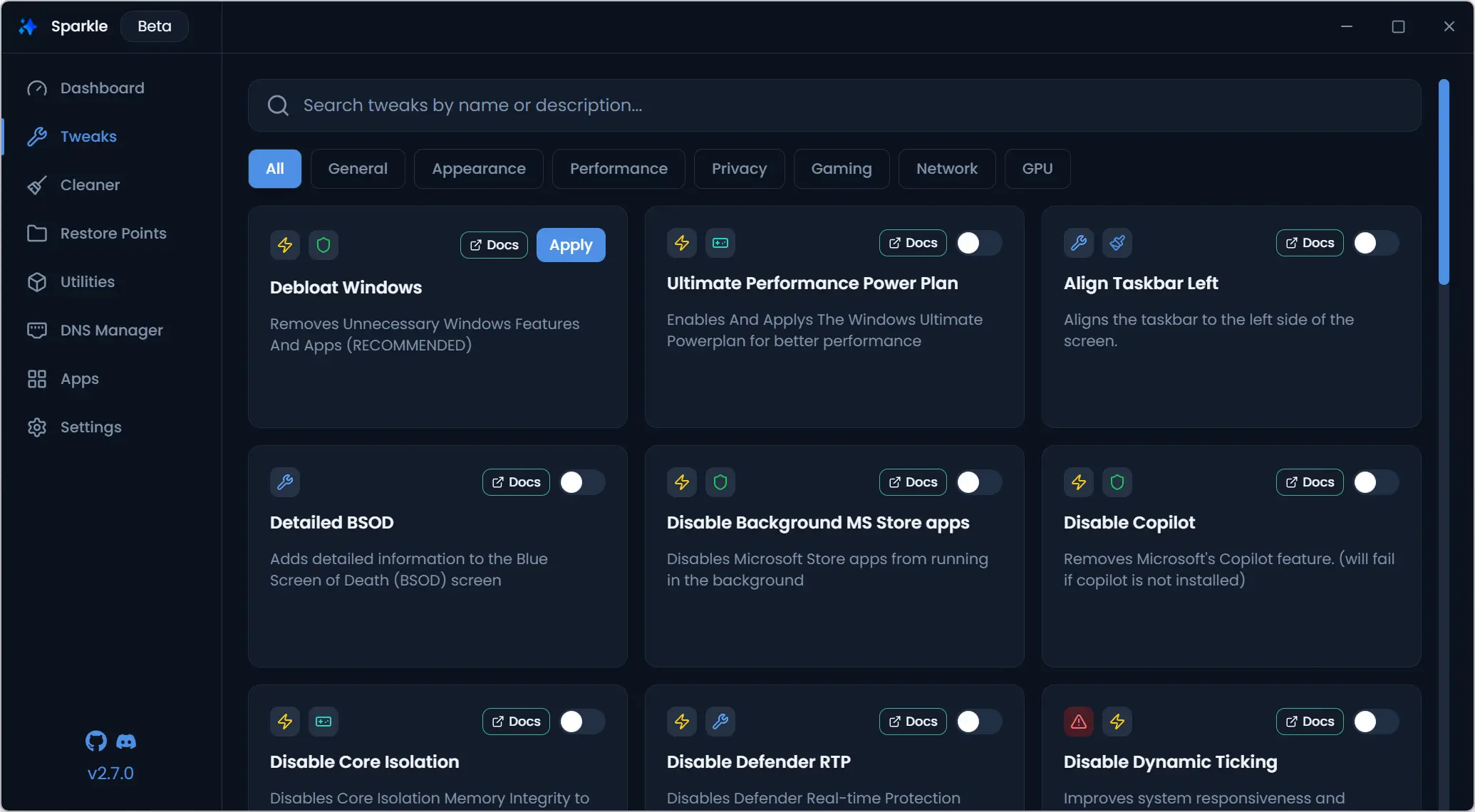
When you launch Sparkle, you’ll land on the Dashboard. It shows you key system information at a glance:
- CPU model and core count
- GPU model and VRAM
- Installed RAM and type (DDR4, DDR5, etc.)
- Storage details and available space
- Number of tweaks currently applied
It’s not the most advanced hardware monitoring tool, but it provides a handy snapshot of your setup.
Tweaks: One-Click Windows Optimizations
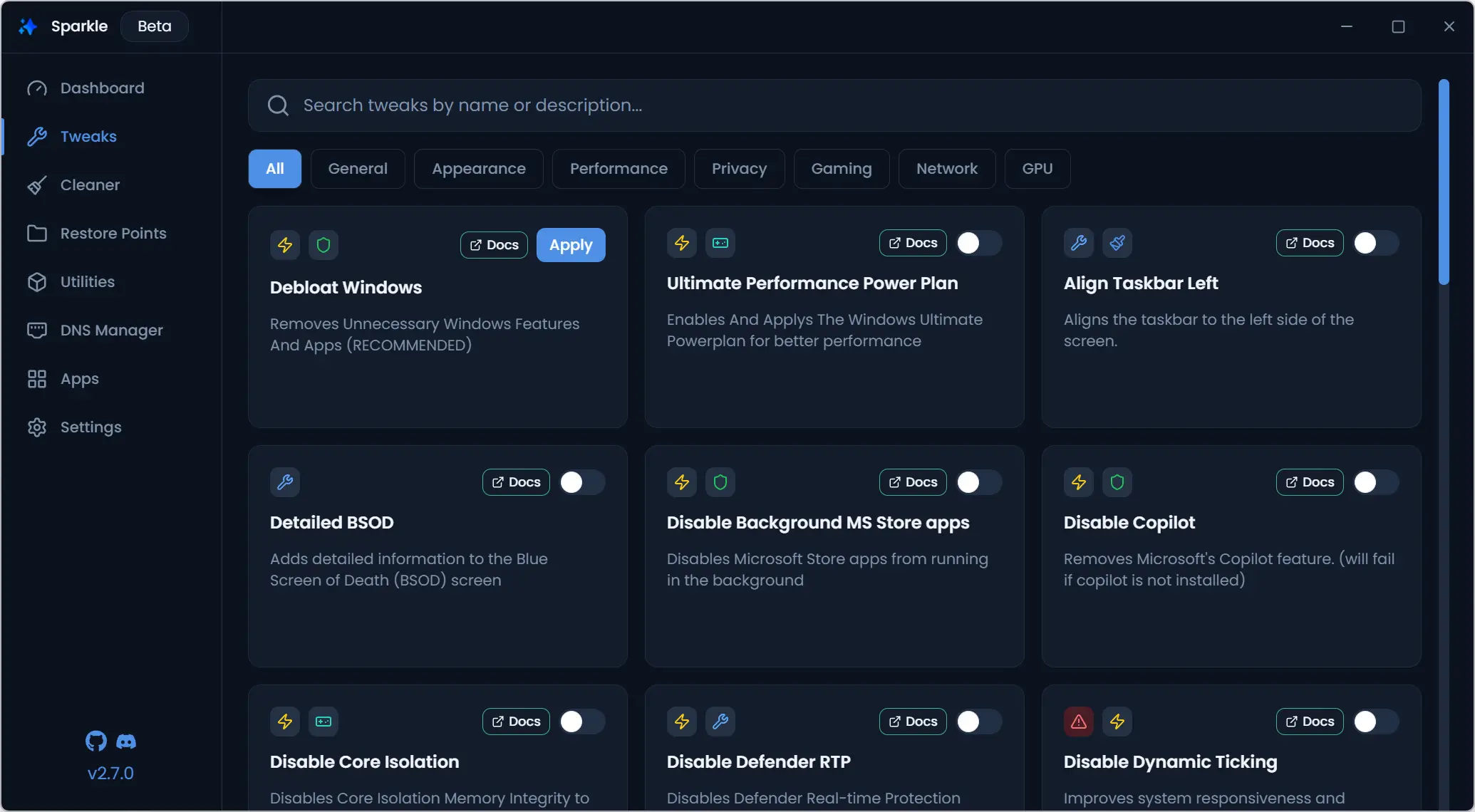
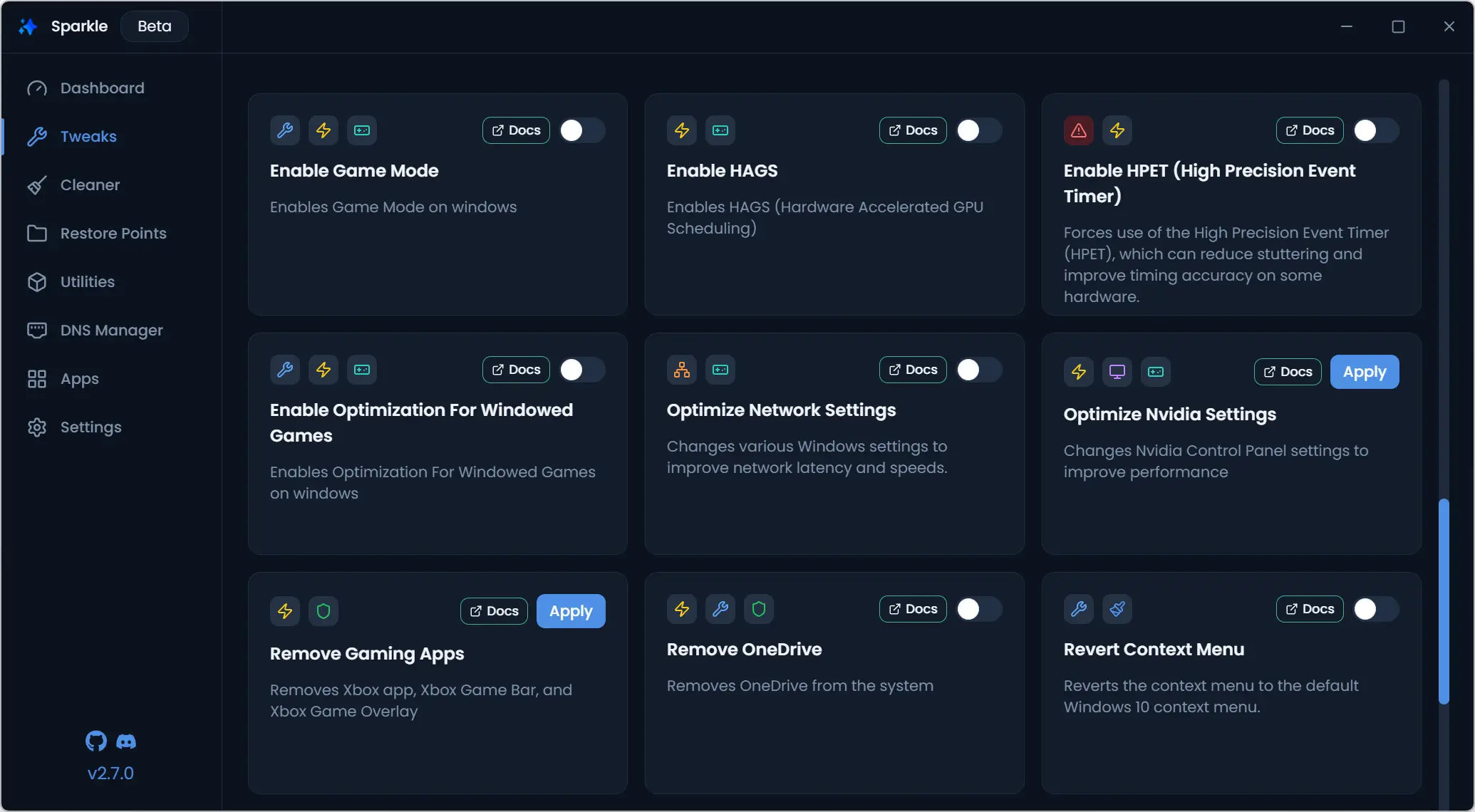
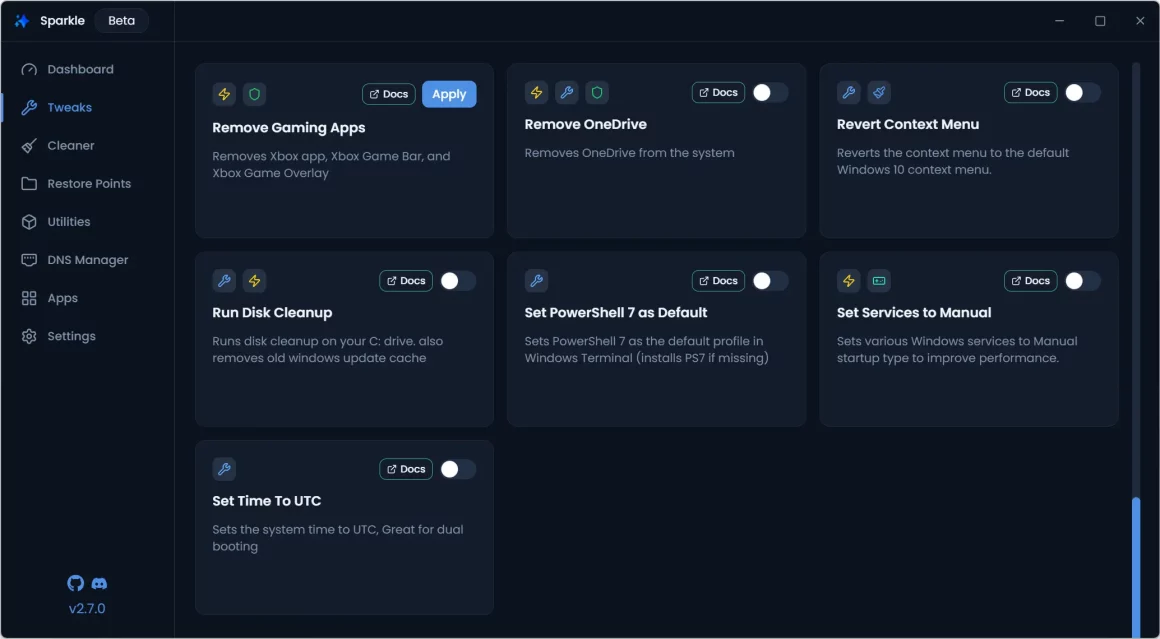
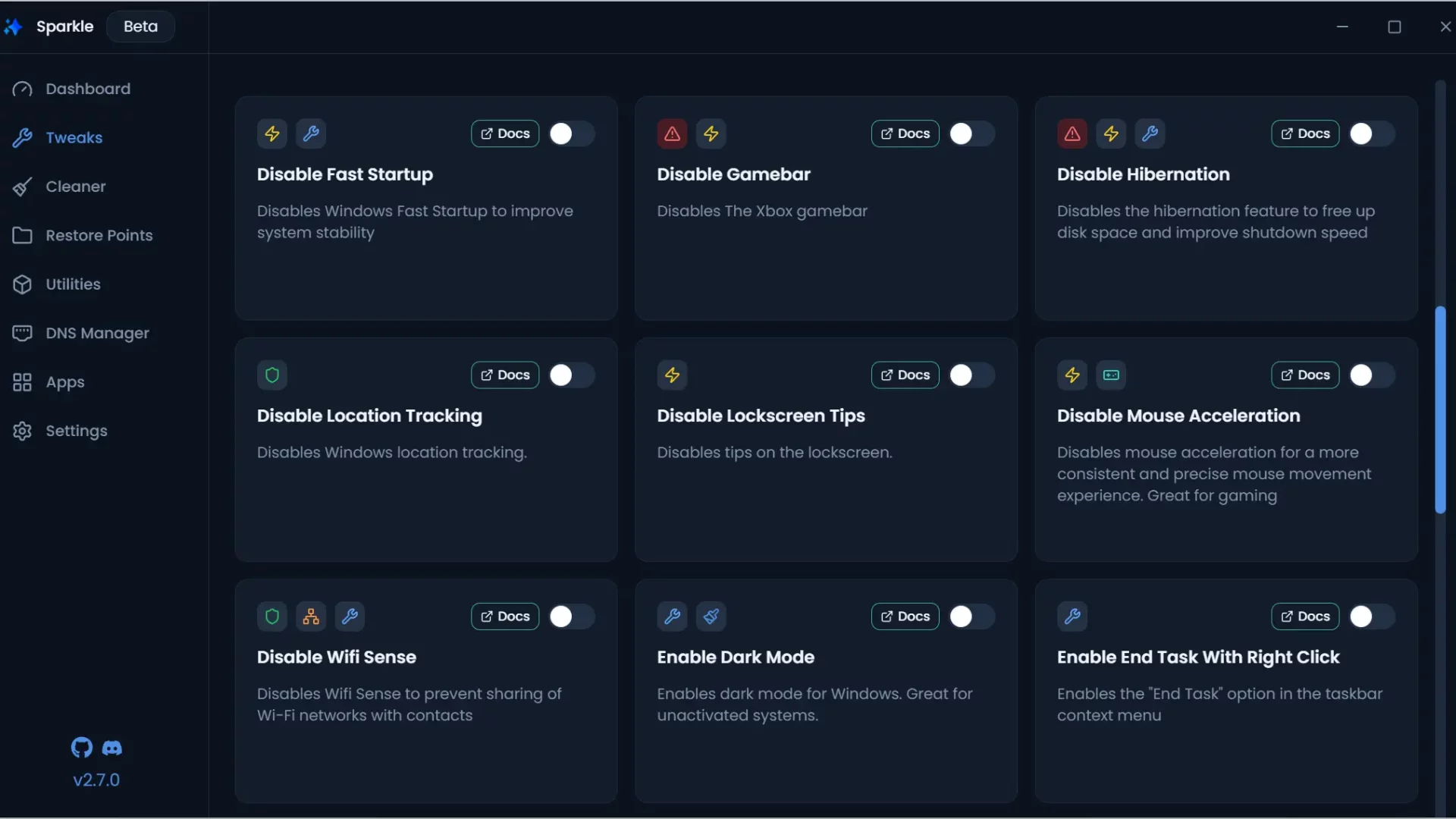
The Tweaks menu is where Sparkle shines. Options are neatly categorized—General, Appearance, Performance, Privacy, Gaming, Network, and GPU—so you can quickly find what you need.
Examples of available tweaks include:
- Debloat Windows: Remove unnecessary apps and features
- Ultimate Performance Power Plan: Unlock maximum system performance
- Align Taskbar Left: Restore the classic taskbar alignment
- Disable Background MS Store Apps: Save resources by stopping background apps
- Disable Copilot: Turn off Microsoft Copilot if installed
- Disable Fast Startup: Fix boot-related bugs by disabling fast startup
- Gaming Tweaks: Enable Game Mode, HAGS, adjust HPET, and more
- Network Optimizations: Reduce latency, boost speed
- GPU Tweaks: Improve stability and fine-tune graphics
Every change is reversible, so you can experiment without fear of breaking your system.
Cleaner: Free Up Disk Space
The Cleaner menu helps you reclaim valuable storage space by removing junk files, such as:
- Temporary files
- Prefetch data
- Windows Update cache
- Thumbnail cache
- Recycle Bin contents
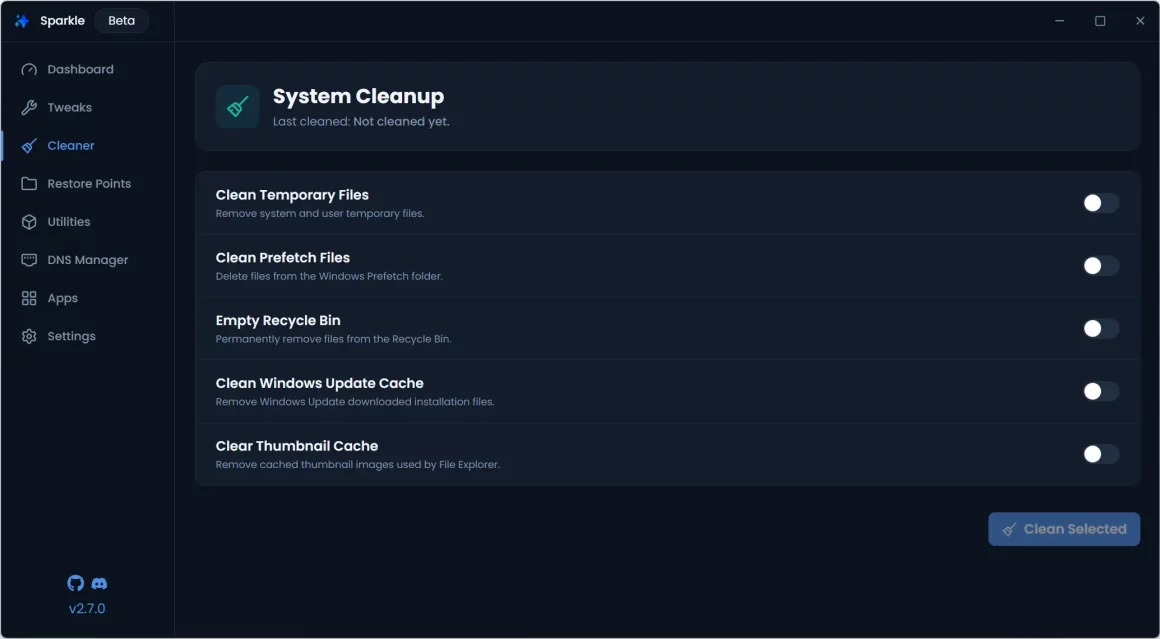
Just select what you want to clean and hit Clean Selected.
Restore Points: A Safety Net for Tweakers
For anyone who likes experimenting with system tweaks, restore points are a must. Sparkle lets you:
- Create new restore points on demand
- View existing restore points
- Roll back your system to a previous state
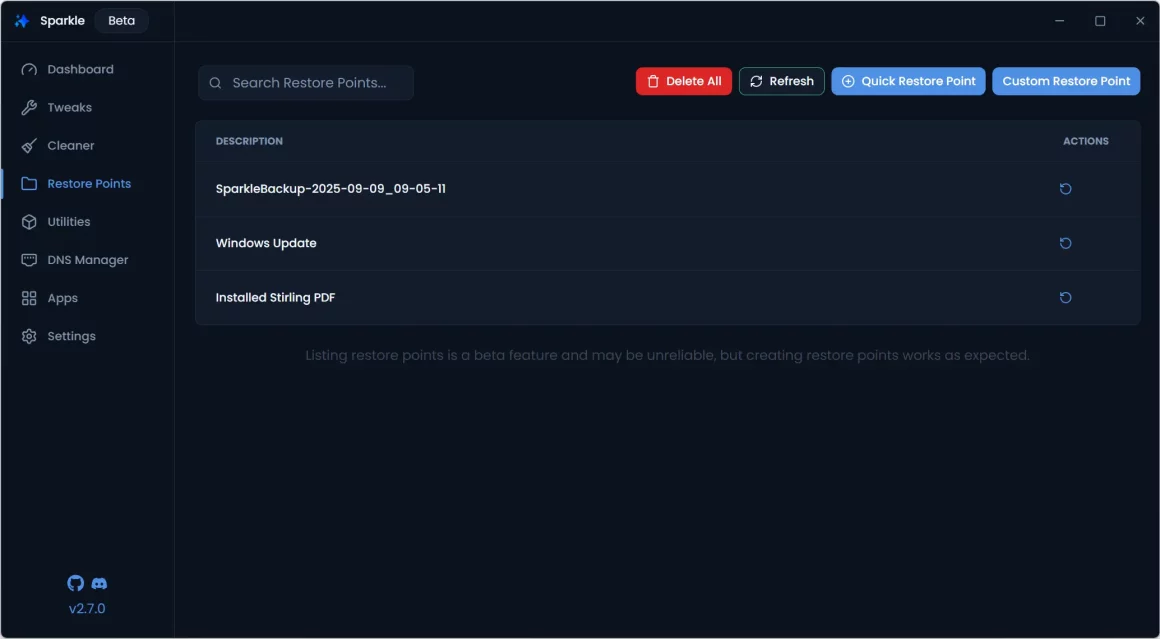
This ensures you can undo unwanted changes at any time.
Utilities: Essential Tools in One Place
Sparkle’s Utilities menu puts many hidden Windows tools within easy reach, such as:
- System File Checker, DISM, Check Disk – for repairing system files
- Disk Cleanup, Flush DNS, Reset IP Stack, Reset Winsock – for fixing storage or network issues
- Shortcuts to Registry Editor, Device Manager, Task Manager, System Properties, and more
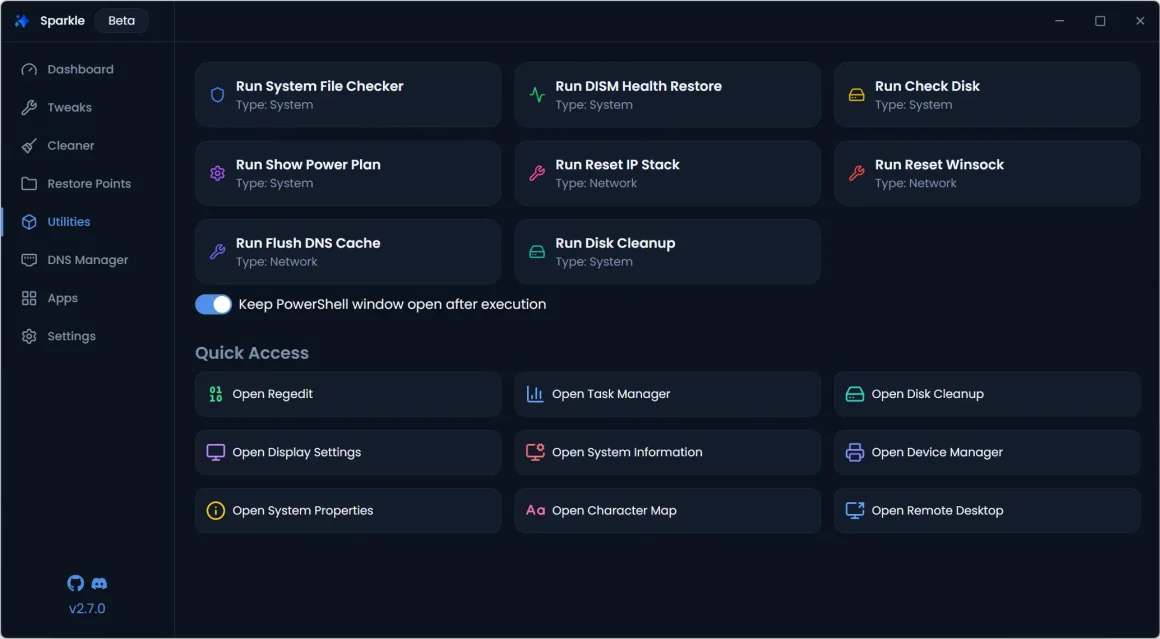
No more hunting through menus—everything is one click away.
DNS Manager: Change DNS in Seconds
Changing DNS servers manually can be tedious. Sparkle simplifies the process by letting you apply popular DNS services with a single click:
- Cloudflare (1.1.1.1)
- Google (8.8.8.8)
- Quad9 (9.9.9.9)
- AdGuard DNS (94.140.14.14)
- Default DNS reset option
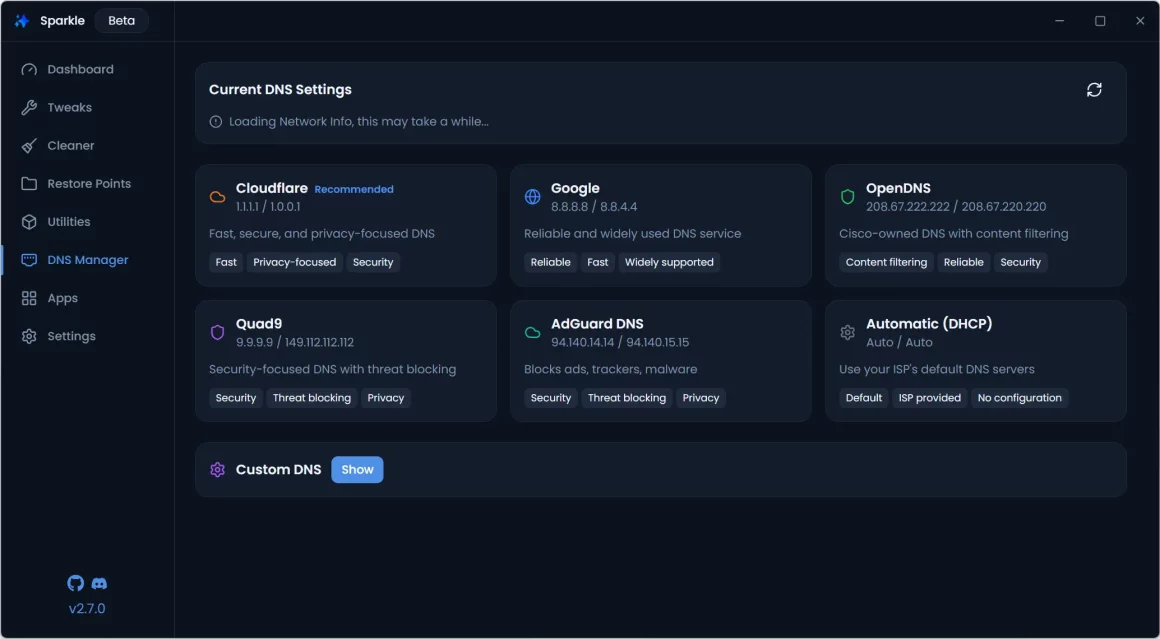
You can also enter custom DNS addresses if you prefer.
Apps: Install or Uninstall with Ease
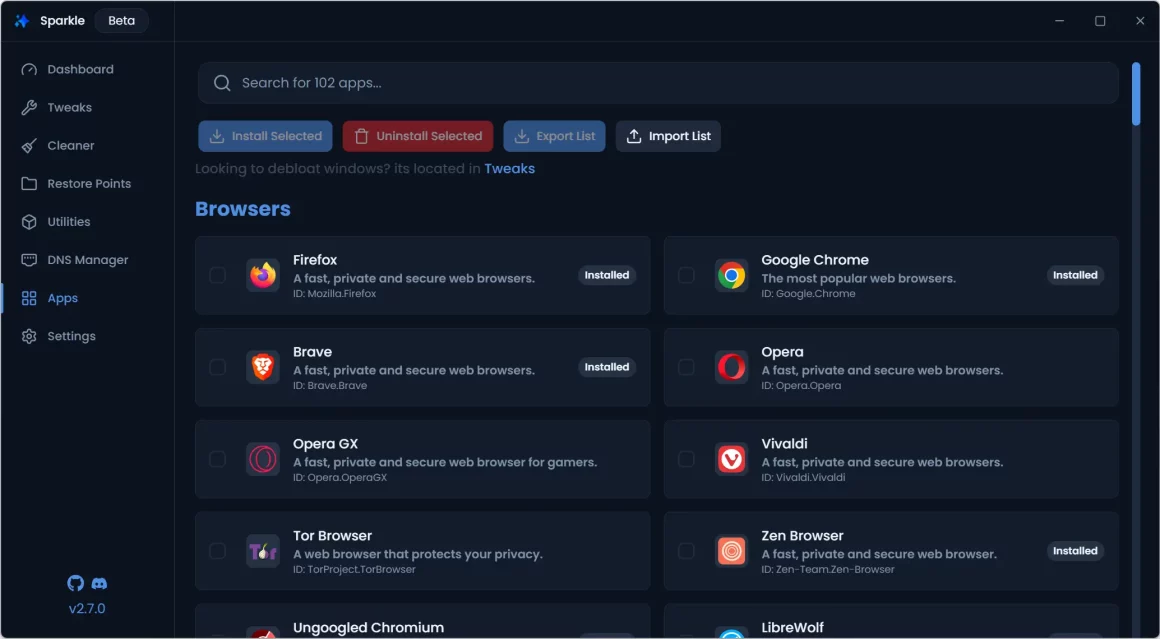
With Sparkle’s Apps menu, you can install multiple applications in bulk using Winget, Windows’ built-in package manager.
- Apps are sorted into categories: Browsers, Communications, Multimedia, Games, Productivity, Development, VPN, and more.
- You can save and export app lists to speed up future installations.
- Uninstalling preinstalled apps is also just a click away.
Settings: Customize Sparkle
The Settings menu lets you adjust Sparkle to your liking. You can:
- Switch between 6 different themes
- Enable automatic update checks
- Adjust small interface and behavior preferences
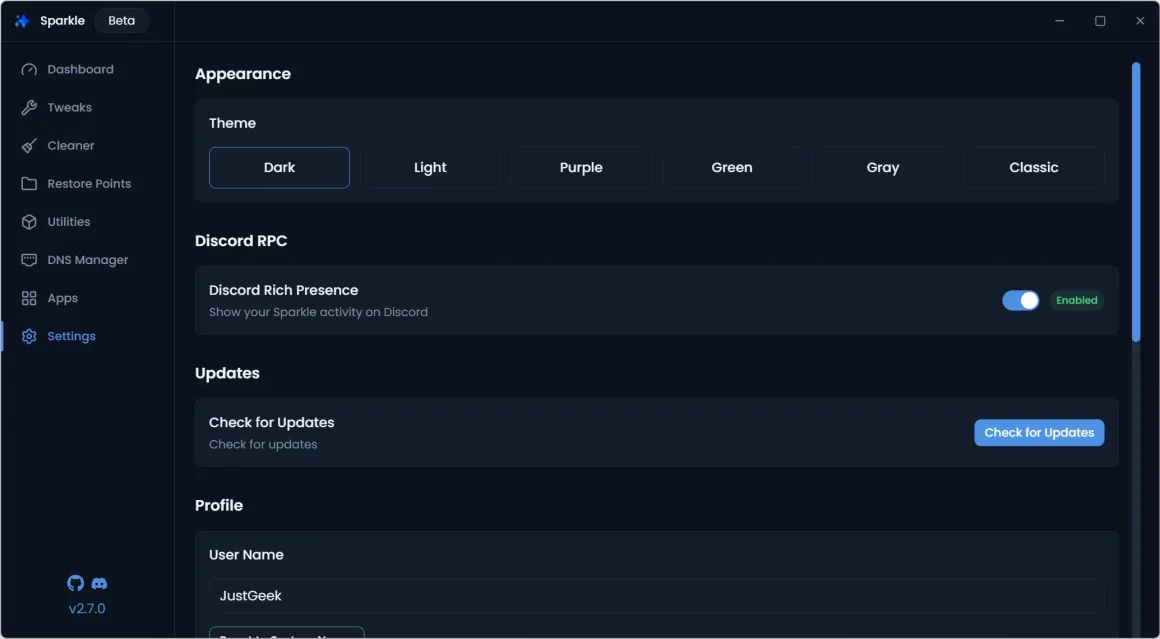
Nothing advanced, but enough to personalize your experience.
Where to Download Sparkle
You can download Sparkle directly from the official site:
Options available:
- Installer version (standard installation)
- Portable version (run directly from a USB stick)
For PowerShell fans, you can also install it via command line:
irm https://getsparkle.net/get | iex
The project is fully open source, with the code available on GitHub:
👉 https://github.com/parcoil/sparkle
⚠️ Note: Sparkle is still in beta, so minor bugs may appear. Always create a restore point before applying major changes.
Final Verdict
Even though Sparkle is still in beta, it’s already a powerful all-in-one toolkit for Windows users. Instead of juggling multiple apps, Sparkle lets you clean your system, tweak performance, uninstall bloatware, install your favorite apps, and even change DNS settings—all from a single interface.
If you like keeping Windows clean, fast, and efficient, Sparkle is absolutely worth trying. Whether you’re a casual user or a power user, it deserves a spot on your USB troubleshooting toolkit.
And if you'd like to go a step further in supporting us, you can treat us to a virtual coffee ☕️. Thank you for your support ❤️!

We do not support or promote any form of piracy, copyright infringement, or illegal use of software, video content, or digital resources.
Any mention of third-party sites, tools, or platforms is purely for informational purposes. It is the responsibility of each reader to comply with the laws in their country, as well as the terms of use of the services mentioned.
We strongly encourage the use of legal, open-source, or official solutions in a responsible manner.
Comments